How to obtain S3 keys for standalone S3 object storage through My DataLake Services
This guide explains how to generate and manage S3 access and secret keys for the standalone S3 object storage service through My DataLake Services. The service is separate from Islet/OpenStack and provides a shared DEDL storage pool in which users can create and manage private S3 buckets. It exposes an S3-compatible API, so you can access it with the same S3 tools and clients commonly used with OpenStack Object Storage, although the two storage services remain separate.
S3-compatible object storage is accessed over HTTPS through an S3 API. Authentication requires an access key and a secret key. This article shows how to obtain, refresh, and delete these credentials in My DataLake Services.
What we are going to cover
Prerequisites
No. 1 Account
You must create a profile in My DataLake Services: How to create a profile on My DataLake Services.
No. 2 Administrative privileges within a project
You must be an administrator of a project in My DataLake Services or receive administrative privileges from the project owner.
To learn how to create a project, see How to create a project on My DataLake Services.
Alternatively, you can join an existing project and ask its administrator to grant you administrative privileges.
Available S3 keys in My DataLake Services
My DataLake Services can provide credentials for more than one S3-compatible service. eodata is used to access Earth observation datasets, while s3-object-storage provides standalone S3 object storage for user-created private buckets. The standalone S3 service is independent of Islet/OpenStack and uses a shared DEDL storage pool.
You can use either service separately or both at the same time. This article covers only s3-object-storage.
Type |
Description |
Security |
|---|---|---|
EODATA |
Earth Observation satellite data collections. First downloaded, then processed. |
Public datasets, shared access. |
OpenStack Object Storage |
Object storage provided as part of an Islet/OpenStack environment. |
Access and sharing follow the rules of the relevant OpenStack project. |
Standalone S3 object storage |
Private S3 buckets created in a shared DEDL storage pool that is separate from Islet/OpenStack. |
Credentials are assigned per user, and access is controlled through the generated S3 key pair. |
Get access and quota for standalone S3 object storage
If this is your first time requesting access and quota roles for standalone S3 object storage, the page initially looks similar to the following:
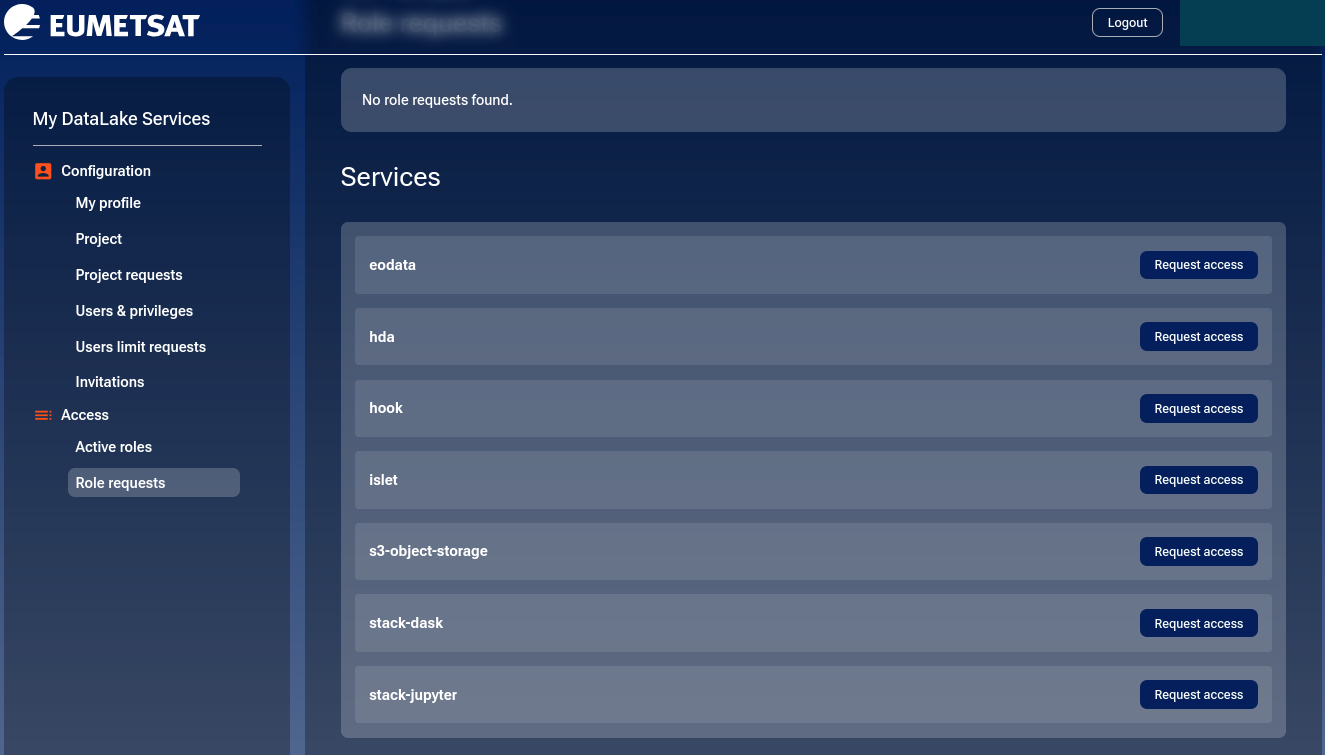
Each available site has its own role for standalone S3 object storage, as shown in the red rectangle. In this example, use s3-object-storage-central and click Request access in the relevant row.
Access roles
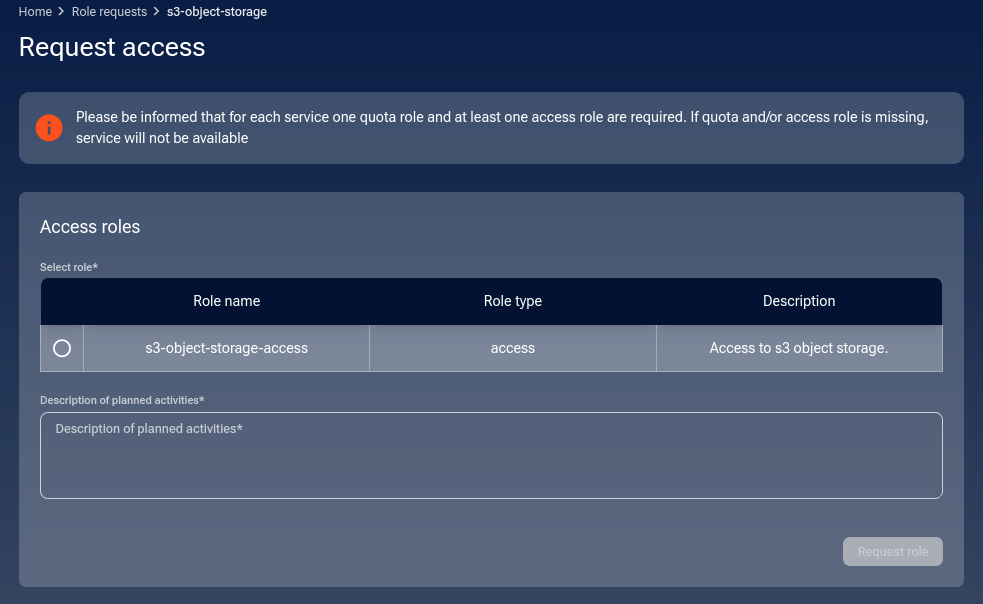
For s3-object-storage, there is only one access role:
- s3-object-storage-access
Access to standalone S3 object storage.
Although only one access role is available, you must still select it by clicking the circle under Select role.
Enter a justification in the mandatory Description of planned activities field.
Quota roles
Then select among three quota roles – low, medium and high:
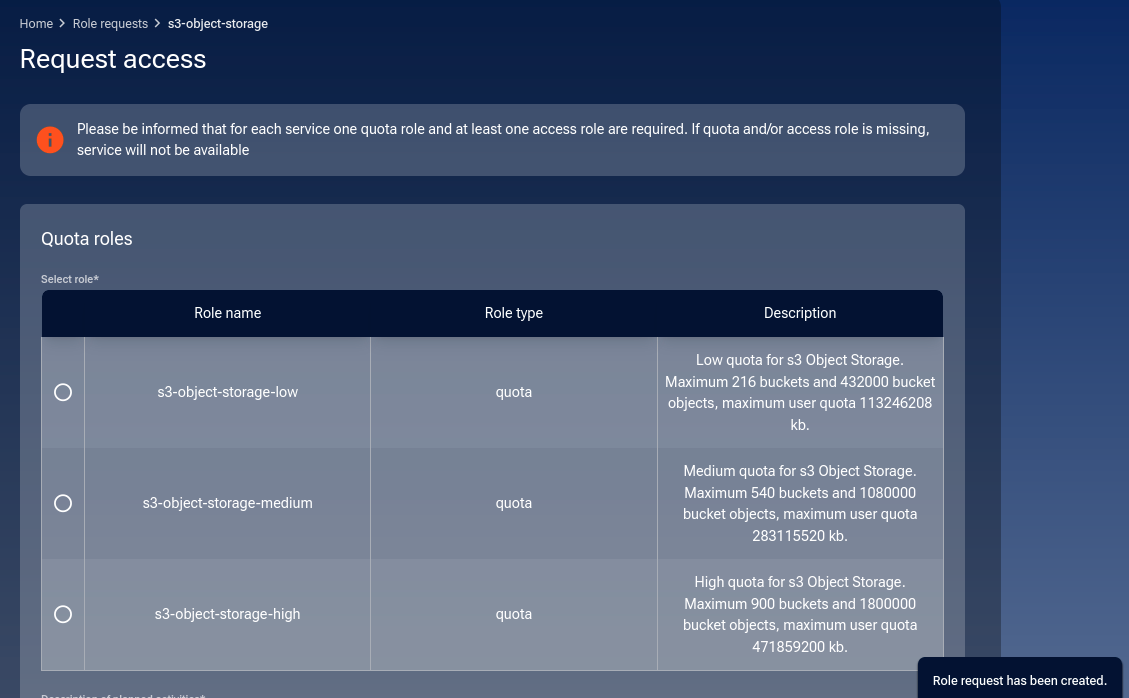
- s3-object-storage-low
Low quota for standalone S3 object storage. Maximum 216 buckets and 432,000 bucket objects, maximum user quota 115.96 GB.
- s3-object-storage-medium
Medium quota for standalone S3 object storage. Maximum 540 buckets and 1,080,000 bucket objects, maximum user quota 289.91 GB.
- s3-object-storage-high
High quota for standalone S3 object storage. Maximum 900 buckets and 1,800,000 bucket objects, maximum user quota 483.18 GB.
Select the required quota and explain the planned use of the storage in the mandatory Description of planned activities field. Click Request role to submit the request and display it under Role requests.
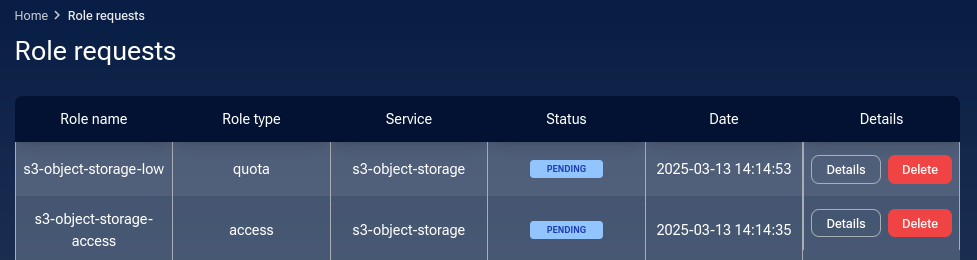
You can initiate role requests for other services, such as hda and hook. Once submitted, each request appears under Role requests with the status PENDING until the operator reviews it.
The operator’s decision, explanation, and the resulting email notification are described in the following section.
Operator review and decision
Your request remains PENDING until it is reviewed by the operator. The operator can make one of the following decisions:
- Approved
The requested role is granted and becomes available under Active roles. The operator’s comment explains the approval or provides any additional information relevant to the granted access.
- Rejected
The requested role is not granted. The operator’s comment explains why the request was rejected, for example because the selected role is not suitable, the justification is insufficient, or the requested quota cannot be granted.
- Returned for improvement
The role is not granted immediately. The operator returns the request so that you can correct, clarify, or restructure it. The operator’s comment explains what must be changed before the request can be submitted again.
The operator must provide a comment for every decision. After the request is approved, rejected, or returned for improvement, My DataLake Services sends an email notification to the user. The email contains the request details, its resulting status, and the operator’s comment.
The following example shows an email sent after a role request was approved. The message contains the request details and the comment entered by the operator:
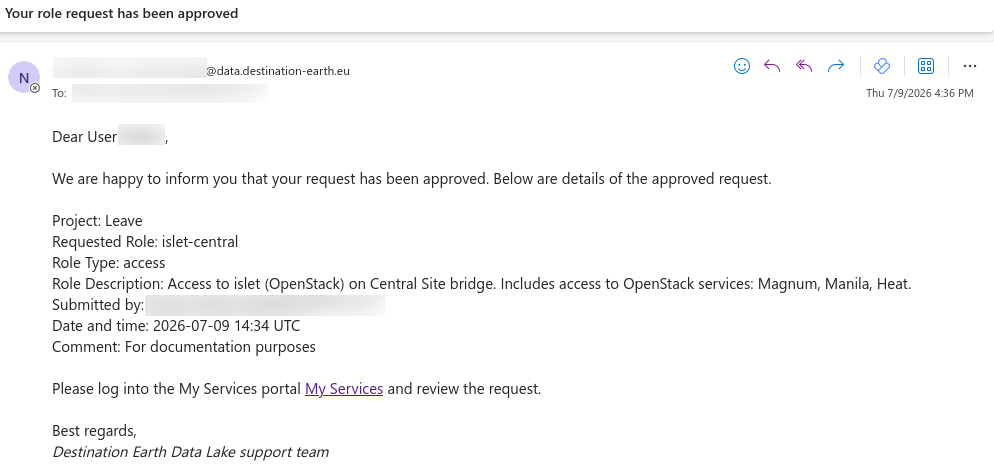
Email notification containing the operator’s decision and comment.
You can also open Role requests and click Details to review the decision and the operator’s comment in the portal.
Once approved, the role appears under Active roles.

You now have an active role for standalone S3 object storage:

List active roles
With option Access -> Active roles from the left side menu, you can see the existing active roles. The following example shows active roles for eodata, hda, and s3-object-storage:
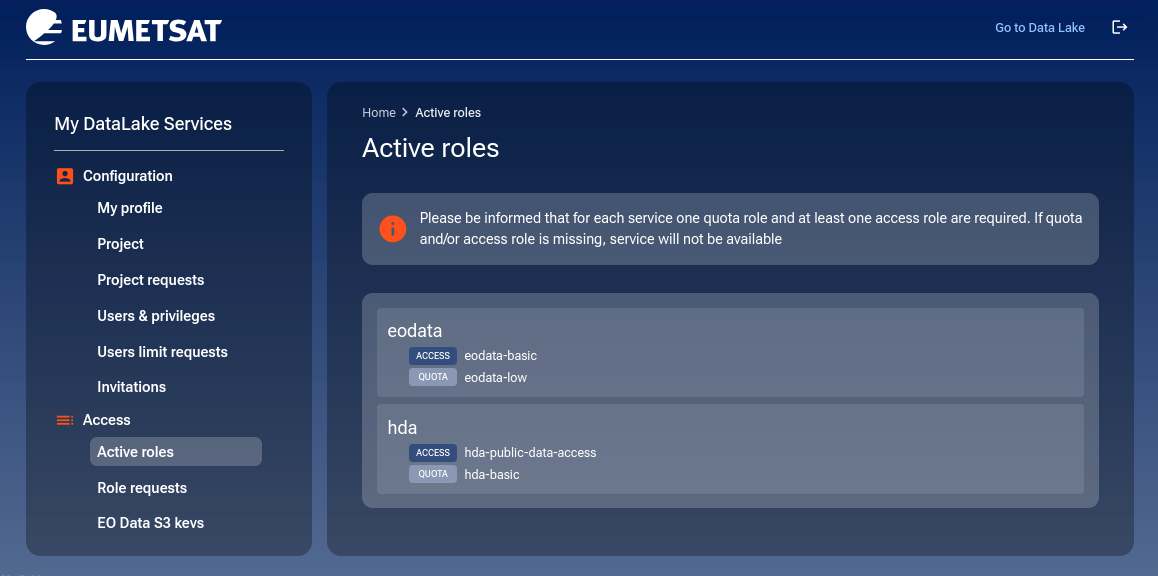
List role requests
The Role requests option shows both pending requests and the history of requests already processed by the operator. For every processed request, click Details to review its status and the operator’s comment. The same decision and comment are also sent to you by email.
The following example shows access and quota roles approved by the operator for eodata and s3-object-storage:
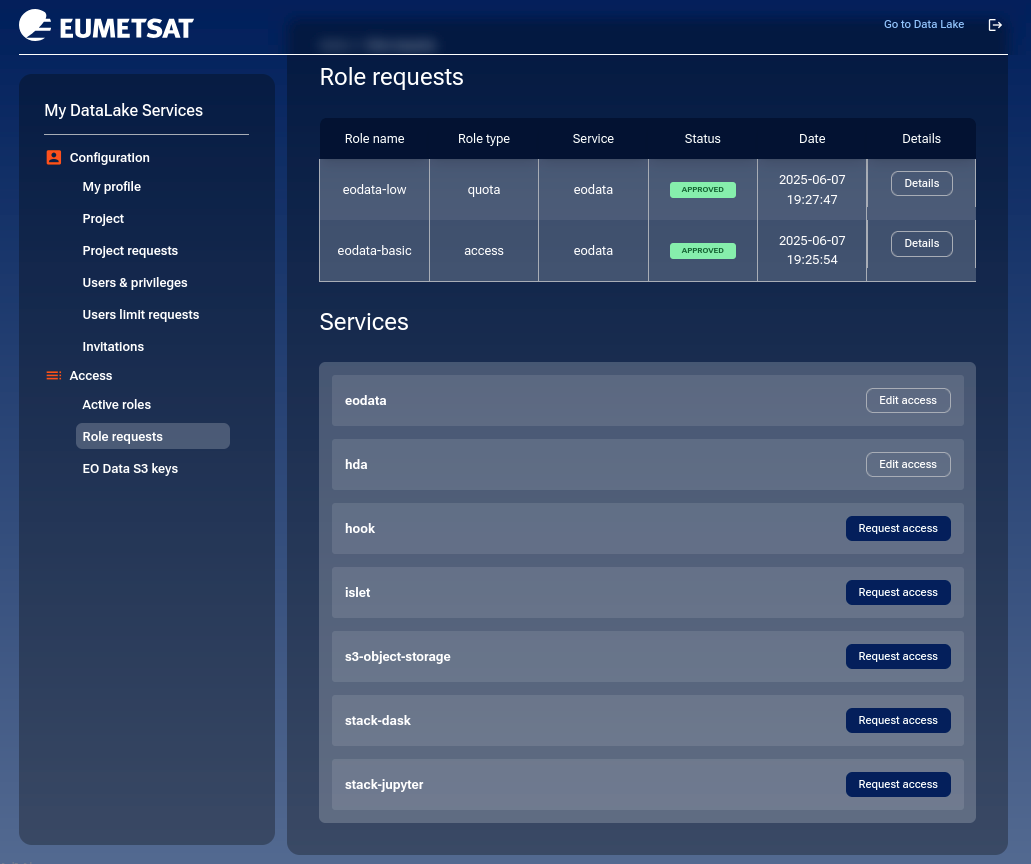
Click Details to review the complete request, its resulting status, and the comment provided by the operator. The following example shows the details of the s3-object-storage-central-low role:
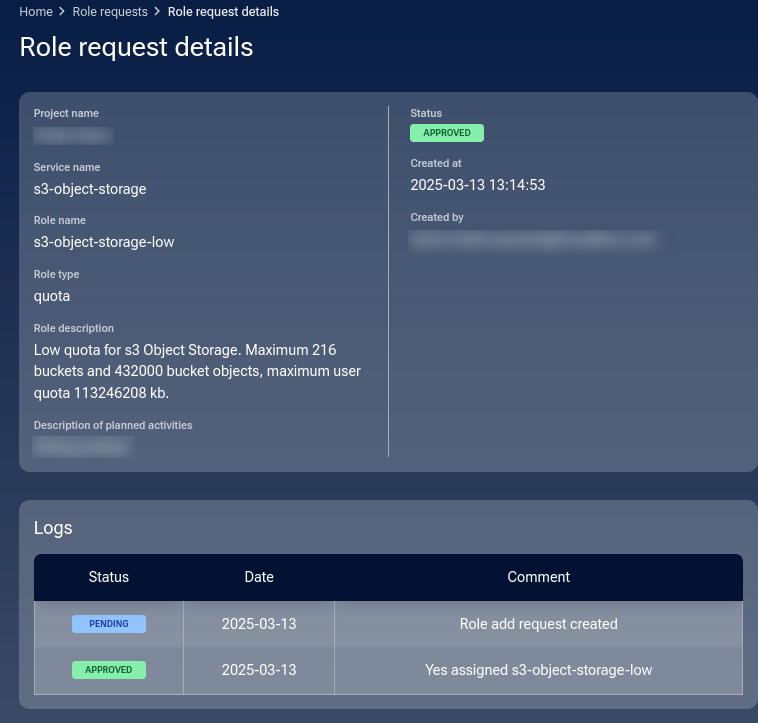
Get S3 keys for standalone S3 object storage
Obtaining credentials consists of two stages. First, create the standalone S3 object storage account. Then generate a separate S3 key pair for each site, brand, or bridge that you want to access.
Create the standalone S3 account
Open Object storage -> Account & keys from the menu on the left.
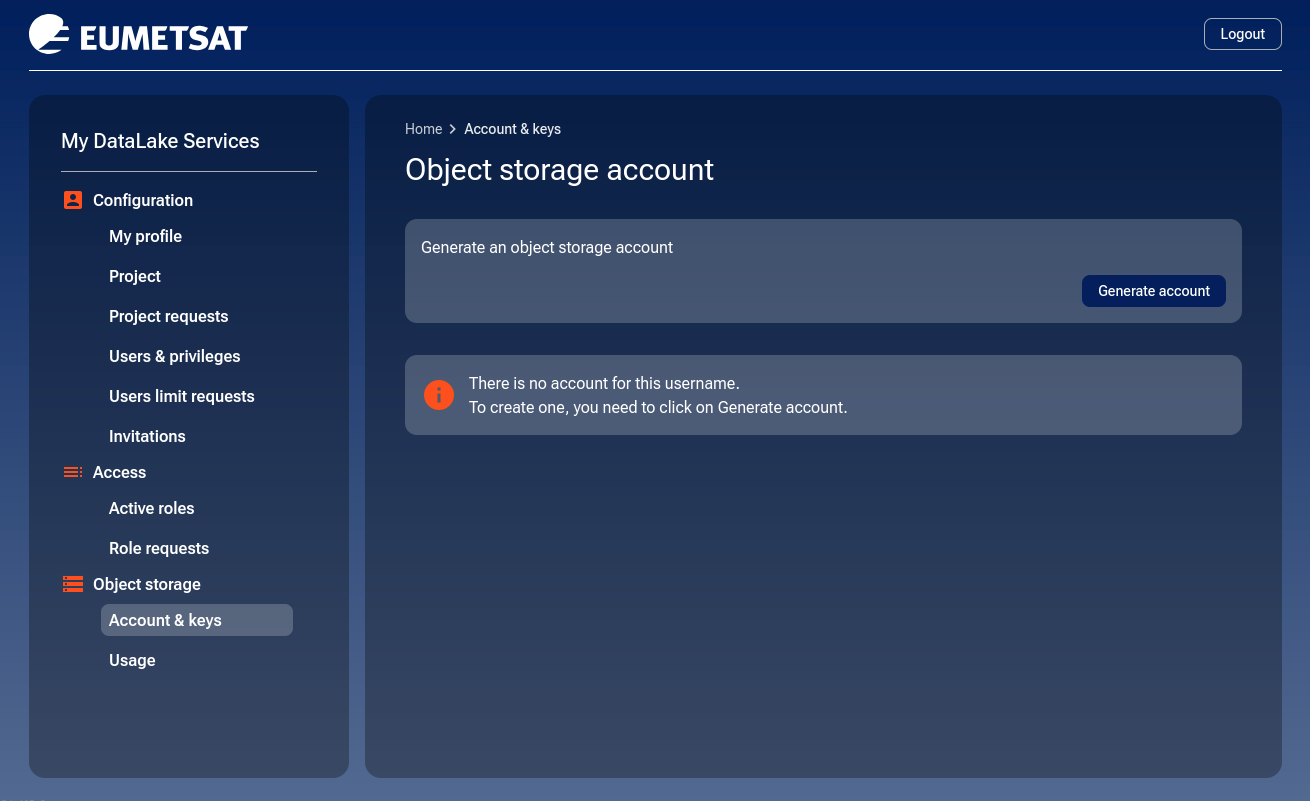
Click Generate account to create your standalone S3 object storage account.
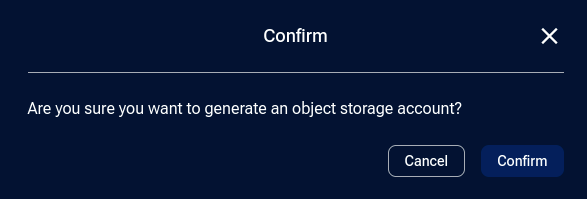
Confirm the operation and wait until the account has the status ACTIVE. Account creation is performed only once and does not yet generate any S3 credentials.
Generate S3 keys for a site
After the account becomes active, click Generate key.
In the dialog window, select the site, brand, or bridge for which you want to generate the credentials:
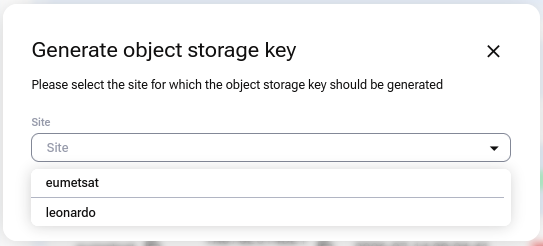
Selecting the site for which the S3 key pair will be generated.
Confirm the selection. My DataLake Services generates an access key and secret key pair dedicated to the selected site.
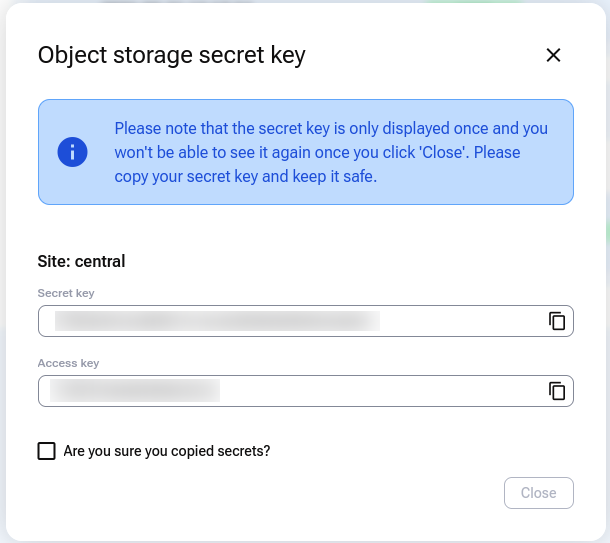
The access key remains visible in the portal, but the secret key is displayed only once. Copy the secret key immediately and store it securely.
Repeat the process for every additional site that you want to use. You can keep several active key pairs under the same account, but each pair is tied to the site selected when it was generated. For example, credentials generated for eumetsat must be used with the EUMETSAT standalone S3 endpoint and cannot be used with the central or leonardo endpoint.
The Keys table lists all generated key pairs together with their associated sites:
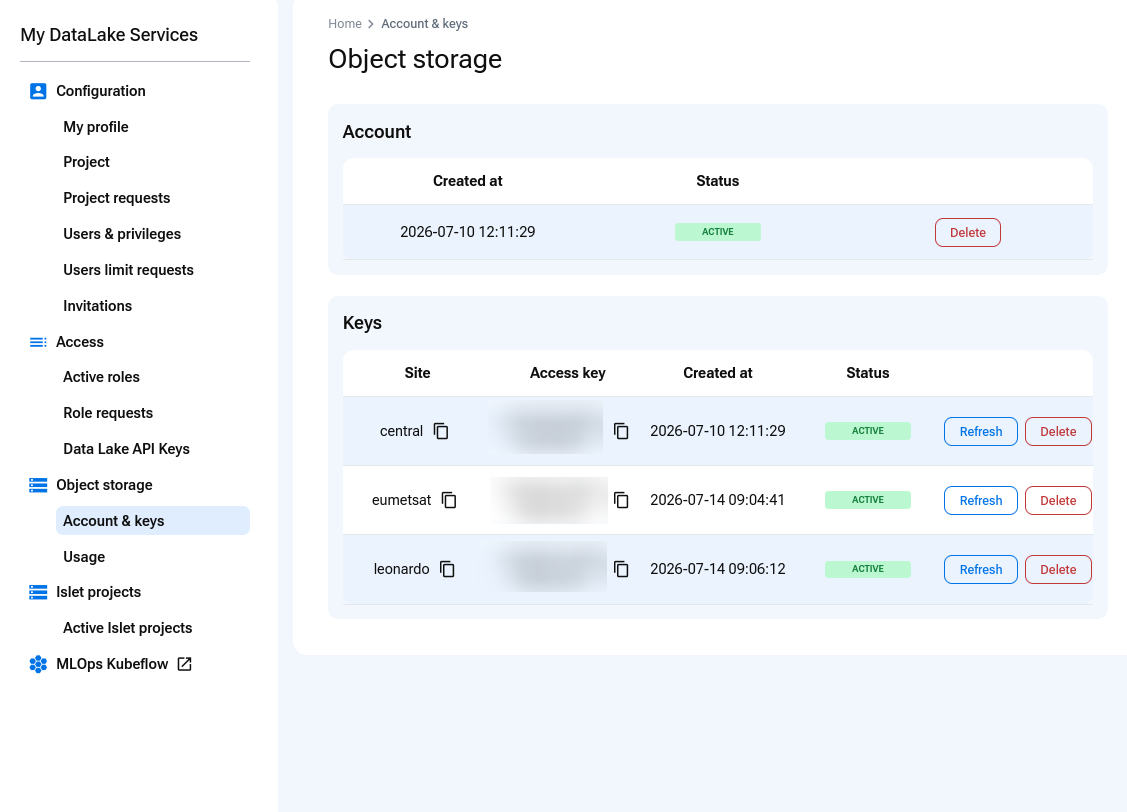
Separate active S3 key pairs for the central, eumetsat, and leonardo sites.
Manage the standalone S3 account and keys
Delete account
Click on Delete account in the Account & keys menu. There are two cases to consider:
- One or more buckets still exist in standalone S3 object storage
The account cannot be deleted while it still contains buckets:
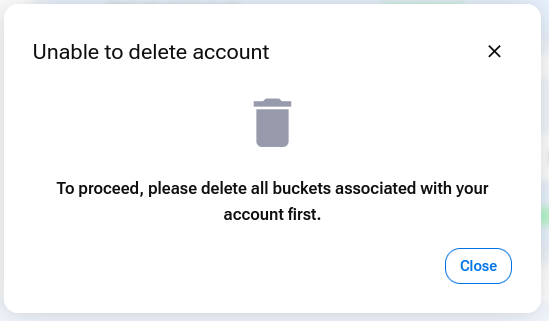
To delete the account, open Object storage -> Usage and delete all existing buckets one by one. For each bucket, open the three-dot menu and select Delete bucket.
- There are no buckets in standalone S3 object storage
You will be asked to confirm the deletion:
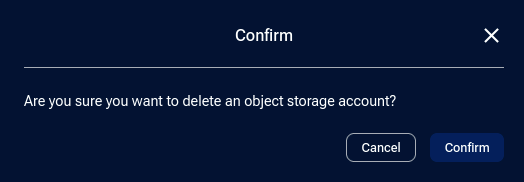
Once confirmed, the account will be deleted and you will be given the option to create a new one:
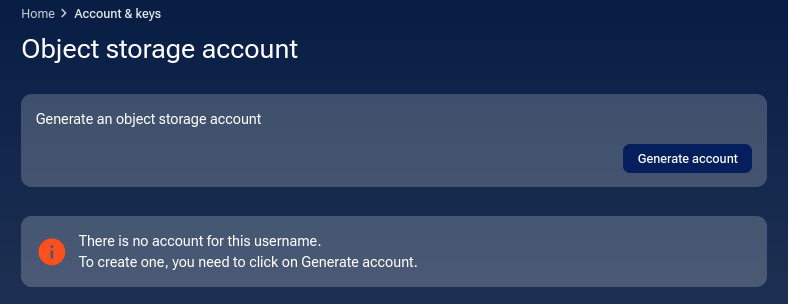
Deleting the account also removes every S3 key pair generated under it, regardless of the site with which each pair is associated. If you later create a new account, you must generate new credentials separately for every site that you want to access.
Refresh secret key
Each row in the Keys table represents the key pair for one site. To replace a secret key, find the relevant site and click Refresh in its row. You may want to refresh a secret key if you suspect that it has been exposed or compromised.
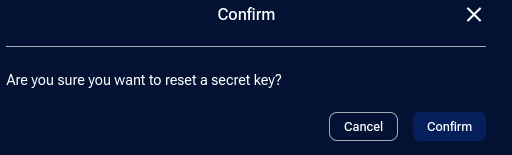
My DataLake Services generates a new secret key while keeping the existing access key and its associated site unchanged.
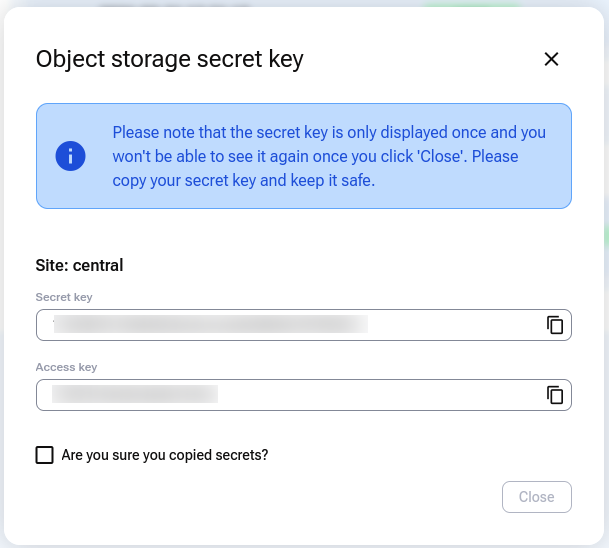
The previous secret key for that site stops working, while key pairs generated for other sites remain unaffected. Update every S3 client, configuration file, script, or application that uses the previous secret key.
Delete an S3 key pair
You can delete the key pair for an individual site without deleting the standalone S3 account or key pairs generated for other sites.
In Object storage -> Account & keys, find the row for the relevant site and click Delete:
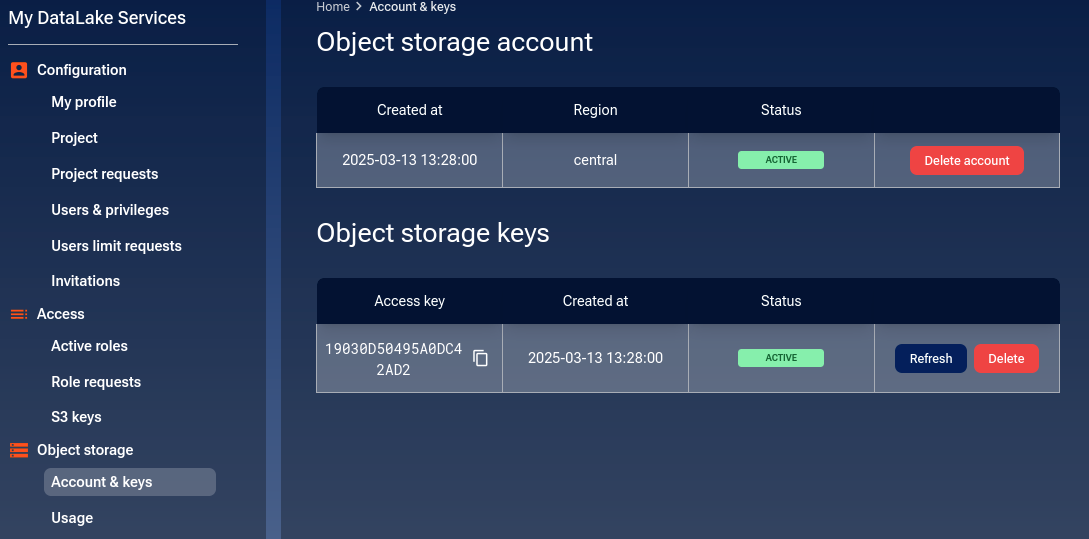
Confirm the operation:

After deletion, you can no longer authenticate to the standalone S3 service at that site until you generate another key pair for it. The account and credentials associated with all other sites remain active.
Review standalone S3 storage usage
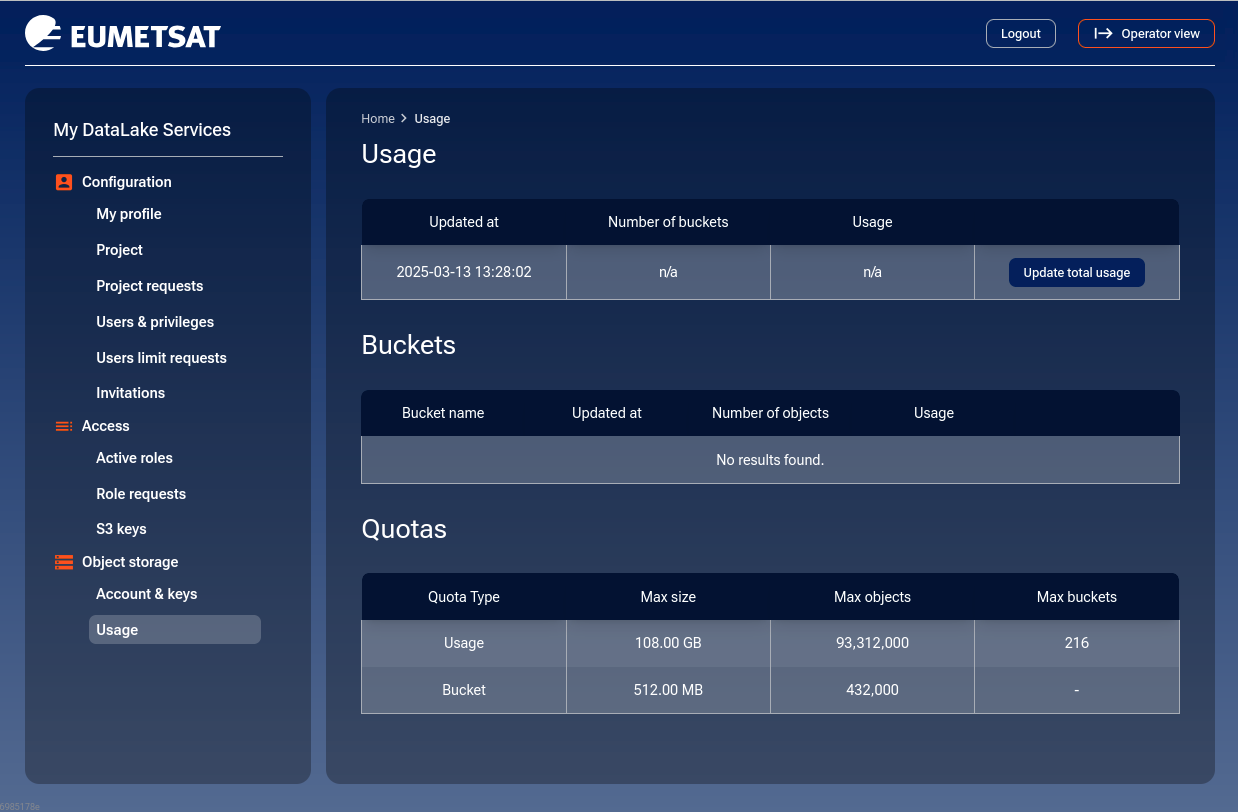
Open Object storage -> Usage to review the resources consumed in standalone S3 object storage. When no buckets have been created yet, the page may look as follows:
Important
My DataLake Services does not provide an interface for creating buckets, uploading or downloading files, browsing objects, or performing other operations directly on the S3 storage.
To work with the storage, use the credentials generated in this article with an external S3-compatible client or library, such as Cyberduck, s3cmd, boto3, the AWS CLI, or another application that supports the S3 API. My DataLake Services is used to manage access, quotas, accounts, keys, and usage information.
The following screenshots from a graphical S3 client illustrate how buckets and their contents may appear after they have been created with an external S3-compatible tool.
Assume that you have created two buckets named bucket and replace-with-a-unique-test-bucket-name. They appear in the graphical S3 client as follows:

Two buckets displayed in a graphical S3 client.
The bucket named bucket contains a folder-like entry named incoming, under which seven images have been uploaded:

Seven images displayed under the incoming folder-like entry.
You can review the same resources under Object storage -> Usage:
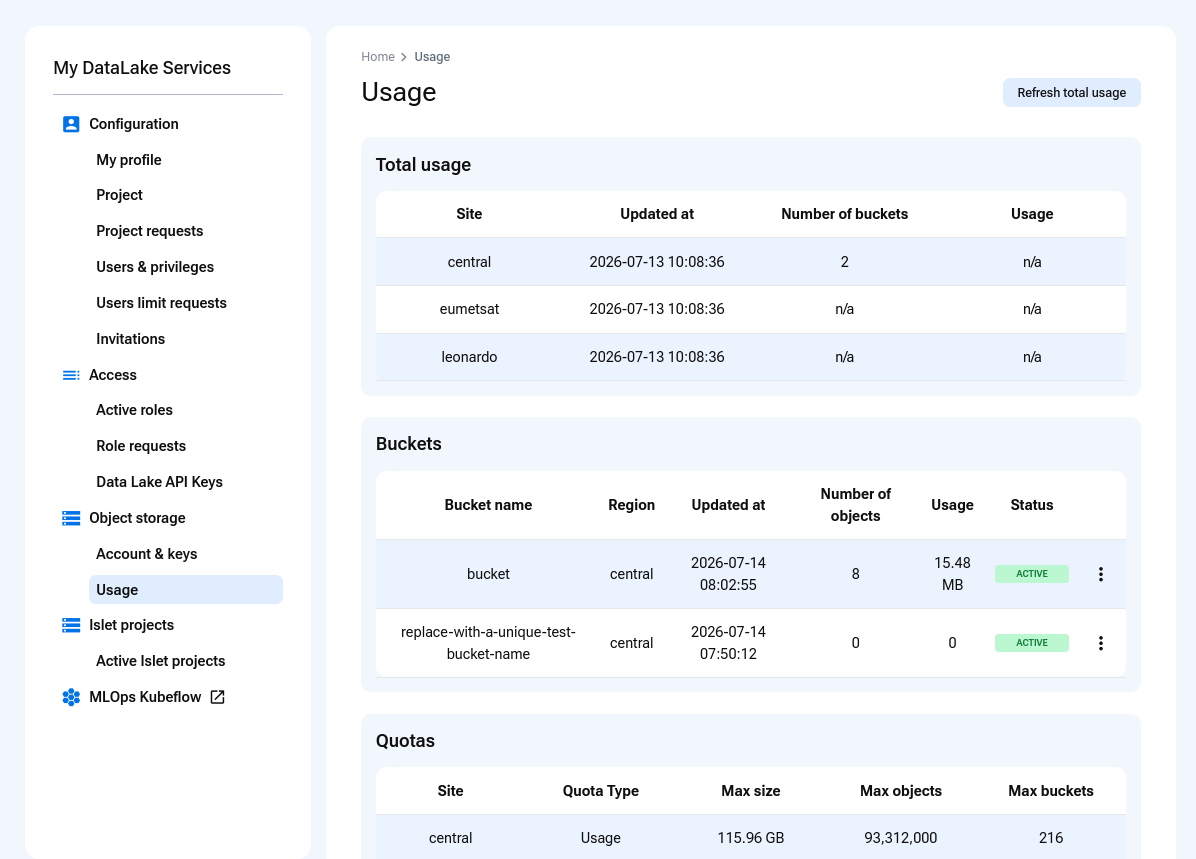
Buckets listed in the standalone S3 object storage usage view.
The total number of buckets is displayed under Total usage -> Number of buckets. In this example, the value is 2, and the Buckets section lists bucket and replace-with-a-unique-test-bucket-name.
To manage an individual bucket, open the three-dot menu at the right side of its row:
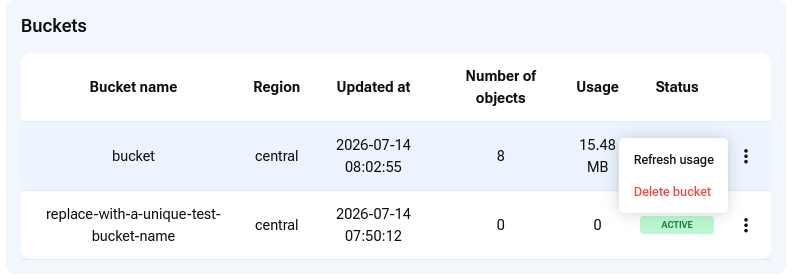
Three-dot menu for an individual bucket.
- Refresh usage
Retrieves the latest usage information for the bucket, including the number of objects and the amount of storage consumed.
S3 object storage does not contain directories in the same sense as a desktop file system. Graphical S3 clients commonly display object-name prefixes as folders. In this example, the portal reports eight objects: the seven images and the object representing the incoming folder-like entry.
- Delete bucket
Deletes the selected bucket and its contents. In this example, the first bucket contains eight objects consuming 15.48 MB.
Select Delete bucket, then confirm the operation:
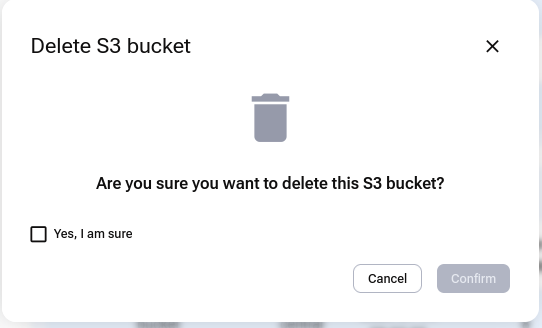
Confirmation before deleting the bucket.
While the operation is in progress, the bucket has the status DELETING:
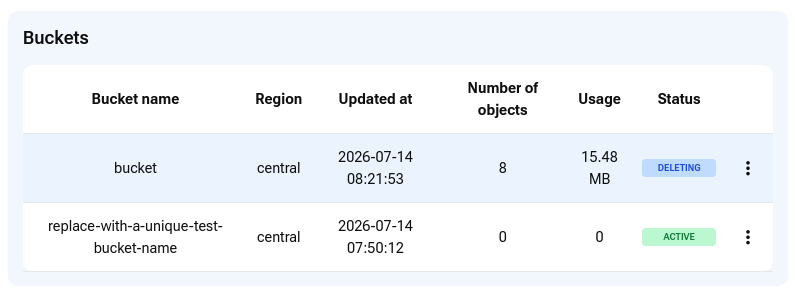
Bucket deletion in progress.
After deletion finishes, the bucket row disappears and the values under Total usage are updated:
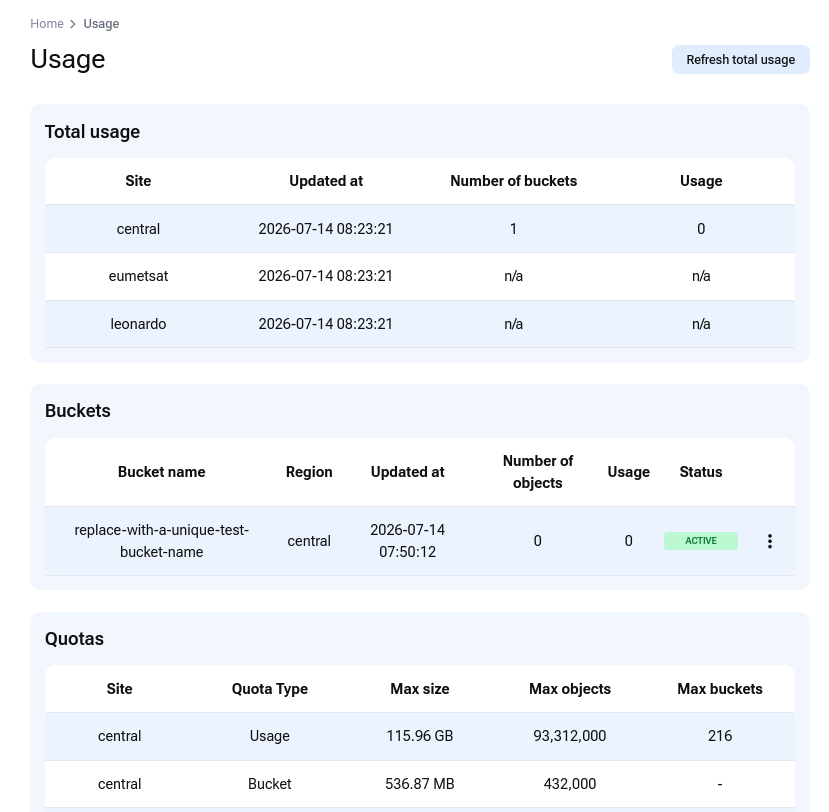
Updated usage information after bucket deletion.
How to change roles
The standalone s3-object-storage service has only one access role, so that role cannot be changed. However, you can request a change from your current quota role to either of the other available quota roles.
For example, assume that you initially selected s3-object-storage-low and now see the following entry under Active roles:

To request s3-object-storage-medium or s3-object-storage-high, open Role requests and click Edit access in the s3-object-storage row:

The remaining quota roles are displayed:
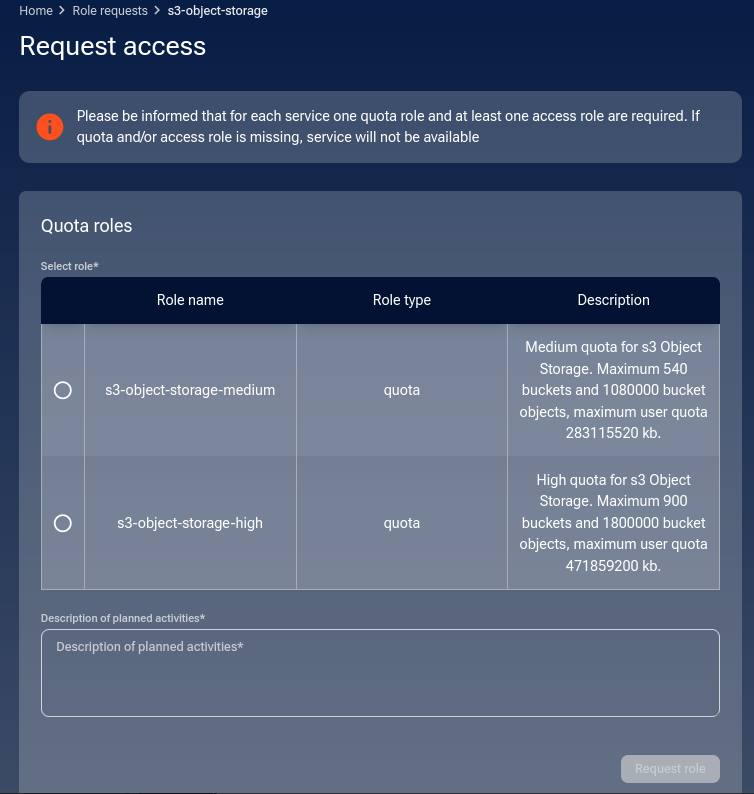
Because you already have the low quota, you can request either the medium or high quota.
Select the required quota and explain why you need the change in Description of planned activities. After completing the mandatory field, click Request role.
A confirmation message appears in the lower-right corner of the browser window:

The new quota-change request appears under Role requests with the status PENDING. It remains in this state until the operator approves it, rejects it, or returns it for improvement:
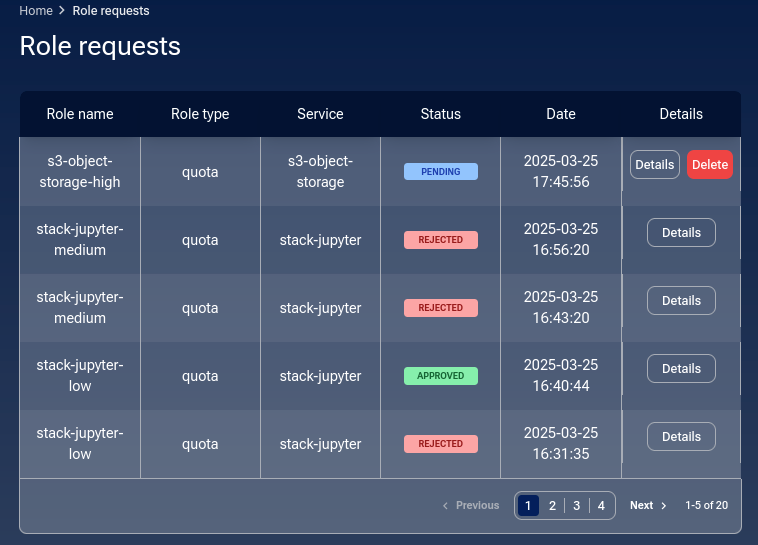
Two options are available for the pending request:
- Details
Opens the request and displays its current status and submitted information.
- Delete
Withdraws the request before the operator reviews it.
You can cancel the operation or confirm that the request should be deleted:
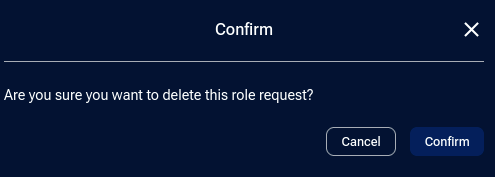
After confirmation, a message appears in the lower-right corner of the browser window:

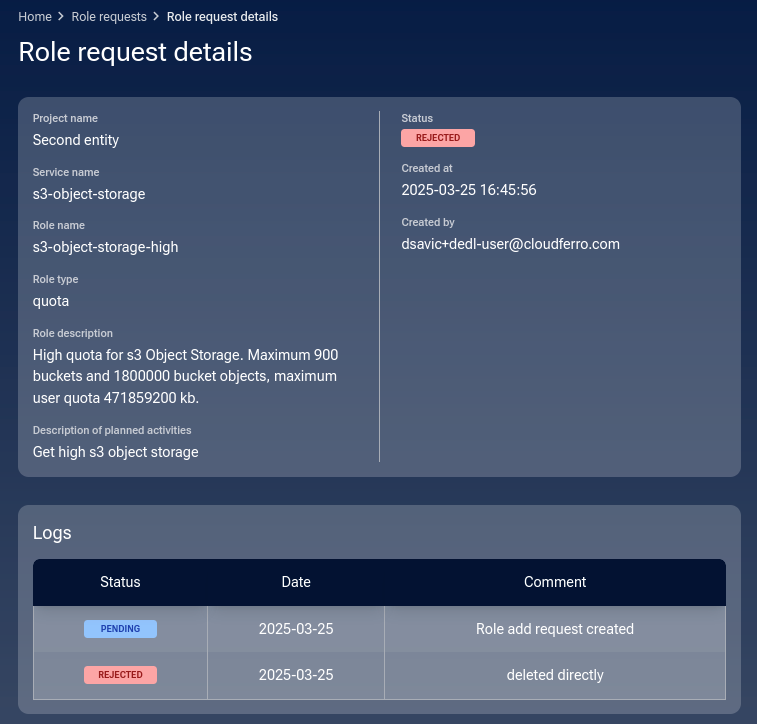
The request will be displayed with the status REJECTED. However, this does not mean that the operator rejected it. When you click Details, the reason is shown as deleted directly, indicating that the request was withdrawn by the user before operator review.
If you do not delete the request, it remains PENDING until the operator reviews it. The operator can approve the quota change, reject it, or return the request so that you can improve or restructure the justification.
For every outcome, the operator provides a comment explaining the decision. The comment is shown under Details, and My DataLake Services also sends you an email containing the request details, its resulting status, and the operator’s comment.
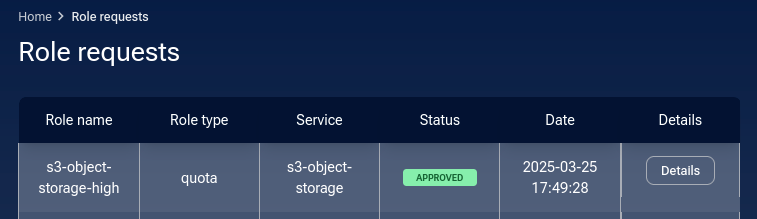
If the request is approved, its status changes to APPROVED:
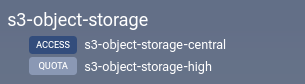
Click Active roles to verify that the quota has changed to medium:
If the request is rejected, open Details to read why the operator did not approve it. The same explanation is included in the email notification.
If the request is returned for improvement, open Details and read the operator’s instructions. Correct or expand the request as indicated, then submit it again for review. The email notification also contains the operator’s explanation of what should be changed.
What to do next
If you want to stop being an owner of a My DataLake Services account, see How to delete account on My DataLake Services.
See status page for Destination Earth Data Lake object storage S3 keys.
To work with standalone S3 object storage through a graphical interface on Windows or macOS, see Using Cyberduck with S3-compatible object storage on Destination Earth.
To access the service from Linux or through scripts and command-line workflows, install and configure s3cmd as described in How to install s3cmd on Linux.