How to create Islet projects on My DataLake Services
The Islet Service provides Infrastructure as a Service based on OpenStack, allowing you to create and manage virtual machines, networks, storage resources, and Kubernetes clusters. Access to the service and the creation of OpenStack projects are handled through My DataLake Services; once an Islet project becomes active, day-to-day work continues directly in OpenStack through the OpenStack Horizon dashboard or the OpenStack command-line interface, using the openstack command.
If you already know the site and quota values you need, follow The fast path; the basic procedure takes only a few steps. If the required values are not yet clear, continue with Review capacity before creating a new project, which explains how to choose workable quotas, deal with limited site capacity, update an existing allocation, and create additional projects when the predefined values do not fit.
What We are Going to Cover
Understand the project structure
Before creating an Islet project, distinguish between the two types of projects used in this procedure. A My DataLake Services project is a workspace for managing members, roles, and requests for access to services; it does not itself contain virtual machines, networks, volumes, or other OpenStack resources. An Islet project, also referred to as an OpenStack project, is the OpenStack tenant in which those resources are actually created and used.
The relationship between them is simple: you first create or join a project in My DataLake Services, and an administrator requests the required islet roles. You then create an Islet project, define its quotas, and submit the form. The portal provisions the corresponding OpenStack project automatically, usually within a short time, after which its status changes to ACTIVE and the project becomes available in Horizon.
Important
A My DataLake Services project and an Islet project are related, but they are not the same object. The first manages people, roles, and service requests; the second contains the actual OpenStack cloud resources.
The fast path
If you already know which site to use and exactly which quotas the new OpenStack project requires, creating it through My DataLake Services is straightforward:
Click New project.
Enter the project name, site, quota type, quota values, and description.
Click Submit and wait for the project to be provisioned automatically.
When the status changes to ACTIVE, click the site name to open the project in OpenStack Horizon.
From that point on, you normally work directly in OpenStack, where you create virtual machines, networks, volumes, security groups, object storage resources, and Kubernetes clusters. My DataLake Services is no longer part of ordinary cloud operations; return to it only when you need to manage the Islet project itself, for example to review users, review usage information in My DataLake Services, update quotas, create another project, or delete an existing one.
You can later open Horizon directly through the address for the site on which the project was created:
The remaining sections cover the cases in which project creation is less direct. You may not know which quota values to request, a standard preset may exceed the capacity still available at the site, or an existing project may already consume part of the service quota. Most of the article is therefore concerned not with clicking New project, but with choosing values that the platform can accept and that are appropriate for the planned workload.
Prerequisites
No. 1 My DataLake Services profile
You need an active profile on My DataLake Services. See How to create a profile on My DataLake Services
No. 2 Administrative privileges in a My DataLake Services project
You must be an administrator of a My DataLake Services project that has been accepted by the platform operator. To create a project, follow How to create a project on My DataLake Services Alternatively, you can join an existing project. In that case, its administrator must grant you administrative privileges before you can create Islet projects.
No. 3 Approved Islet roles
Your My DataLake Services project must have approved islet roles for at least one site. The approved roles determine the sites at which you can create OpenStack projects. To request the required roles, follow How to request roles for Islet service on My DataLake Services
No. 4 Approved access to the selected site
The site at which you want to create the Islet project must be included in your approved islet roles. You do not need a separate OpenStack account beforehand. The required OpenStack project context and access are provisioned automatically when you submit a valid Islet project request. The direct Horizon addresses are listed in The fast path.
Review the available Islet sites
After the required Islet roles are approved, Islet projects appears in the main menu of My DataLake Services. Open Islet projects, select Active Islet projects, and then open Resources for all projects to see the sites for which the current My DataLake Services project has approved Islet access.
Note
If Islet projects is not visible, verify that the Islet role request has been approved for the current My DataLake Services project.
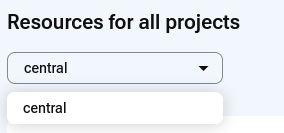
Sites at which the current My DataLake Services project can create Islet projects.
If additional Islet roles are approved later, more sites may become available in this list. The examples that follow assume access to CENTRAL and EUMETSAT.
Review capacity before creating a new project
Before creating a new Islet project, check how much capacity is available at the selected site. Open Active Islet projects to see whether projects already exist at the selected site, since their allocations reduce the capacity available for another project.
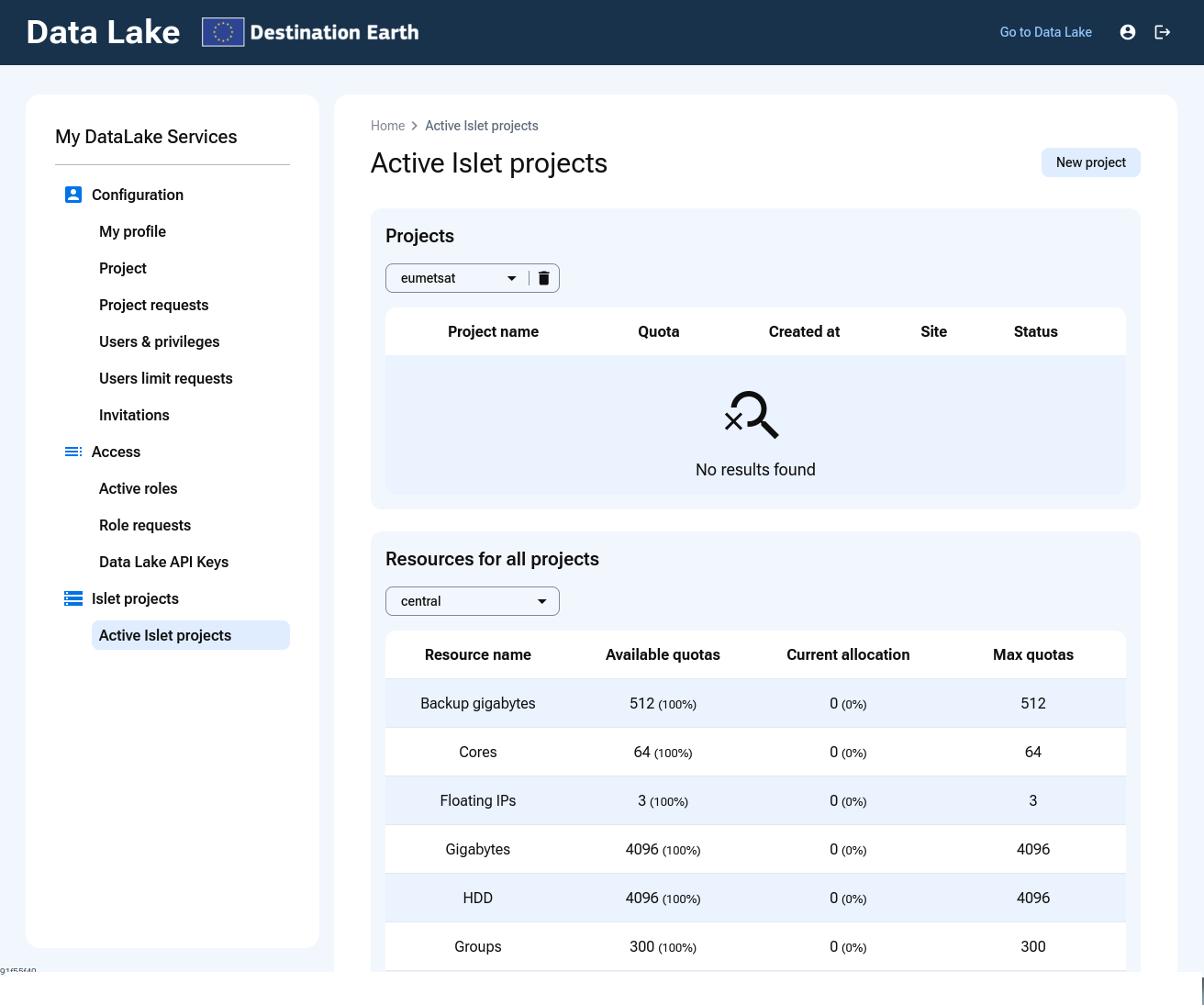
Existing Islet projects and the sites on which they were created.
Open Resources for all projects to see the available and allocated resources for each site.
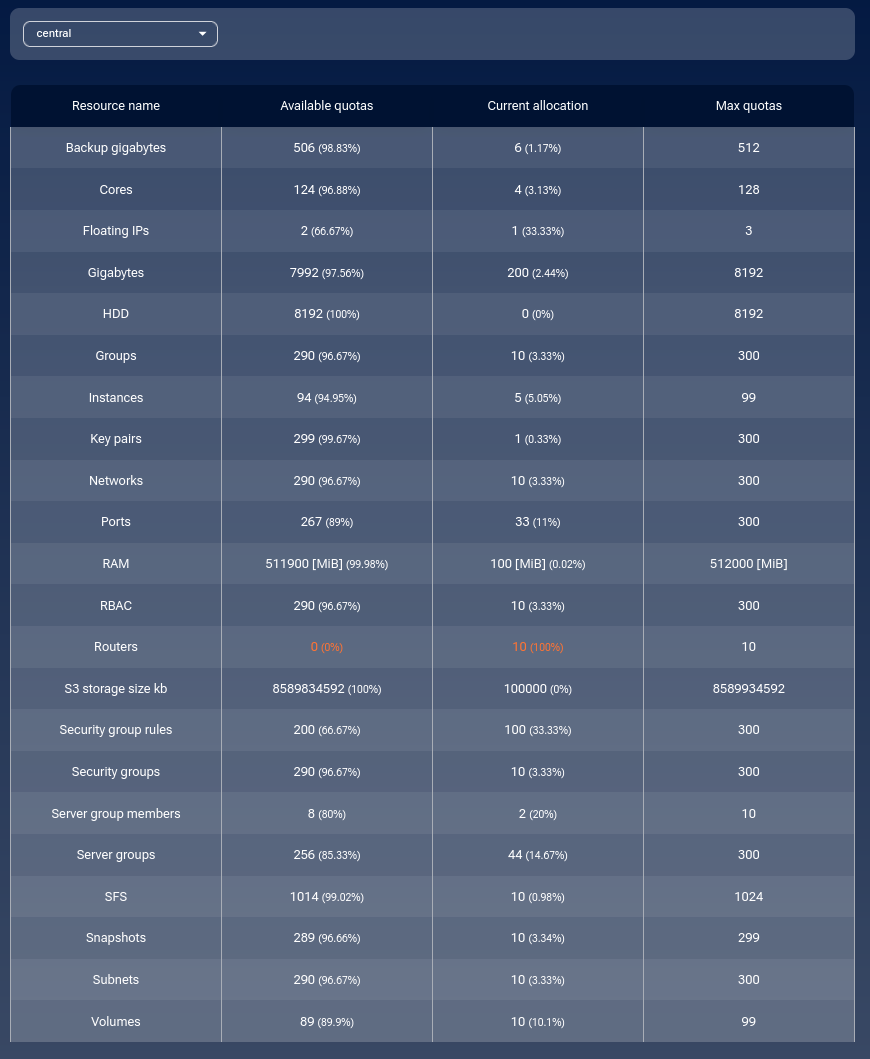
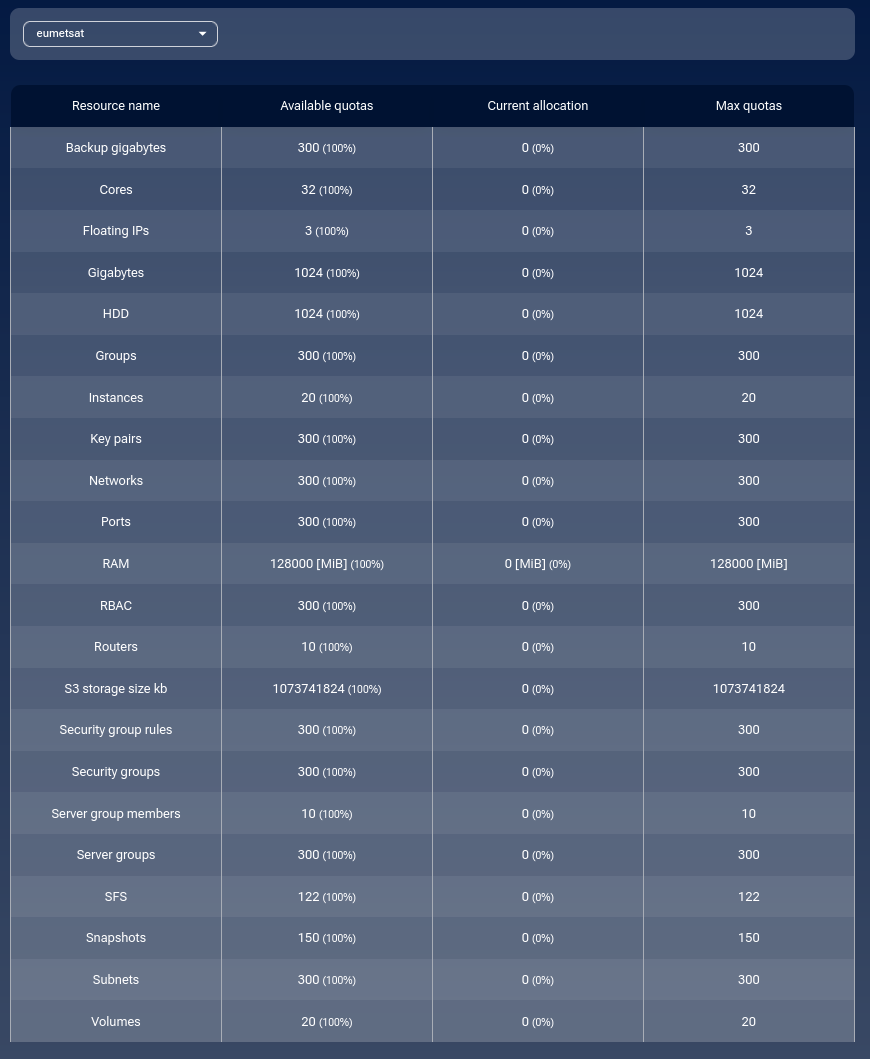
The available values determine which quotas you can request for a new project. A standard quota preset may fail when even one of its required resources is no longer available at the site, so reviewing the remaining capacity before opening the creation form helps you decide whether a preset is realistic or whether smaller custom values are more appropriate.
Create an Islet project
Open the project creation form
Click New project.

Form for creating an Islet project.
The following fields are mandatory:
Project name
Quota type
Site
Project quota
Description of planned activities
Choose a quota type
The Quota type field has two possible values:
standard
custom
A standard quota applies one of the predefined presets, while a custom quota lets you enter individual values that reflect both the capacity still available at the selected site and the actual needs of your workload.
Use a standard quota
When Quota type is set to standard, the Project quota field offers the following presets:
low
medium
high
The low value is selected by default. Each preset applies a predefined collection of limits for resources such as cores, RAM, storage, backups, networks, and instances; because the values are fixed, a preset can still require more capacity than is currently available at the selected site. For example, selecting medium may produce validation errors:
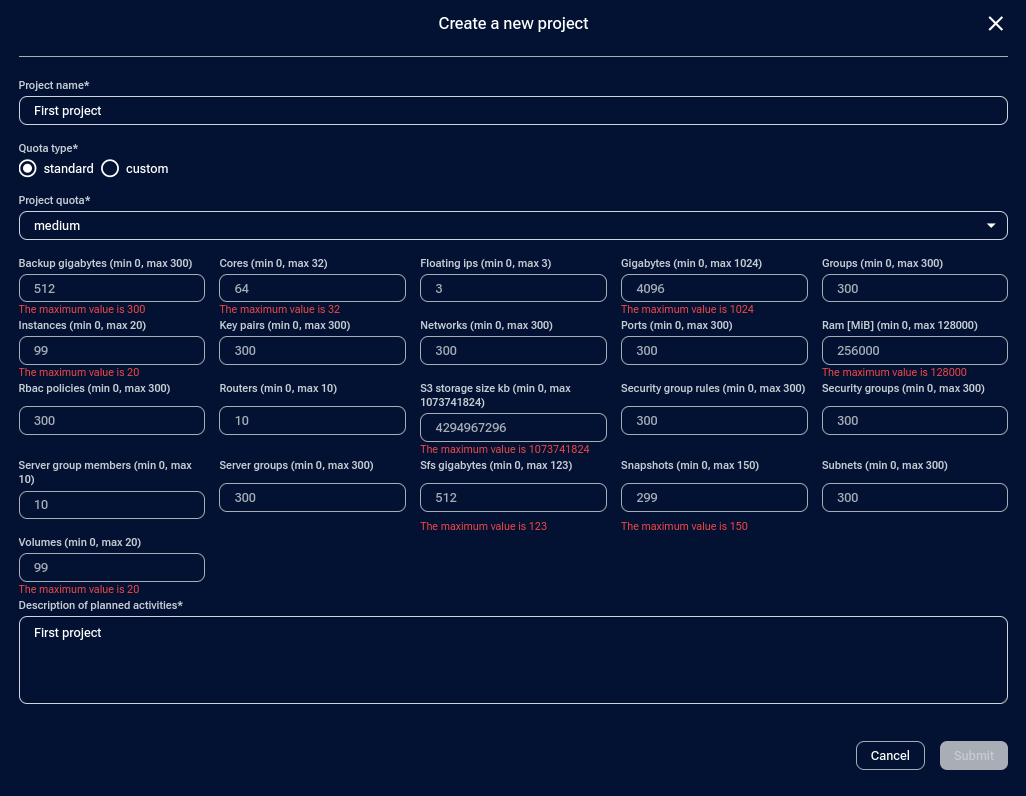
Validation error produced when the selected standard quota exceeds the available capacity.
In this example, the medium preset requests 512 GB for backups even though only 300 GB is available, and the high preset may exceed the remaining capacity by an even larger amount. The following tabs show the complete predefined quota values for CENTRAL.
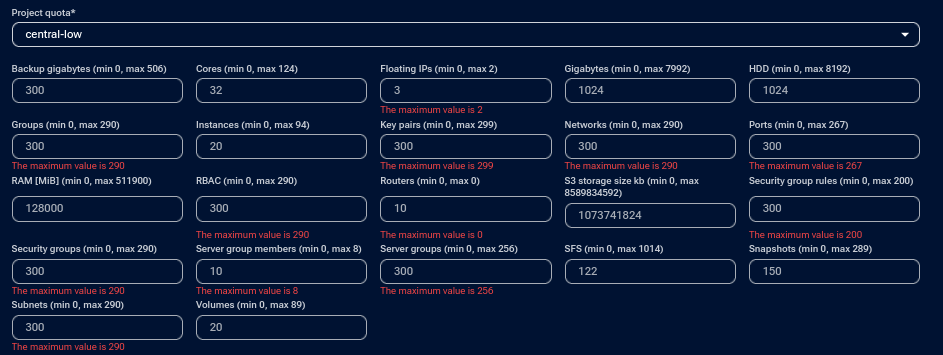
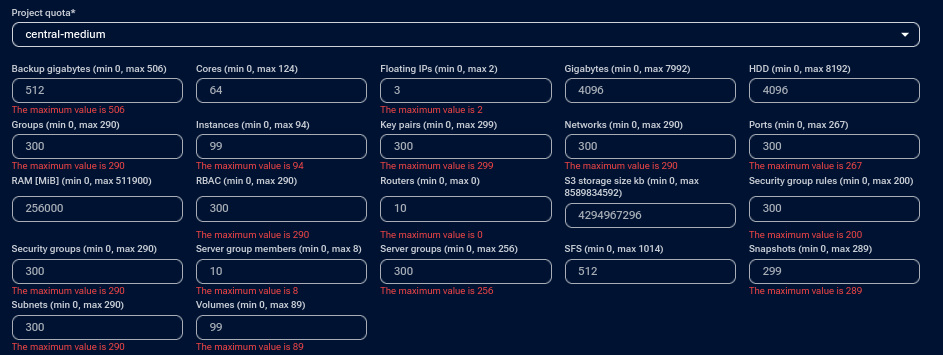
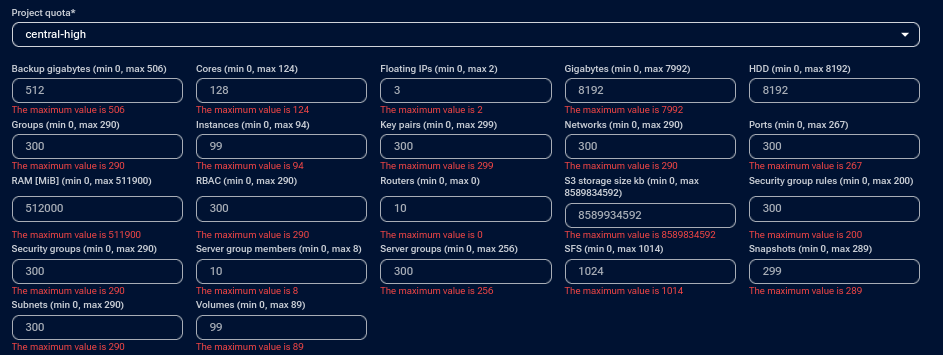
Note
A service quota, such as islet-low, islet-medium, or islet-high, defines the overall limits available to your My DataLake Services project at a site. A project quota defines how much of that capacity is assigned to one specific Islet project. Increasing the service quota does not automatically resize an existing Islet project. You must submit a separate quota update for that project.
Use a small custom quota
If the selected site already contains one or more projects, the remaining capacity may be too low for a standard preset. In that situation, set Quota type to custom and request a smaller, workload-specific set of resources rather than reserving values that the project is unlikely to use.
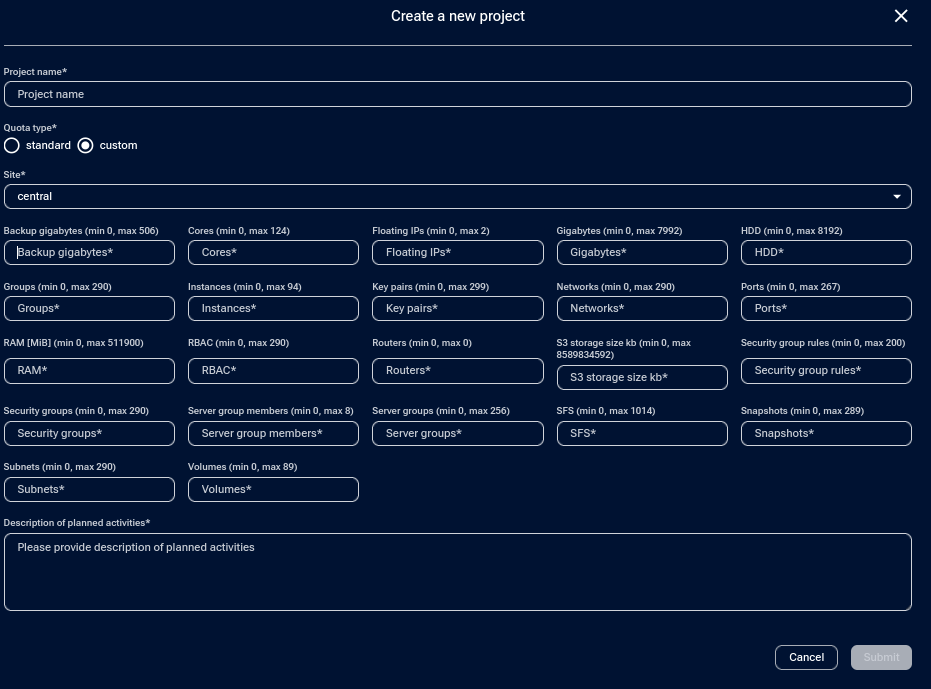
Custom quota fields and the maximum values currently available at the selected site.
A practical starter project should:
provide enough resources for a proof of concept or small production workload;
avoid reserving large quantities of resources that will not be used;
leave capacity for additional projects;
request only the storage, compute, and networking resources that are required.
Note
Two fields can be particularly confusing:
S3 storage size (kb) is entered in kilobytes.
For example, 100 GiB = 104857600 KB.
Some environments show a maximum value of 0 for Routers.
If the form does not allow routers, leave the value at 0 and use the networking model provided by the platform.
Example of a small custom project
The following example can support:
1 to 3 users;
3 to 8 virtual machines;
a small Kubernetes cluster;
one public entry point, such as a bastion host, reverse proxy, or VPN gateway;
moderate block storage;
a limited number of snapshots and backups.
Use the following values as a starting point and adjust them to the actual workload and the capacity available at the selected site.
Field |
Value |
Explanation |
|---|---|---|
Backup gigabytes |
20 |
Allows a few small volume backups without reserving the entire backup pool. |
Cores |
8 |
Supports several small VMs or a small Kubernetes cluster. |
Floating IPs |
1 |
Provides one public address for a bastion host, gateway, or public service. |
Gigabytes |
300 |
Provides block storage for operating system disks and several data volumes. |
HDD |
500 |
Can be used for logs, archives, or non-critical data. |
Groups |
10 |
Supports a small number of administrative and application groups. |
Instances |
10 |
Leaves room for several workloads without reserving an excessive number of VMs. |
Key pairs |
20 |
Supports several users and automation keys. |
Networks |
2 |
Allows one main network and one isolated or test network. |
Ports |
80 |
Supports multiple VMs and services. |
RAM (MiB) |
32768 |
Provides 32 GiB of RAM for small workloads. |
RBAC |
10 |
Supports a small number of role-based access control rules. |
Routers |
1 |
Provides one router for a private network. Use 0 if the form does not allow routers. |
S3 storage size (kb) |
104857600 |
Provides 100 GiB of object storage. Use 0 if S3 is not required. |
Security group rules |
100 |
Supports controlled ingress and egress for several services. |
Security groups |
10 |
Allows separate groups for common workload types. |
Server group members |
0 |
Leave at 0 unless server groups are used. |
Server groups |
2 |
Can be used for affinity or anti-affinity scheduling. |
SFS |
0 |
Leave at 0 unless shared file storage is required. |
Snapshots |
10 |
Supports basic rollback and testing workflows. |
Subnets |
2 |
Allows one subnet per network. |
Volumes |
10 |
Supports several separate data and system volumes. |
Fill in the custom quota form
In the Create a new project window, enter a unique Project name, set Quota type to custom, select the required Site, and enter values that stay within the ranges displayed by the form. In Description of planned activities, briefly explain the intended workload, for example: Small test environment for virtual machines and application deployment. Quotas are intentionally limited for the initial project. The completed form should look similar to the following:
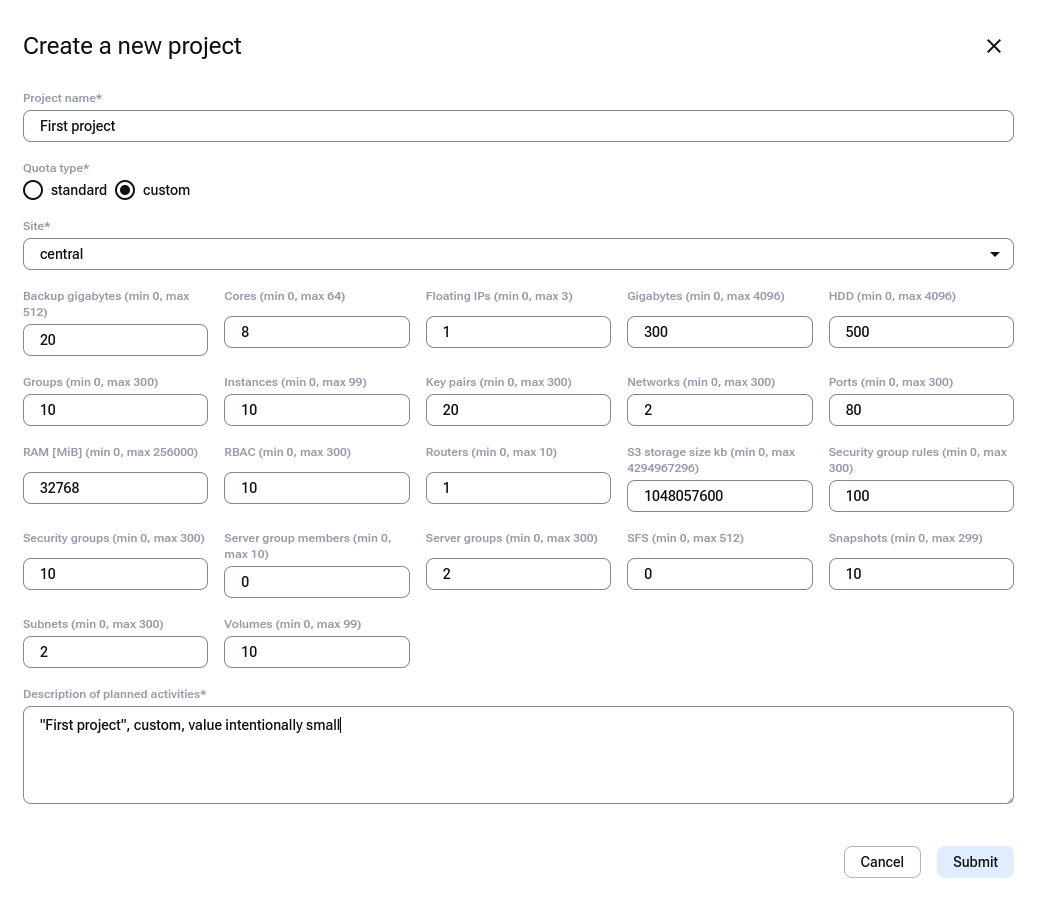
Example of a completed custom quota request before submission.
Click Submit.
After submission, the new project appears under Active Islet projects with the status PENDING.
Wait for the project to become active
After submission, the project appears under Active Islet projects with the status PENDING while it is being provisioned. No separate operator approval is required for a new Islet project. After a short while, the status changes automatically to ACTIVE.

Islet project being provisioned after submission.
Once the status becomes ACTIVE, the corresponding OpenStack project is available to your account. If the status remains PENDING for an unusually long time, check whether the requested values fit within the available capacity and contact support if necessary.
If a project with the same name already exists, the portal displays an error instead of overwriting the existing project.
Open the project in Horizon
When the project status becomes ACTIVE, click the site name in the Site column.
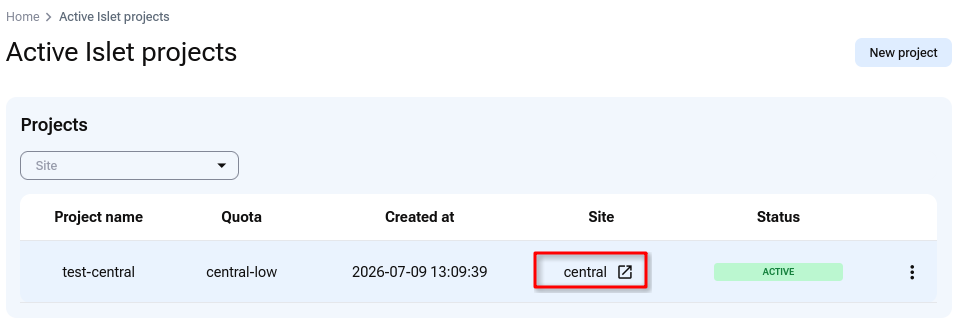
Opening the active project in OpenStack Horizon.
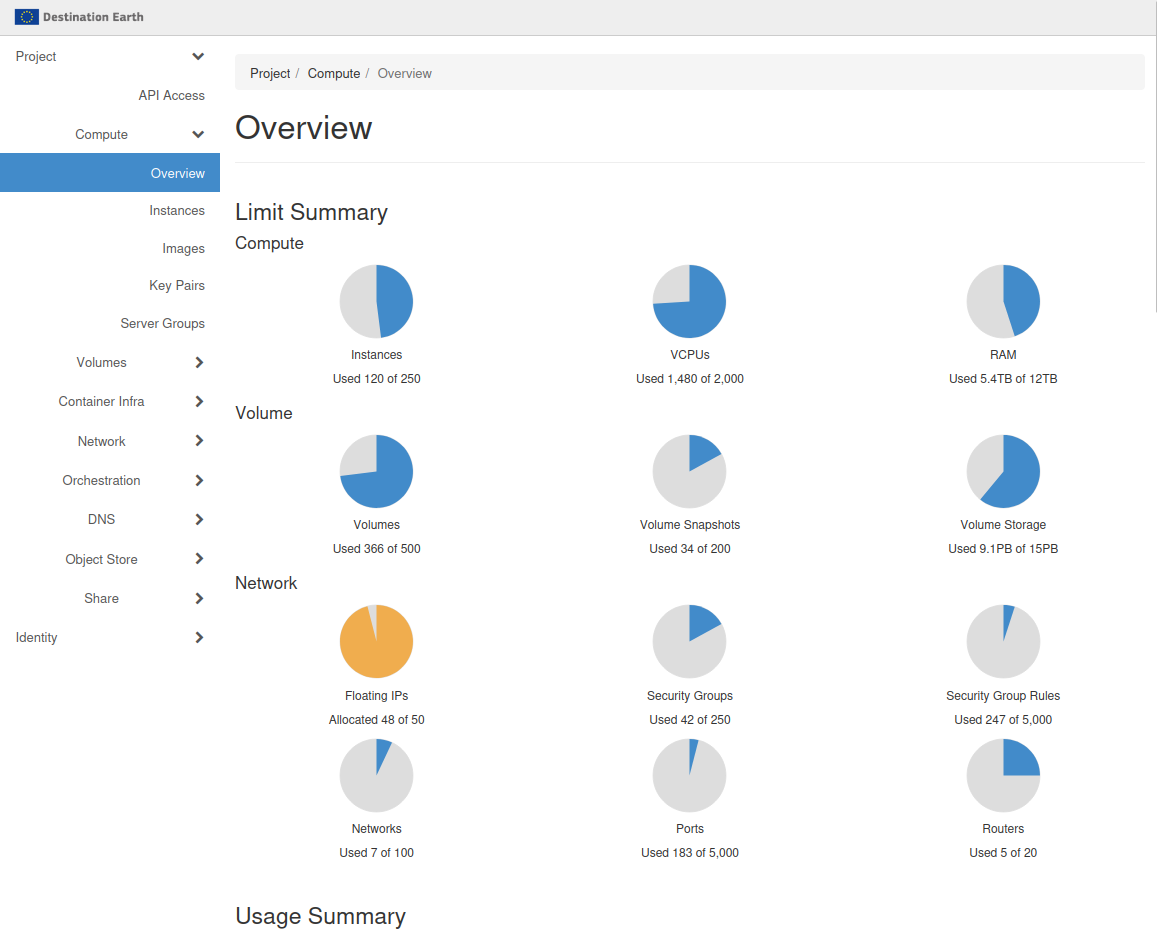
Horizon opens in a new browser tab with the newly created project selected as the current OpenStack tenant. The project opens on Compute –> Overview, where you can confirm that the requested quotas have been applied and see how much of each resource is currently in use.
If you open Horizon before the Islet project has finished provisioning through My DataLake Services, Horizon may load without a usable project context and fail to retrieve quota or usage information.

Horizon cannot retrieve limits or usage information before the Islet project has finished provisioning.
This does not mean that Horizon itself is unavailable. It means that provisioning has not yet finished, so no usable OpenStack project context is available to your account.
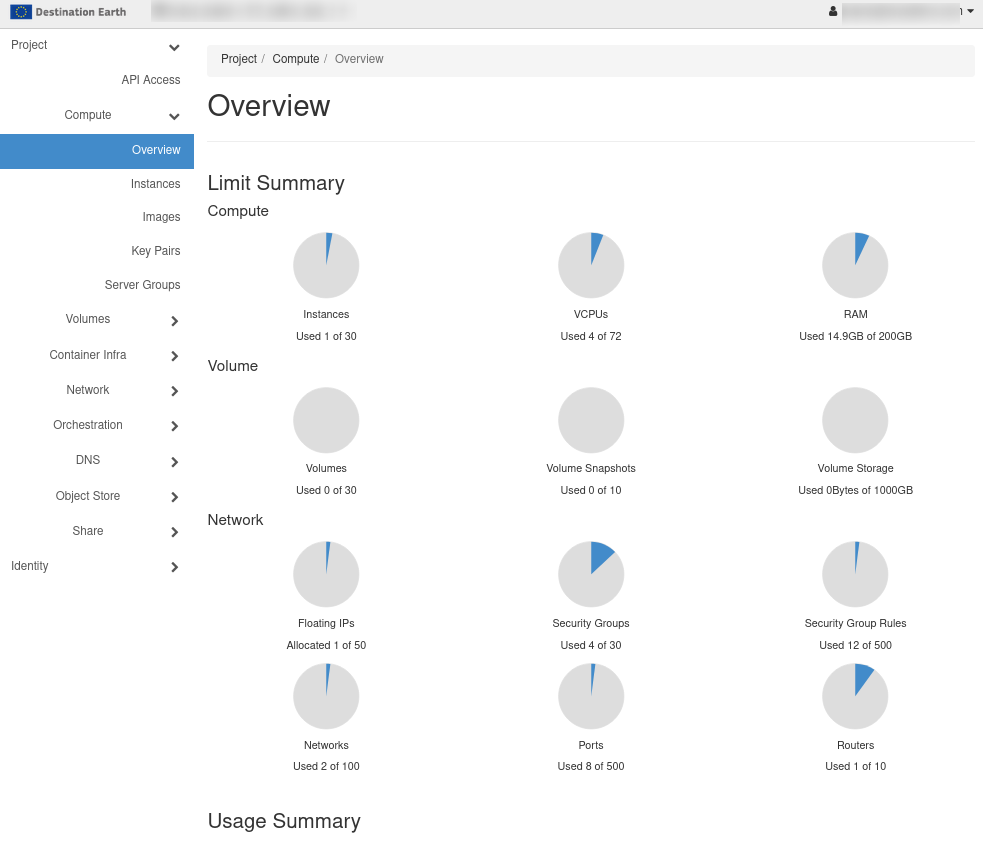
Resource limits and current usage for the selected OpenStack project.
The Limit Summary includes resources such as virtual CPUs, RAM, instances, volumes, networks, floating IPs, security groups, and routers. A value such as Used 0 of 20 for instances means that the project can contain up to 20 instances and currently contains none.
From this point onward, ordinary cloud work takes place directly in OpenStack. Use Horizon or the OpenStack command-line interface to create virtual machines, images, networks, security groups, volumes, object storage resources, and Kubernetes clusters where available. You can later return directly through the Horizon address for the relevant site without opening My DataLake Services first.
My DataLake Services remains responsible for the surrounding Islet project: this is where you request the initial project, define or update its quotas, manage users, create additional projects, and request deletion. Horizon, on the other hand, is where the approved limits are enforced and where the actual cloud resources are created and operated.
Action |
My DataLake Services |
OpenStack Horizon |
|---|---|---|
Create the project |
Submit an Islet project request. |
The automatically provisioned project appears as an OpenStack tenant. |
Define or change quotas |
Select standard or custom values and submit quota updates. |
Review the applied limits and current usage. |
Manage access |
Manage project users and service-related settings. |
Use the permissions assigned to the OpenStack project. |
Use cloud resources |
Not used for ordinary OpenStack operations. |
Create and manage VMs, networks, volumes, and other resources. |
Do not attempt to create the OpenStack project or change its quotas from Horizon. On DestinE Data Lake, these actions must be requested through My DataLake Services.
Manage an active Islet project
Although ordinary cloud operations now take place in OpenStack, My DataLake Services still provides several views and actions for managing the surrounding Islet project, including its quotas, users, and reported resource consumption.
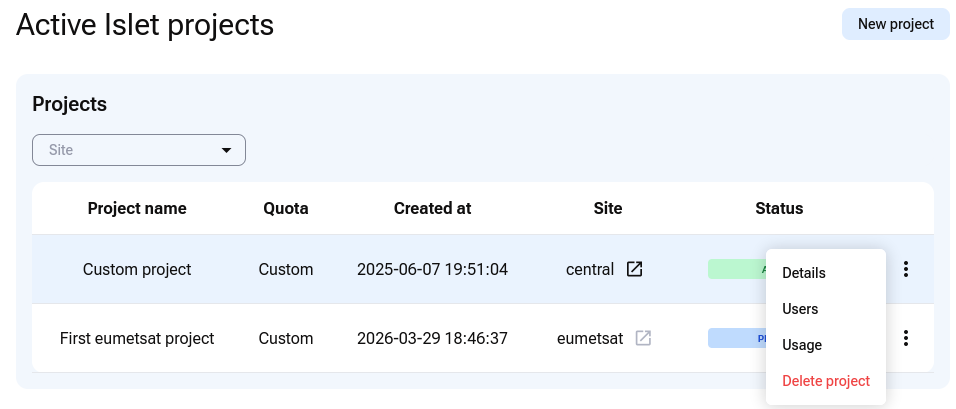
Review project details
Open Details to see the exact quotas and parameters assigned to the project. The same view is also the starting point for preparing a quota update when the current allocation no longer matches the workload.

No validation messages are shown because the configuration has already been validated and applied to the OpenStack project.
Review project users
Open Users to see which users are assigned to the project and therefore have access to the corresponding OpenStack tenant.
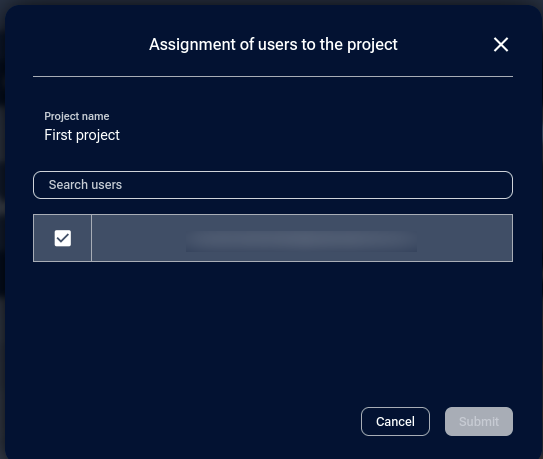
The project administrator is normally added as the first member.
Review resource usage
Open Usage to see the resources consumed by the OpenStack project. These metrics are fetched from an external service approximately once per hour, so very recent changes may not appear immediately. To open the usage information, go to: User View –> Active Islet projects –> project row –> Usage.
Empty project |
Project with resource usage |
|---|---|

Usage view for an empty project. |

Usage view after resources have been created. |
If metrics are temporarily unavailable, the portal displays an error message and provides an option to retry.
Manage capacity for additional projects
Before creating another project at the same site, open Resources for all projects and review the Available quotas, Current allocation, and Max quotas columns.
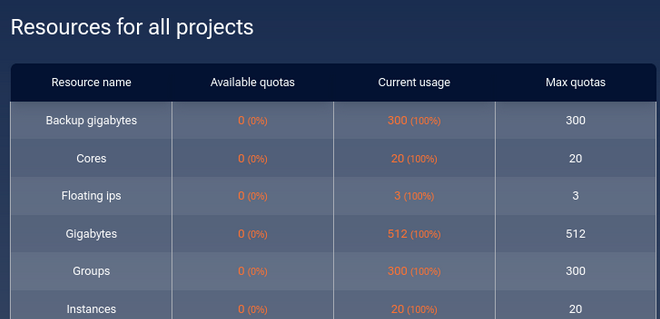
Available capacity and current allocation for all Islet projects at the selected site.
This view shows how the overall service quota is divided between existing projects and how much capacity remains for another one. In the example above, most resources still have substantial capacity available, although some values may already be fully allocated. For instance, Routers shows no remaining capacity because the current allocation has reached the maximum quota.
A resource with Available quotas = 0 cannot be assigned to a new project unless capacity is first released or the overall service quota is increased. Existing projects remain valid and usable; the restriction applies only to new allocations.
Why standard quota presets can fail
A standard quota preset requests a fixed combination of resources. Even when most resources remain available, the preset can fail if only one of its values exceeds the remaining capacity.
To see whether a preset fits, click New project, select standard, choose the site and then select a project quota. The form checks every requested value against the capacity currently available at that site.
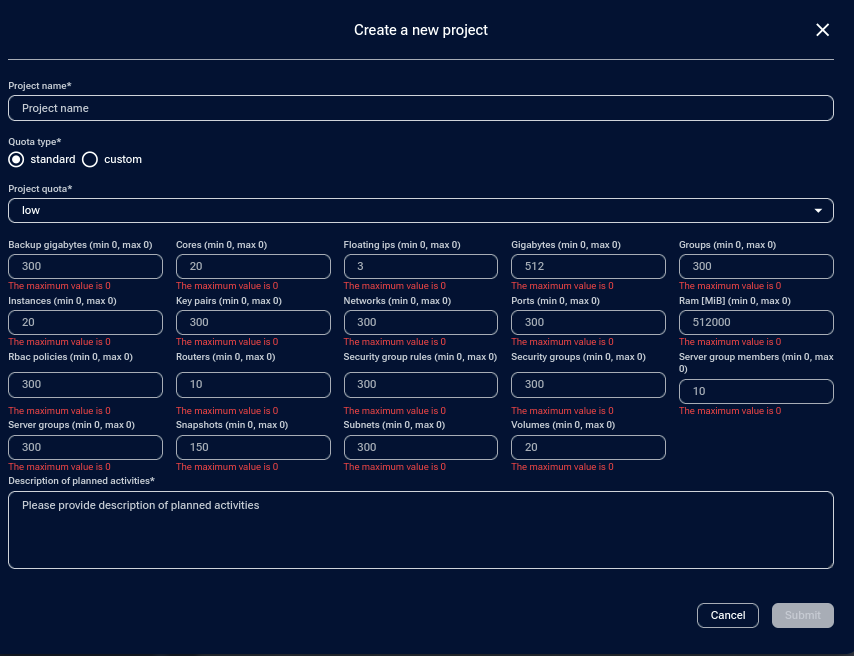
Validation errors caused by quota values that exceed the remaining site capacity.
In this example, the red messages show that the selected preset requests resources whose current maximum value is 0. Because the preset cannot be partially applied, the project cannot be submitted in this form even if other requested resources are still available.
In that situation, you can:
reduce quotas in an existing project to release capacity;
request an increase of the overall service quota;
create the new project with smaller custom quotas.
Reduce quotas in an existing project
If an existing project reserves more capacity than it needs, reduce its quotas before creating another project. Open Details next to the existing project, set Quota type to custom, and lower the values that are unnecessarily consuming the shared site capacity.
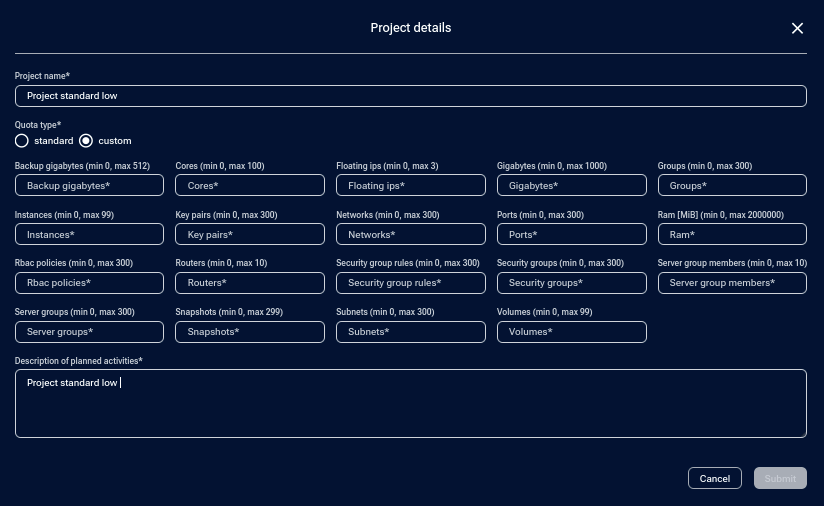
Custom quota form opened for an existing Islet project before reducing its allocation.
Click Submit. The project status changes to QUOTA UPDATE PENDING while the revised values are being reviewed.
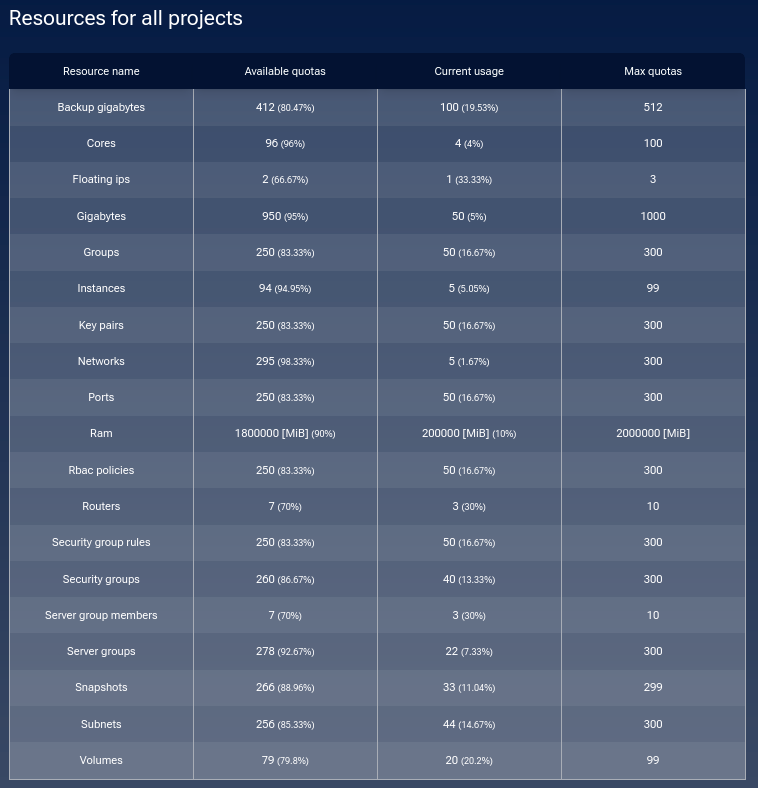
Available capacity for CENTRAL after the quota update has been submitted.
After the operator approves the change, the status returns to ACTIVE. Open Resources for all projects again and verify that the released capacity is now available before attempting to create another project.
Request a higher service quota
If the overall limits are too low for the required workload, request a higher Islet service quota, for example:
islet-low
islet-medium
islet-high
The request may require operator approval. Increasing the service quota raises the total limits available to the My DataLake Services project at the selected site, but it does not automatically increase the quotas of any existing Islet project; each project must still be updated separately. The following tabs show an example of site-wide capacity before and after a service quota increase.
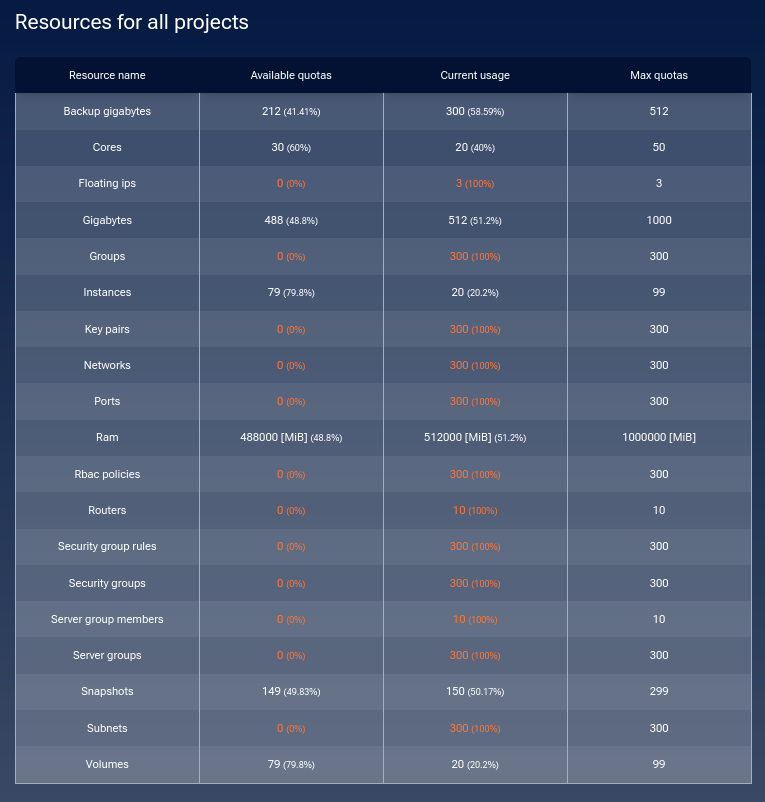
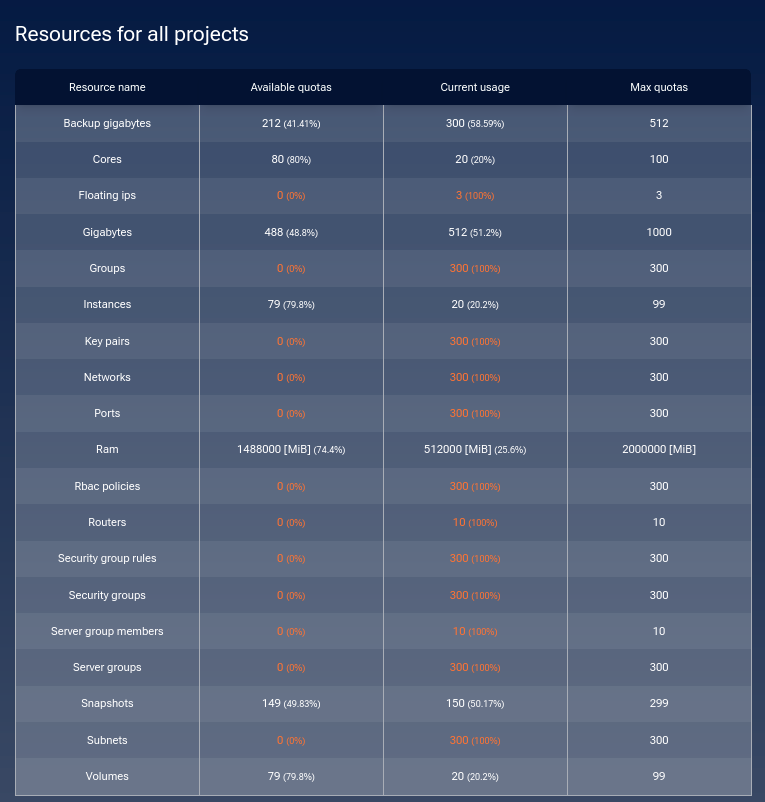
Note
Increasing the service quota does not guarantee that every resource becomes immediately available. Some site-wide resources may remain fully allocated. If Available quotas still shows 0, use smaller custom values or reduce quotas in another project.
Create an additional project
After freeing capacity or receiving a higher service quota, click New project again. The form recalculates and displays the maximum values that can still be assigned at the selected site.
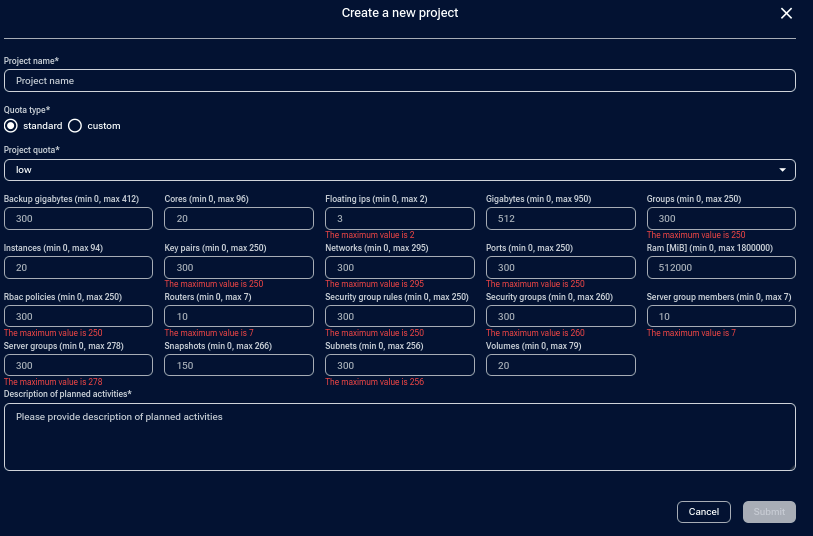
Standard quota values that exceed the remaining capacity and trigger validation errors.
Use custom quotas and enter values that fit within the displayed ranges.
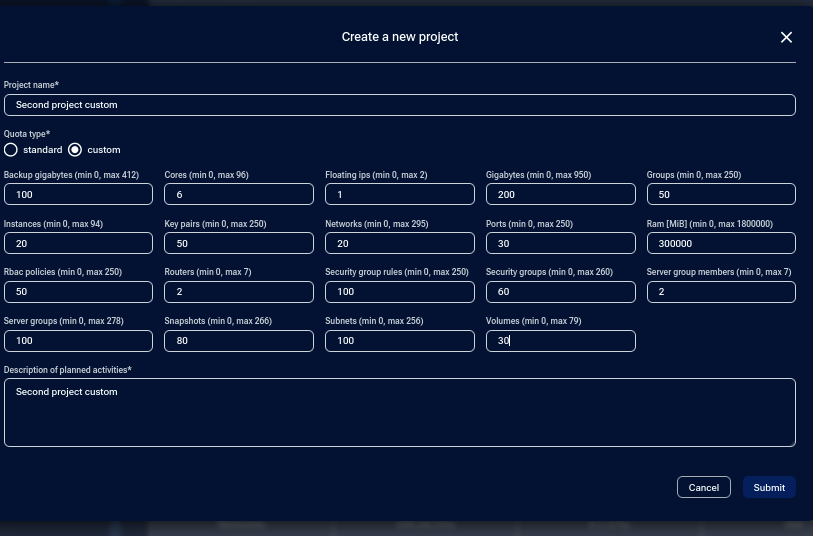
Custom quota values entered for a new EUMETSAT project.
Submit the request. As with the first project, it is provisioned automatically and its status normally changes from PENDING to ACTIVE within a minute or so.
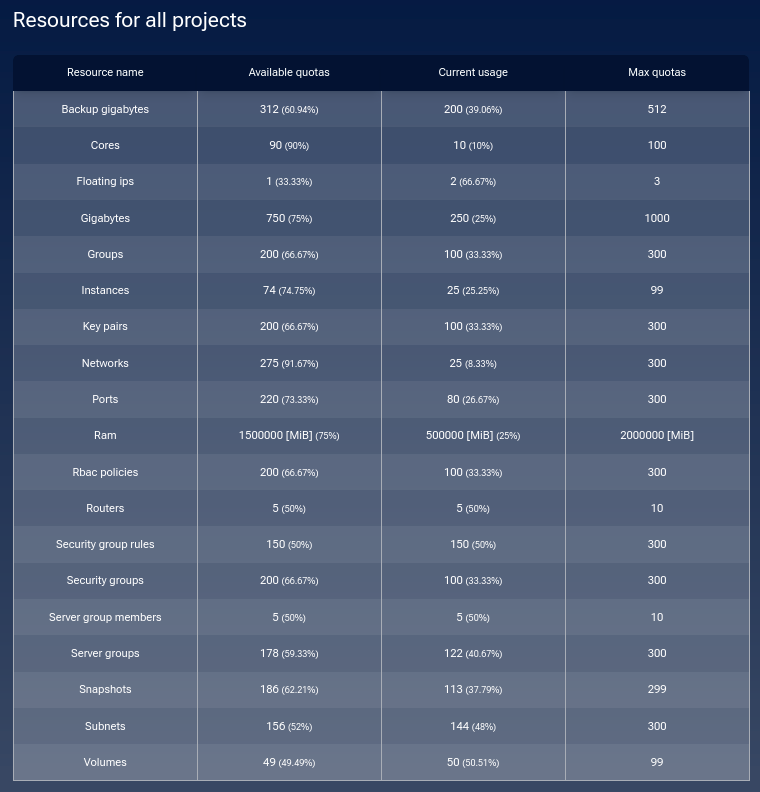
Remaining EUMETSAT capacity after the new project allocation has been applied.
After the project status becomes ACTIVE, open Horizon and verify its quotas under Compute –> Overview.
Delete an Islet project
Deleting an Islet project also deletes the OpenStack resources associated with it, so this action should be treated as permanent and prepared for carefully. Before deleting the project, make sure that:
all required data has been backed up;
no users still depend on the project;
virtual machines, volumes, object storage data, and other resources are no longer needed.
In Active Islet projects:
Open the context menu represented by three vertical dots.
Select Delete Project and review the warning carefully.

A confirmation dialog warns that all related resources will be deleted and requires an explicit acknowledgement before the request can proceed. To confirm the deletion:
Select the confirmation checkbox.
Click Confirm.
The project status changes while the deletion request is being processed, and the project remains visible until the operation has completed.

After the deletion is completed, the project and its associated OpenStack resources are no longer available.
What To Do Next
For guidance on using the resulting OpenStack environment, see the Islet service overview.
For more information about OpenStack projects and quotas, see:
Also of interest: