How to request roles for Islet service on My DataLake Services
The Islet service is based on OpenStack and provides Infrastructure-as-a-Service (IaaS) resources. It enables you to:
deploy and manage compute, network, and storage resources;
manage virtual machines and Object Storage through OpenStack Horizon or the OpenStack CLI; and
create and manage Kubernetes clusters.
What we are going to cover
Roles in My DataLake Services
My DataLake Services uses two role types for Islet:
Access role Grants permission to use the Islet service.
Quota role Grants a predefined compute quota on the underlying OpenStack infrastructure.
Note
Do not confuse the two different “project” concepts:
A My DataLake Services project is an application-level project that must be approved by the operator.
An OpenStack project (tenant) is where you later use quotas and resources in Horizon.
In this article, you request Islet roles in My DataLake Services. After the roles become active, you can create OpenStack projects for the selected Islet site.
Prerequisites
No. 1 Account
You need an active profile on My DataLake Services. If necessary, follow How to create a profile on My DataLake Services and confirm that you can sign in.
No. 2 Administrative privileges within a project
You need administrative privileges in a My DataLake Services project that an operator has approved. To create one, follow How to create a project on My DataLake Services. Alternatively, join an existing approved project and ask its administrator to grant you administrative privileges.
No. 3 Target Islet site and quota
Choose the Islet site your project requires, such as islet-central or islet-eumetsat, and select a low, medium, or high quota based on the expected number of users and workload. The Selecting services section in How to create a project on My DataLake Services lists the available Islet sites and compares the quota levels. Use the Islet service overview to review the service capabilities. Have the site and its site-qualified quota role ready, for example islet-eumetsat-low.
At a glance
Requesting Islet roles follows this flow:
Open Role requests in My DataLake Services.
Choose the target Islet site, such as islet-central or islet-eumetsat.
Request the access role for that site. The access role has the same name as the site, for example islet-eumetsat.
Request one quota role with the same site prefix, for example islet-eumetsat-low, islet-eumetsat-medium, or islet-eumetsat-high.
Wait for operator approval.
Verify your roles under Active roles.
Sign in to My DataLake Services.
Select Islet roles while creating a project
You can select Islet roles while creating a My DataLake Services project or request them after the project has been approved.
To select the roles during project creation:
Start creating a project as described in Prerequisite No. 2.
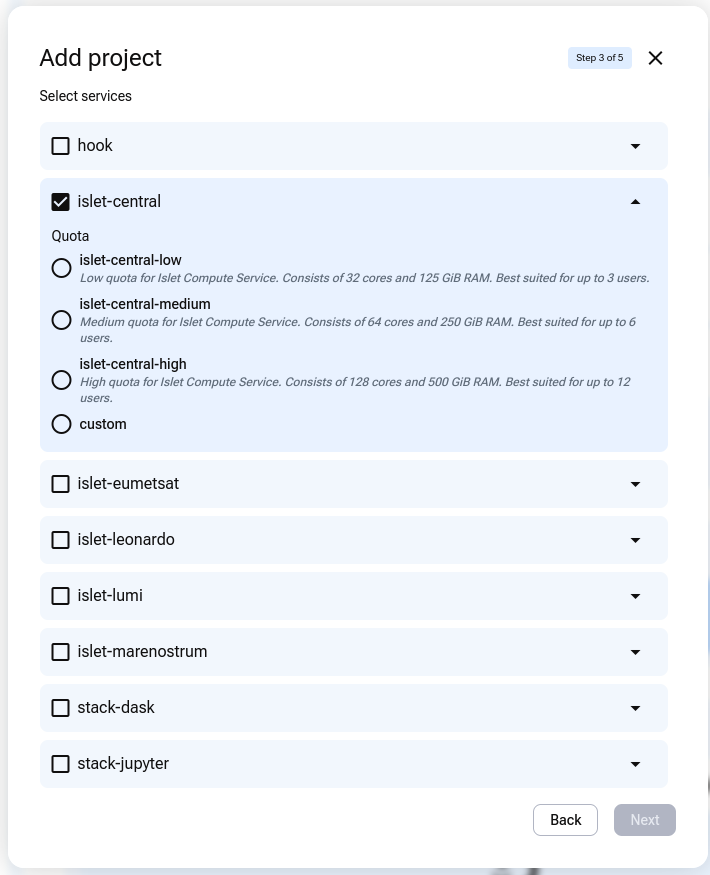
On the Select services step, select the target Islet site and one quota. This example uses islet-central and islet-central-low.
Complete the project request and wait for operator approval.
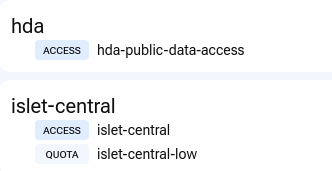
Open Access -> Active roles. The approved project contains the default hda-public-data-access role and the selected Islet access and quota roles.
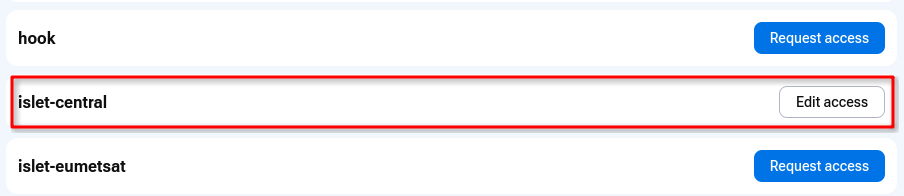
Open Access -> Role requests. The selected Islet site now has an Edit access button.
Request Islet roles for an existing project
For an approved project that does not have roles for the required Islet site:
Open Access -> Role requests.
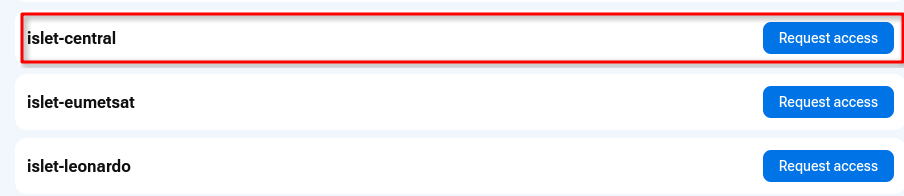
Find the target Islet site and click Request access.
The Request access page contains separate Access roles and Quota roles sections. You need one active role of each type for the Islet site to be available.
Request roles for a specific Islet site
In this example, you will request roles for islet-eumetsat.
On the Role requests page, find islet-eumetsat and click Request access.
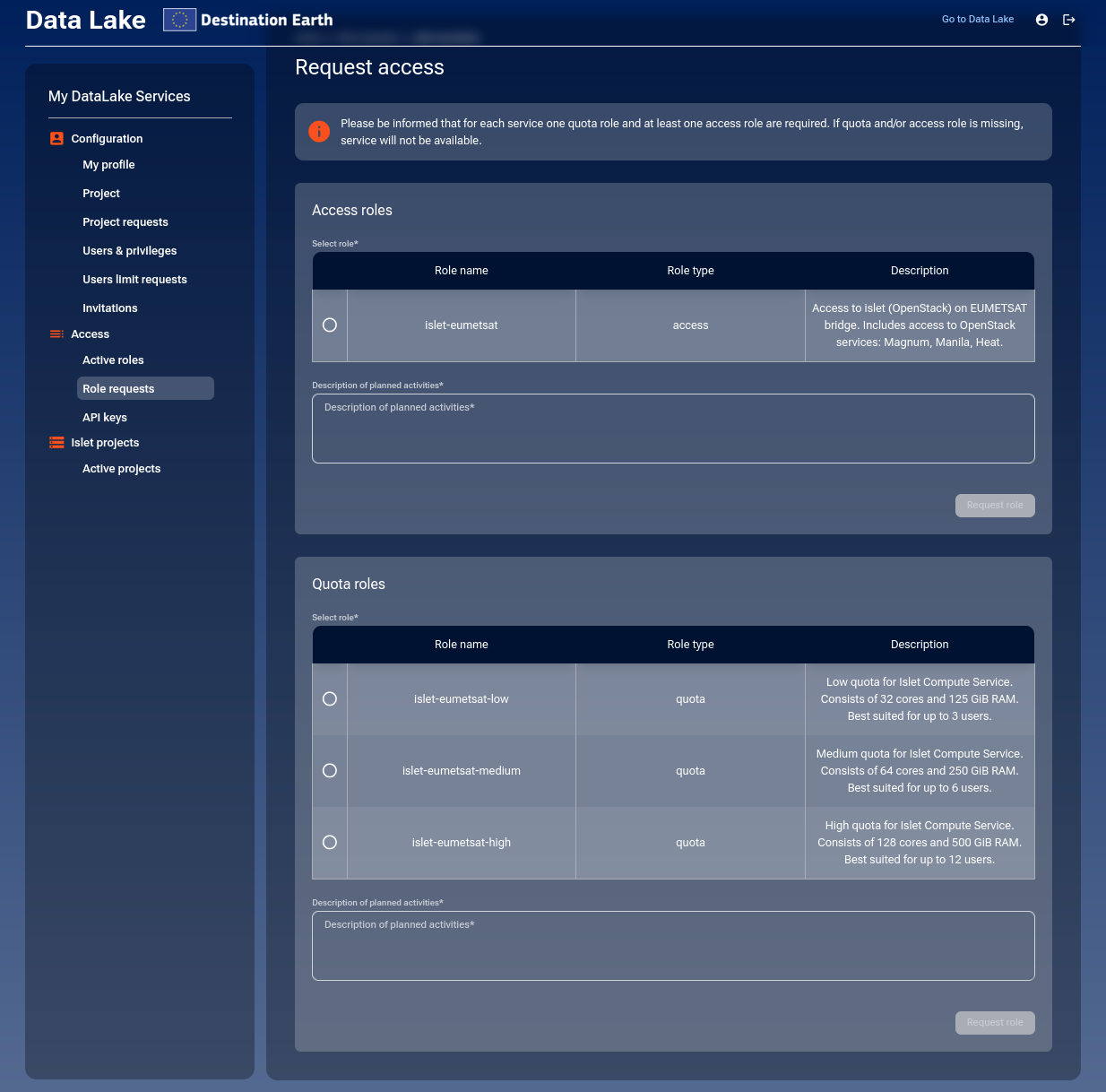
You are redirected to the Request access page with two sections:
Access roles
Quota roles
Submit an access-role request and a separate quota-role request.
Access roles
For islet-eumetsat, there is one access role.
Role |
Description |
|---|---|
islet-eumetsat |
Access to Islet (OpenStack) on the EUMETSAT bridge, including Magnum, Manila, and Heat. |
In the Select role column, select islet-eumetsat.
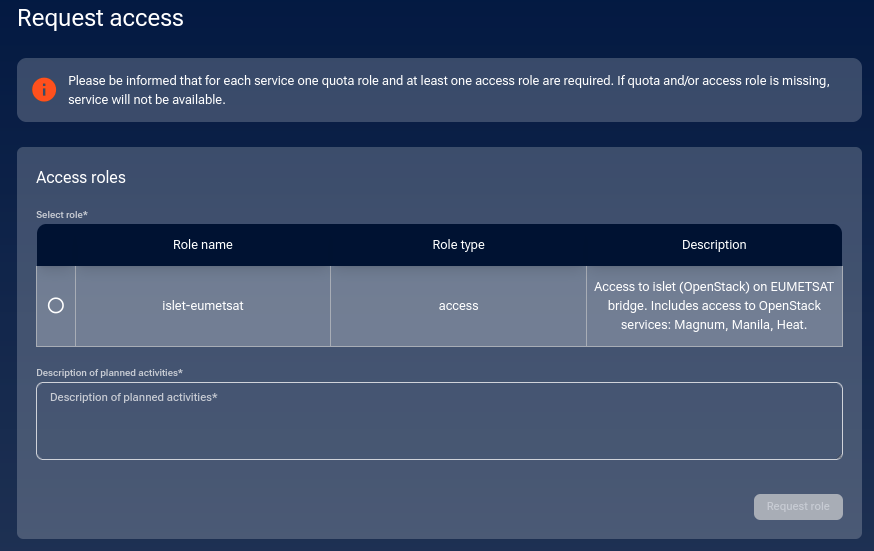
Fill in Description of planned activities (mandatory).
Keep the description short but specific. For example:
workload type (VMs, Kubernetes, or both),
estimated number of users,
expected duration,
expected peak usage.
Click Request role.
After submitting the access role, continue with requesting a quota role.
Quota roles
Quota roles define the compute resources you can use for the Islet service. Choose one quota based on the expected size of your team and workload.
Role |
Resources |
Recommended for |
|---|---|---|
islet-eumetsat-low |
32 cores, 125 GiB RAM |
Up to 3 users |
islet-eumetsat-medium |
64 cores, 250 GiB RAM |
Up to 6 users |
islet-eumetsat-high |
128 cores, 500 GiB RAM |
Up to 12 users |
In the Quota roles section, select one quota role.
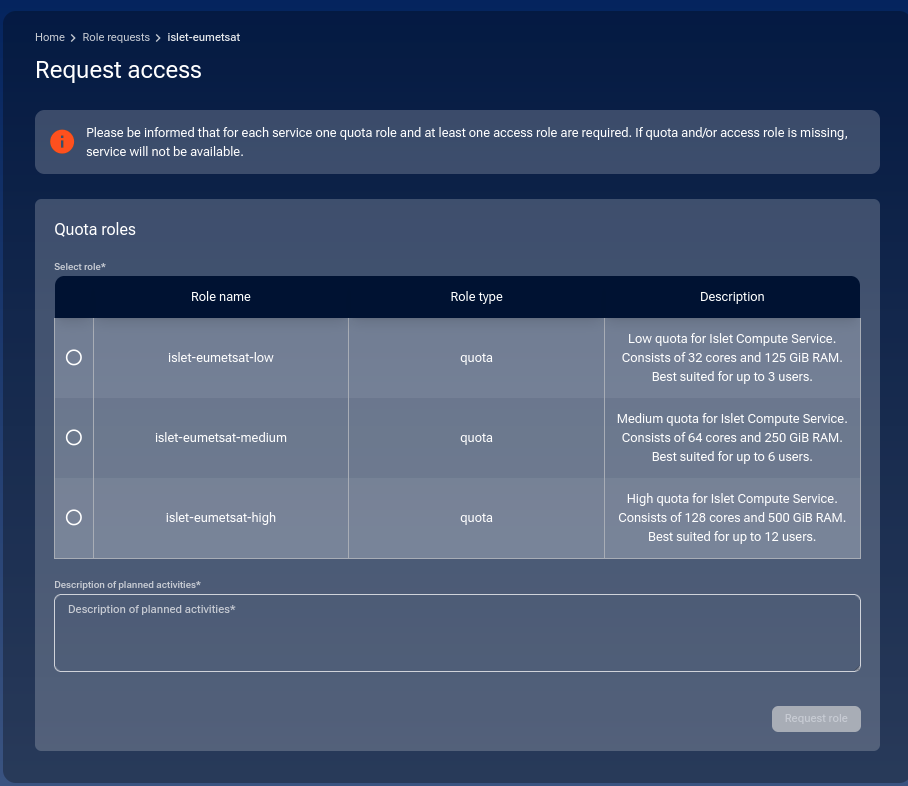
Fill in Description of planned activities (mandatory).
Click Request role.
You are returned to the role request list where you can track the status.
List of pending role requests
After submitting requests, you will see them listed under Role requests. The access-role and quota-role requests appear as separate entries.
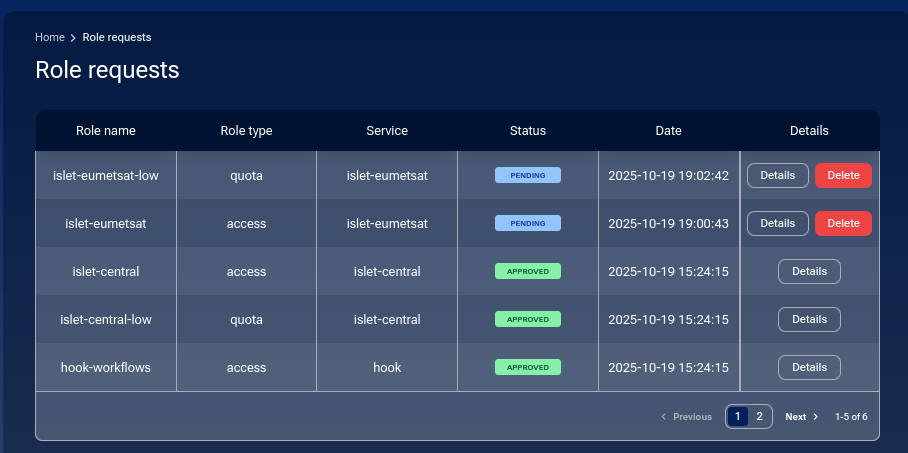
The Details and Delete buttons are explained later in this article.
Operator approval
Role approvals are processed manually by DEDL operators. After approval, your roles appear under Active roles.
Note
Processing may take up to 1–2 business days.
List active roles
To verify approved roles:
Open Access -> Active roles from the left menu.
Confirm that your Islet roles are listed as active.
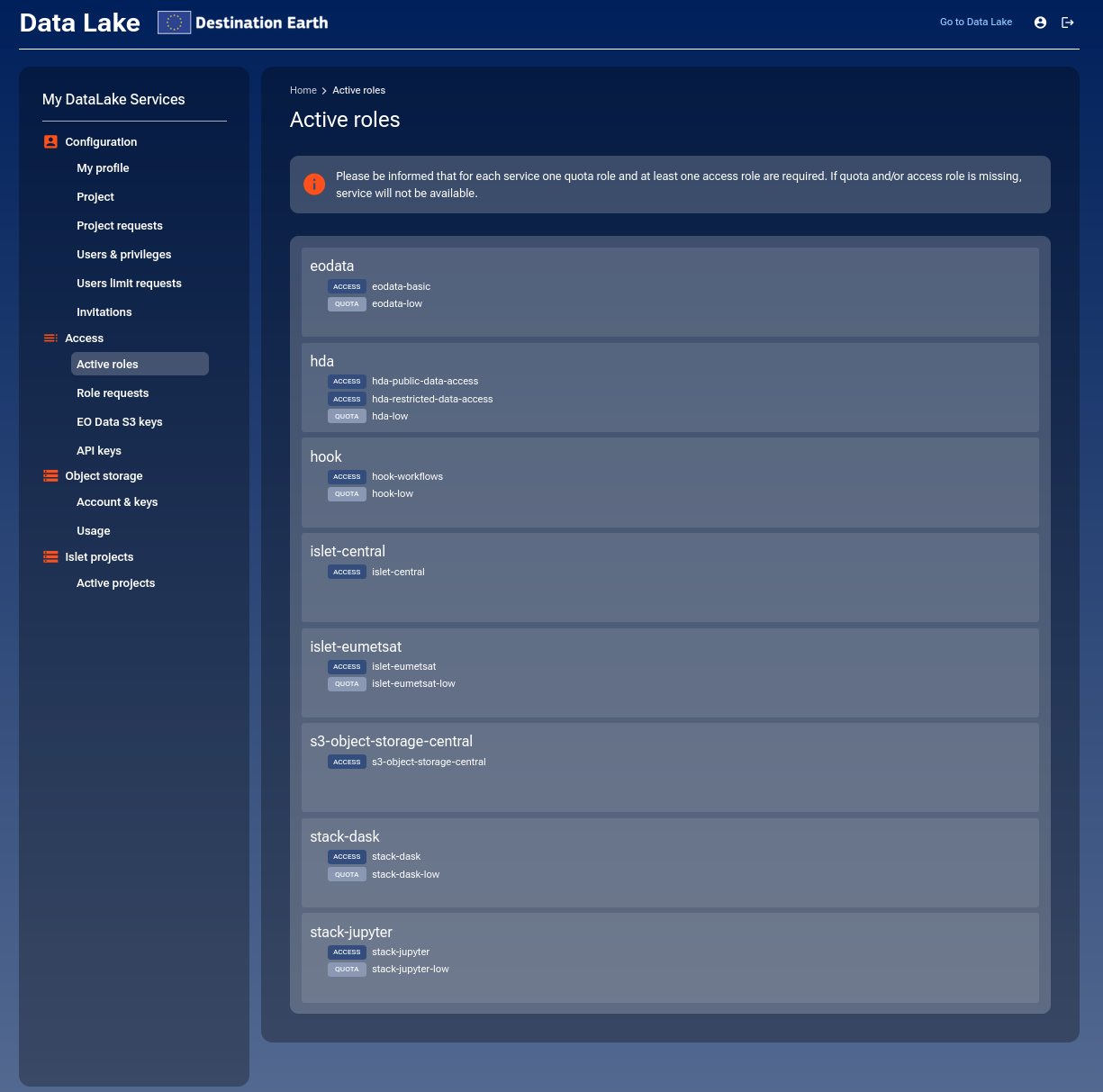
In this example, the project has access to the CENTRAL and EUMETSAT Islet sites. Each site lists one access role and one quota role. To create an Islet project on another site, request roles for that site and wait for approval.
History of role requests
The Role requests page also shows your request history.
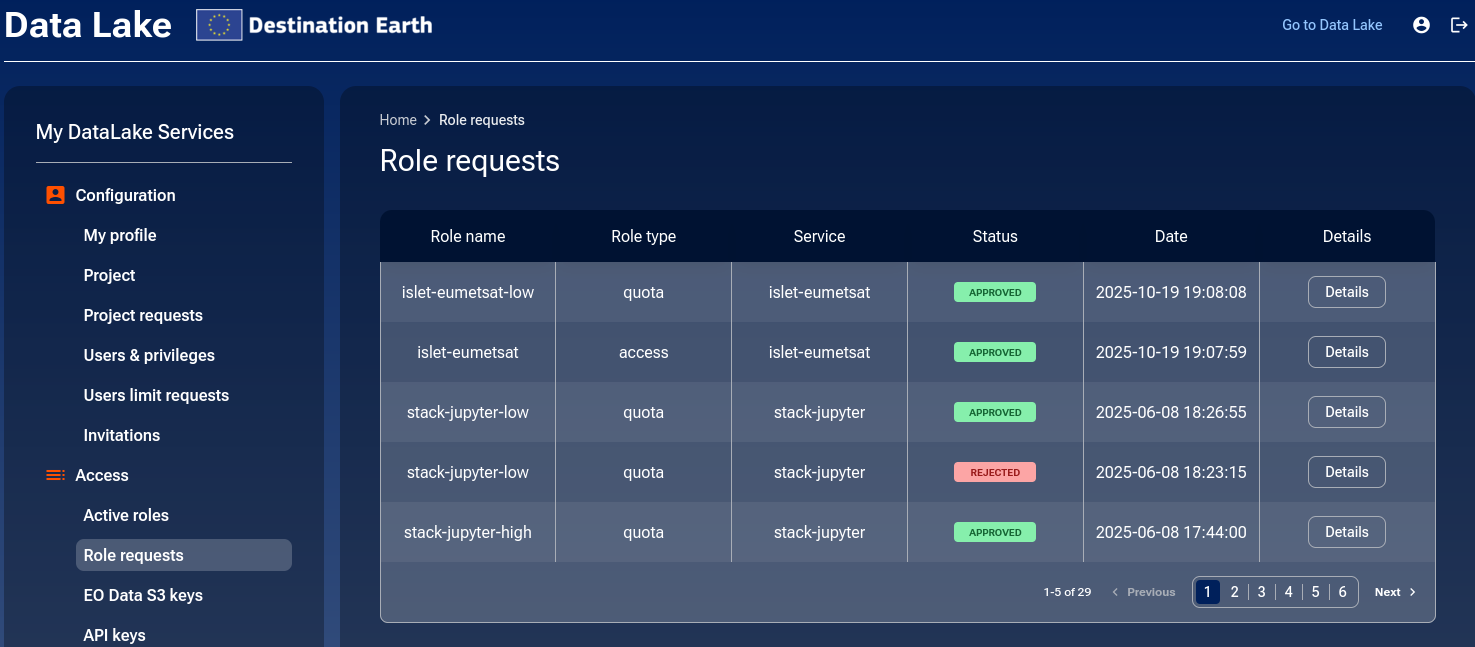
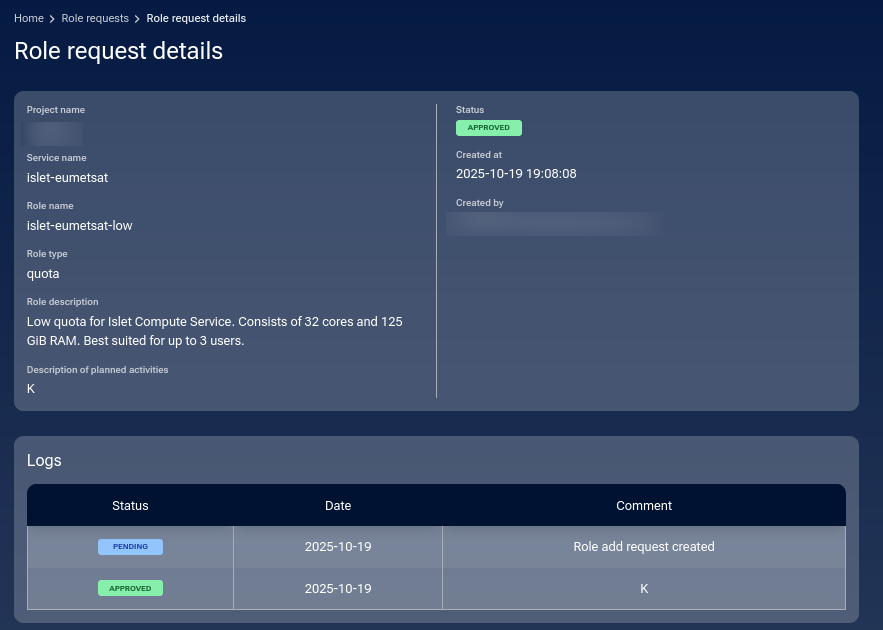
To see full details of a request, click Details.
Change an Islet quota role
Each Islet site has one access role and several quota roles. You cannot replace the access role with another role for the same site, but you can request a different quota role.
This example changes the EUMETSAT quota from islet-eumetsat-low to islet-eumetsat-high.
Open Access -> Role requests and locate islet-eumetsat.
Click Edit access.

In Quota roles, select islet-eumetsat-high.
Enter a Description of planned activities and click Request role.
A confirmation message appears in the bottom right corner.

A new request appears as PENDING.

You now have two options:
- Details
Shows the request details and status.
- Delete
Cancels the request before it is reviewed by the operator.
You can cancel or confirm:
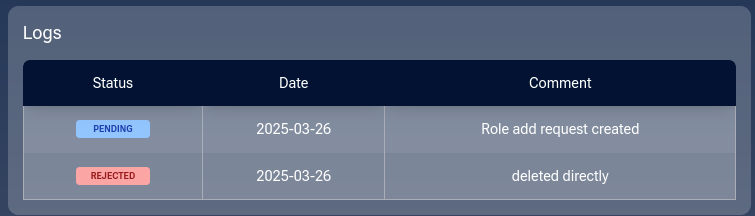
If you confirm, a message appears:
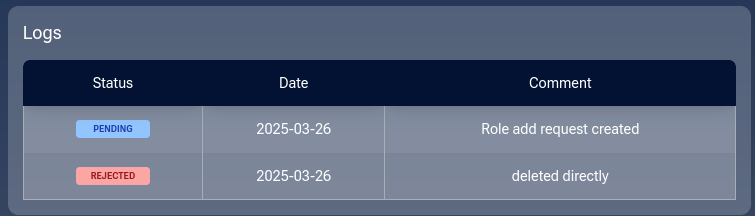
The request becomes REJECTED with the reason deleted directly.
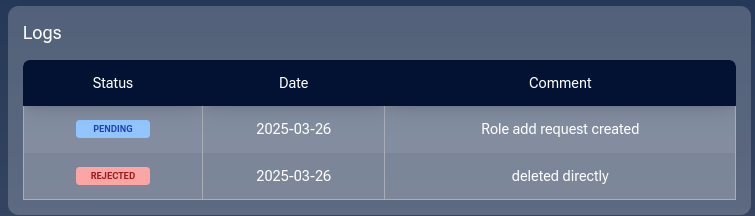
If you do not delete the request, an operator reviews it.
If approved, the request becomes APPROVED:

Open Access -> Active roles and confirm that islet-eumetsat-high appears under islet-eumetsat. The previous quota role should no longer appear.
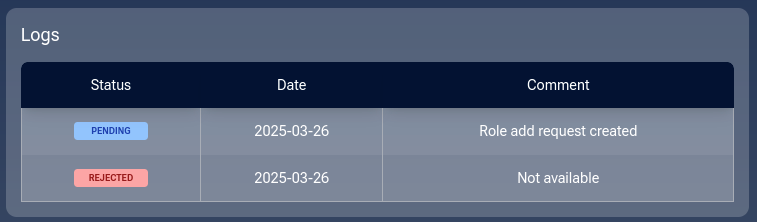
If an operator rejects the request, the selected quota does not become active. Open Details to read the operator message.
Email notifications
You receive an email for each status change:
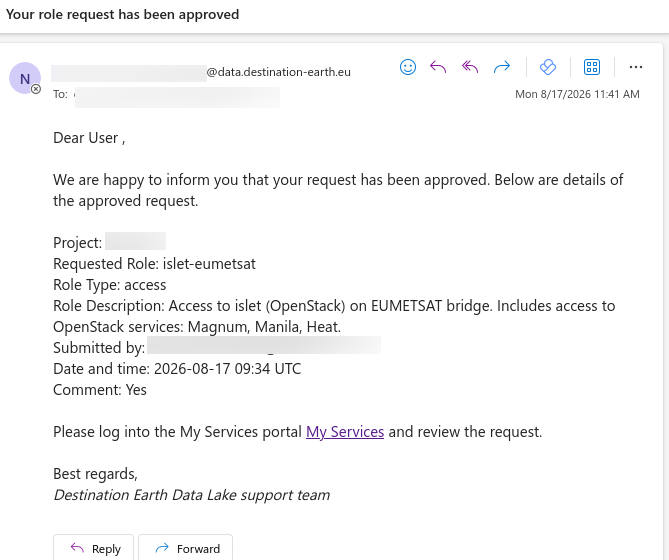
Use your email client’s search function to track changes related to islet-eumetsat.
Remove access to an Islet site
An Islet site is available only when the project has one quota role and at least one access role for that site. Removing the access role makes the site unavailable even if its quota role remains active.
To remove a user’s access to islet-eumetsat:
Open Configuration -> Users & privileges.
Find the user and click the gear icon. The page shows the user’s active access roles.
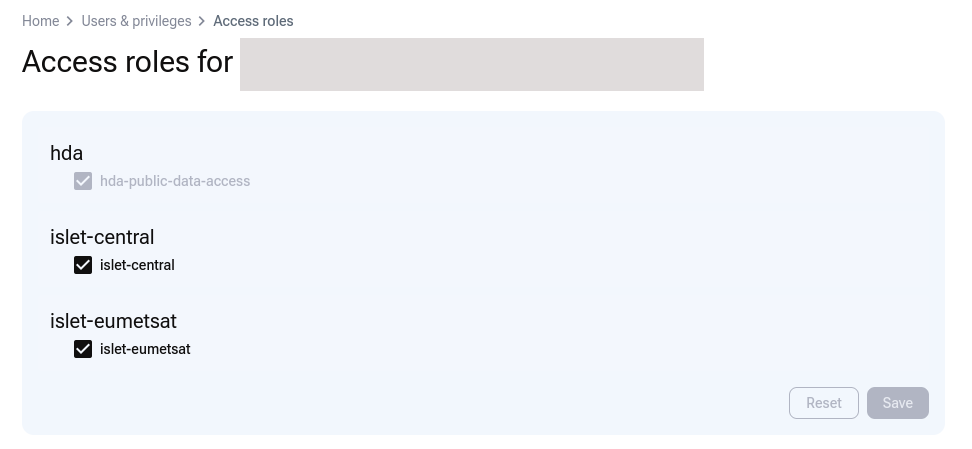
Clear the checkbox next to islet-eumetsat. The Save button becomes active.
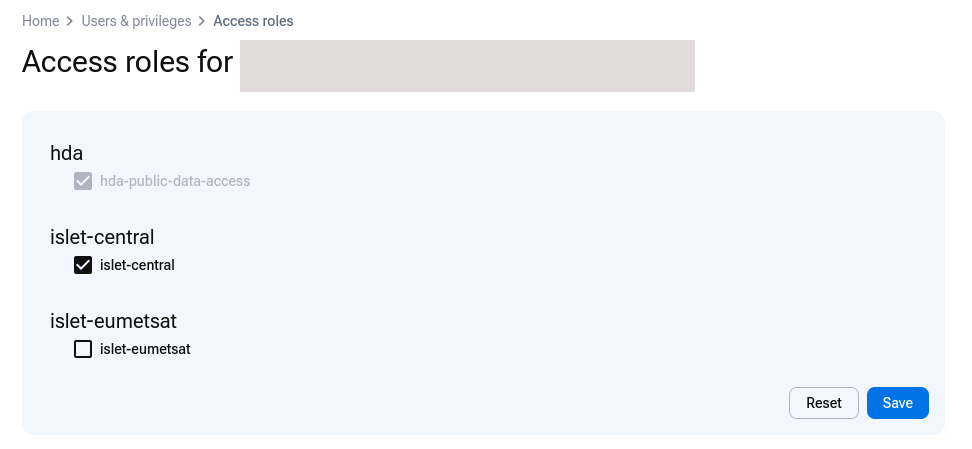
Click Save. A confirmation message appears in the lower-right corner.

Open Access -> Active roles. Under islet-eumetsat, confirm that the quota role remains but the access role is no longer listed.

What to do next
After the Islet access and quota roles become active, create one or more OpenStack projects:
Also of interest:
In case of problems, see status page for Destination Earth Data Lake Islet services.