Using Cyberduck with S3-compatible object storage on Destination Earth
Cyberduck provides a graphical way to open private S3 storage, inspect its contents, and transfer files without using command-line syntax. Use it when you need to check a bucket quickly, confirm that an upload succeeded, download part of a dataset, or organize objects from a Windows or macOS computer.
Cyberduck works in the same way both with OpenStack Object Storage as well as the Standalone S3 Object Storage service that is available on DEDL. Both use an S3 endpoint, an access key, and a secret key but – as explained in Prerequisite No. 2 – the difference is where those credentials are obtained from.
Why use Cyberduck
Graphical file management – Browse buckets and transfer files without learning command-line syntax.
Support for several protocols – Use the same application with S3, SFTP, FTP/FTPS, WebDAV, SMB, OpenStack Swift, and other cloud-storage services.
Saved connections – Store frequently used endpoints as bookmarks.
Simple transfers – Upload and download files by selecting or dragging them.
Transfer monitoring – Follow progress, speed, completed transfers, and errors in the Transfers window.
Temporary sharing – Create a signed URL for one private object when the endpoint supports it.
Cyberduck is intended for everyday bucket and file operations. However, it does not:
Create or apply bucket policies – Use s3cmd for project-to-project sharing in OpenStack Object Storage.
Manage OpenStack project membership – Add or remove project users through the appropriate cloud management interface.
Configure versioning or lifecycle rules – Use the relevant command-line procedure.
Run scheduled backups – Cyberduck synchronization starts manually.
Maintain reusable sharing rules – Use bucket policies when another OpenStack project needs read-only, upload-only, read/write, or prefix-restricted access.
What we are going to cover
Prerequisites
No. 1 DESP account and access to an S3 storage service
You need an active DESP account and access to either an OpenStack project with Object Storage or the Standalone S3 Object Service. See How to create a DestinE Platform account.
No. 2 S3 access credentials
Cyberduck requires an Access Key ID and Secret Access Key. Obtain them from the service that provides your object storage.
OpenStack Object Storage – Use EC2 credentials created for the OpenStack project. See How to generate and manage EC2 credentials.
Standalone S3 Object Storage – Use the access and secret keys generated through My DataLake Services. See How to obtain S3 keys for standalone S3 object storage through My DataLake Services.
Standalone S3 object service can also provide a private delivery bucket for data proposed for inclusion in the DestinE Data Lake. See Promote user data to become DestinE data.
Keep both credential values available while creating the connection. The access key, secret key, and S3 endpoint must belong to the same storage account and site.
No. 3 S3 endpoint
Use the endpoint assigned to the site where your object storage is located.
Site |
S3 endpoint |
|---|---|
CENTRAL |
s3.central.data.destination-earth.eu |
LUMI |
s3.lumi.data.destination-earth.eu |
LEONARDO |
s3.leonardo.data.destination-earth.eu |
MARENOSTRUM |
s3.marenostrum.data.destination-earth.eu |
EUMETSAT |
s3.eumetsat.data.destination-earth.eu |
Enter only the hostname in Cyberduck. Do not add https://, a path such as /swift/v1, or a trailing slash.
No. 4 Cyberduck installed on your computer
Install Cyberduck on the Windows or macOS computer from which you want to manage the objects:
https://cyberduck.io/download/
Cyberduck is a desktop application for Windows and macOS. It is separate from Horizon but will also run in a virtual machine running one of these operating systems. The only essential prerequisite is that the computer or virtual machine on which Cyberduck is running must be able to reach the S3 endpoint over HTTPS.
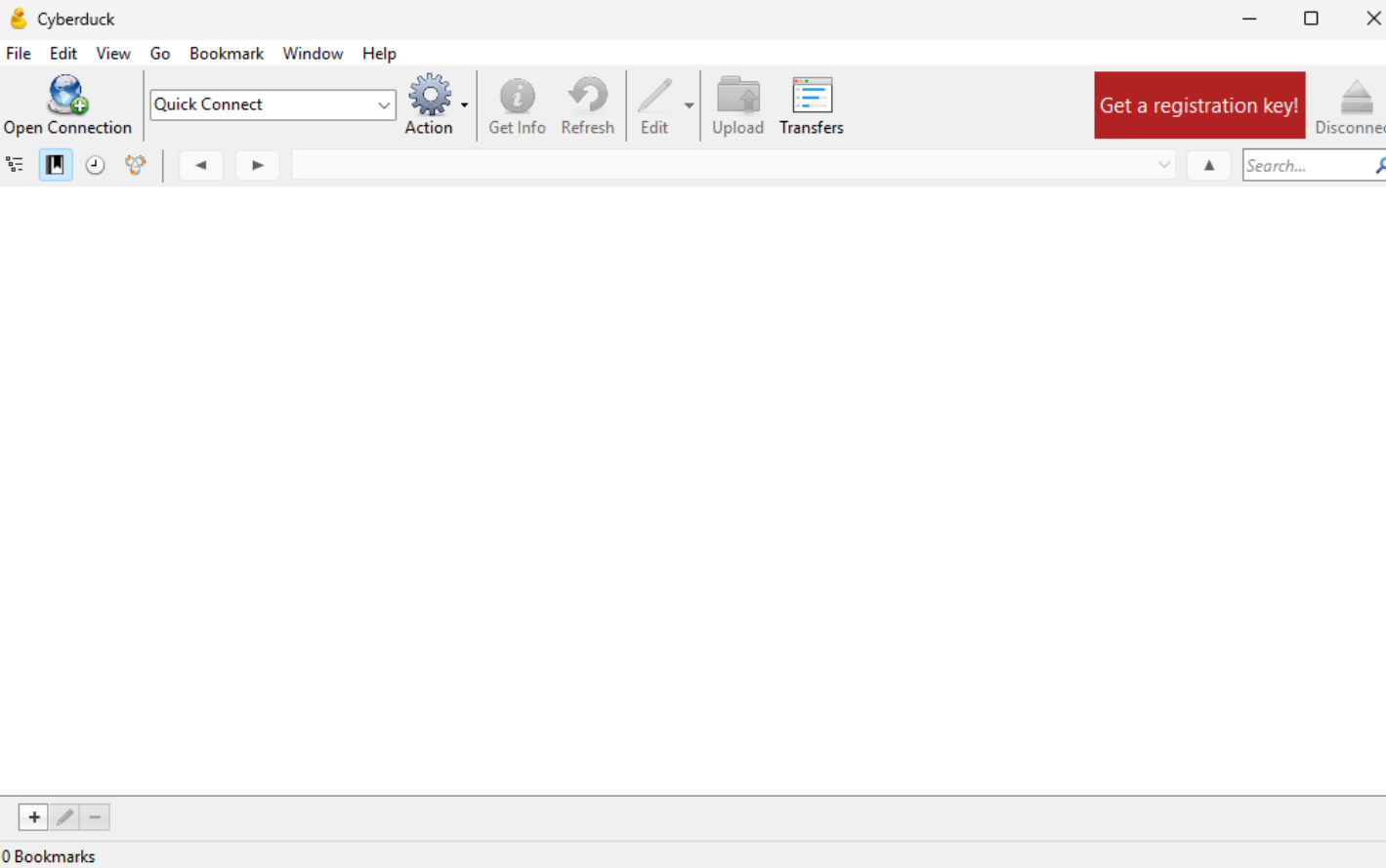
Cyberduck starting screen on Windows.
No. 5 Enabling the path-style S3 profile
Cyberduck connects to S3 endpoints through the S3 (Deprecated path style requests) profile. The word deprecated refers to Amazon S3 addressing and does not mean that the profile is unsuitable for this S3-compatible service.
If the profile is not available within the UI, open Preferences, select Profiles, and enable S3 (Deprecated path style requests). You only need to do this once.
Select S3 (Deprecated path style requests).

Selecting the path-style S3 connection type.
Connecting to S3 object storage
Opening the connection
Open Cyberduck and click Open Connection.
Opening a new connection in Cyberduck.
Enter the connection settings:
Server – Enter the S3 hostname, for example s3.central.data.destination-earth.eu. Do not include https:// or a trailing slash.
Port – Use 443.
Access Key ID – Enter the access key obtained in Prerequisite No. 2.
Secret Access Key – Enter the secret from the same credential pair.
Path – Leave this empty to open the bucket list. Enter a bucket path only when the connection should open inside a specific bucket.
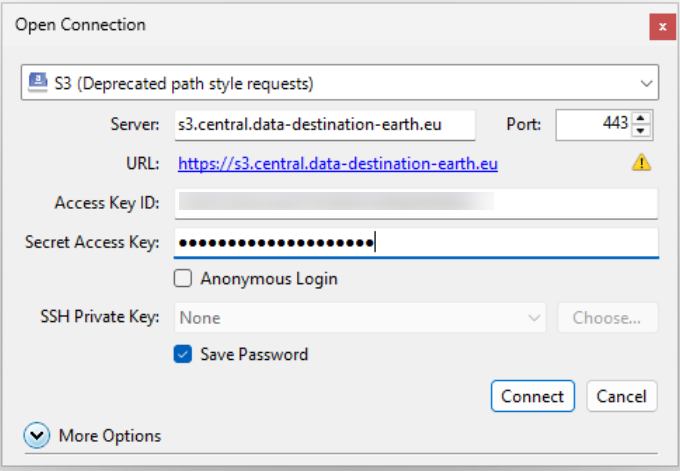
Entering the endpoint and S3 credentials.
Click Connect. Cyberduck displays the buckets available to the supplied credentials. An empty list can simply mean that the storage account does not contain any buckets yet.

Cyberduck connected to S3-compatible object storage.
Saving the connection as a bookmark
Save the connection as a bookmark so that you can reopen it without entering the endpoint and access key again. While connected, open Bookmarks, click the plus button, and use field Nickname to give the bookmark a clear name.
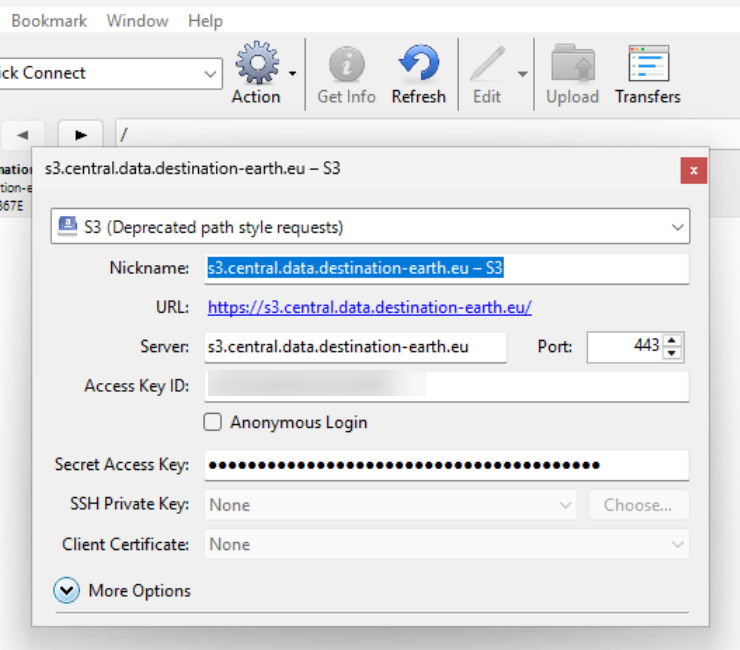
Check the server, port, access key, and connection type before saving it. Cyberduck can store the secret in the operating system password manager. Do not share or export bookmarks containing access credentials.
Understanding the Cyberduck browser

The first view shows the buckets available to your credentials. Open a bucket to display its files and folder-like prefixes  .
.
Use Back  and Forward
  to return to previously opened locations. Click Refresh
  when changes made through another tool do not appear, and use the search field
  to find an item in the current location.
Creating and organizing buckets
Creating a bucket
Return to the root bucket list, click Action, and select New Folder. At the account root, this command creates an S3 bucket. Enter a unique bucket name. Use lowercase letters, numbers, and hyphens, and do not include spaces. Leave the region at the default value unless the service operator provides different instructions.
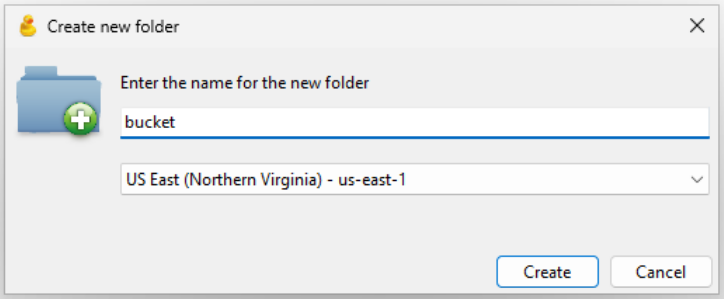
Entering a bucket name.
Click Create. The new bucket appears in the account root and remains private to its owning storage account or OpenStack project until access is granted.

Newly created S3 bucket.
Creating folders inside a bucket
Open a bucket, then select Action and New Folder. Inside a bucket, Cyberduck creates a new prefix rather than another bucket.
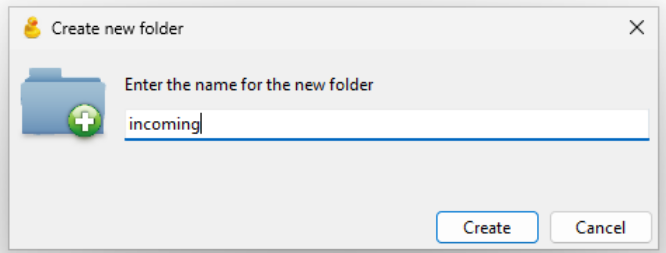
It is totally up to you how you are going to organize the contents of the buckets, but typical subfolder names are incoming/, published/, or archive/.
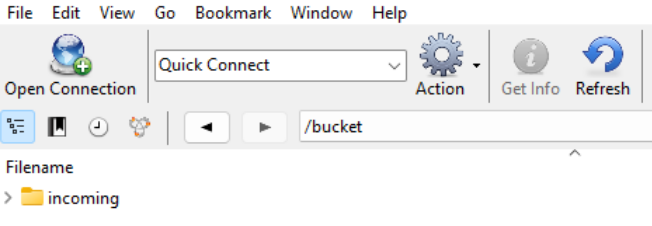
Objects uploaded there receive keys such as published/report.pdf or archive/2026/data.tif. These prefixes can later be referenced in bucket policies to grant access to selected parts of the bucket.
Deleting a bucket
Select the bucket in the account root and choose Delete.
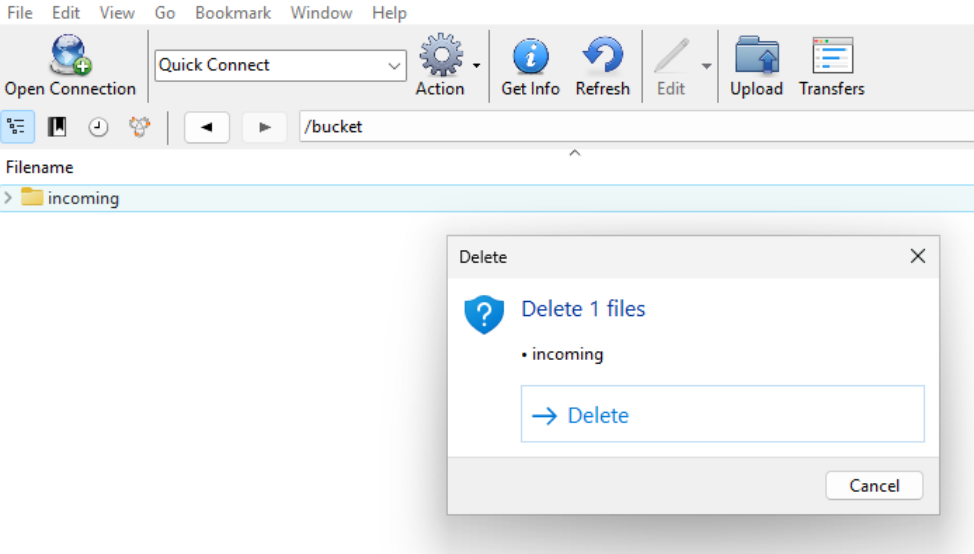
Selecting a bucket for deletion.
The S3 service cannot delete a bucket that still contains objects. If the bucket looks empty but deletion fails, previous versions or delete markers may still exist.
For OpenStack Object Storage, follow article S3 bucket object versioning to list and permanently remove the remaining versions and delete markers. Then return to Cyberduck and delete the bucket again.
Uploading, downloading, and deleting objects
Uploading files and folders
Open the target bucket or prefix, then click Upload or choose Upload from the Action menu.
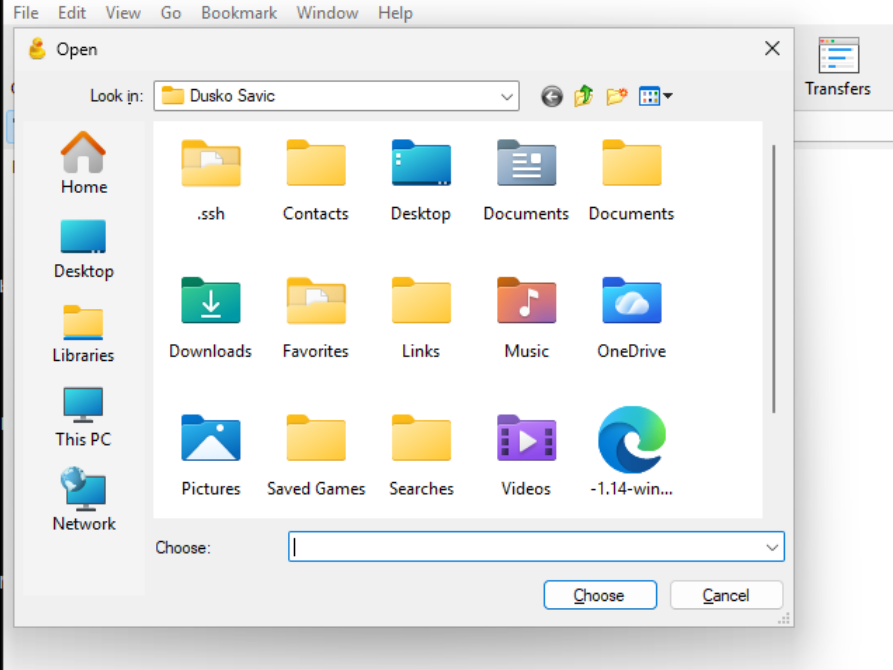
Starting an upload.
Select one or more files and confirm the selection. You can also drag files or folders from File Explorer (on Windows) or Finder (on macOS) into Cyberduck.
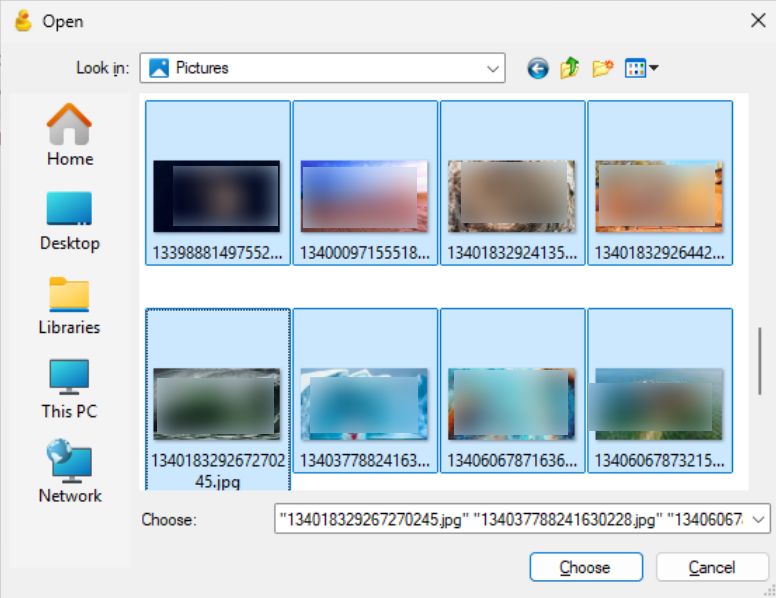
Selecting local files for upload.
The Transfers window shows the progress and status of each upload. Keep it open until all required files are marked as completed.
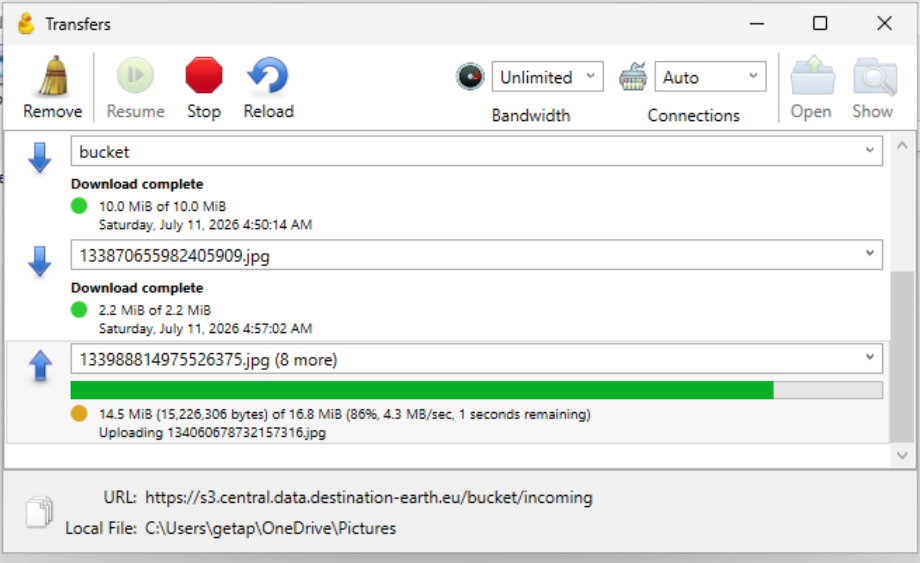
Monitoring upload progress.
Uploading a file to an existing object key replaces the current object. If versioning is enabled, the storage service may retain the previous version.
Downloading files and folders
Select the required file or folder and choose Download. Use Download As when you want to select another destination or file name.
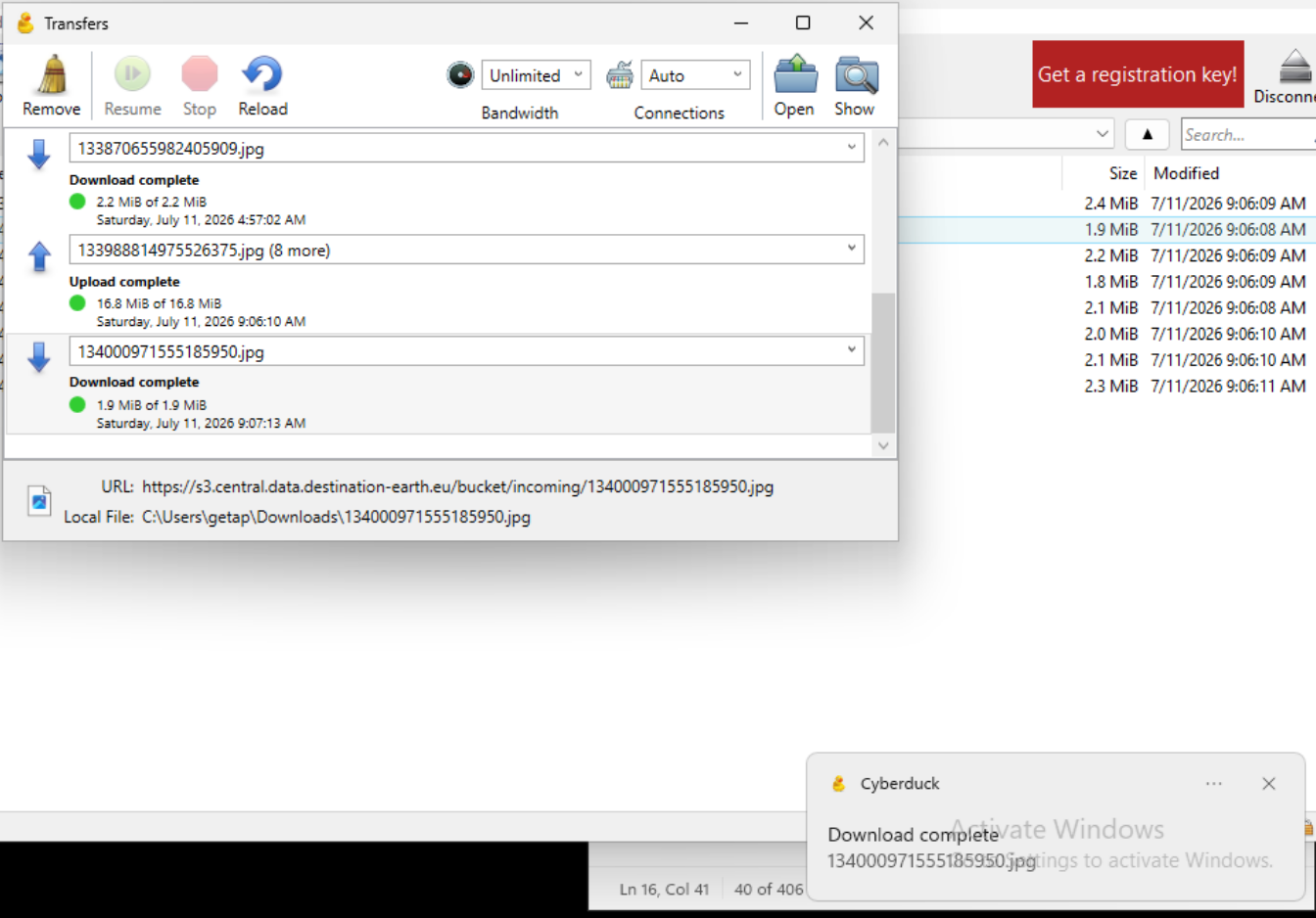
Downloading a file or folder.
Before downloading a large folder, check its contents and make sure that enough local disk space is available. Use a command-line tool for scheduled or repeated bulk transfers.
Deleting files and folders
Select the required file or folder and click Delete.
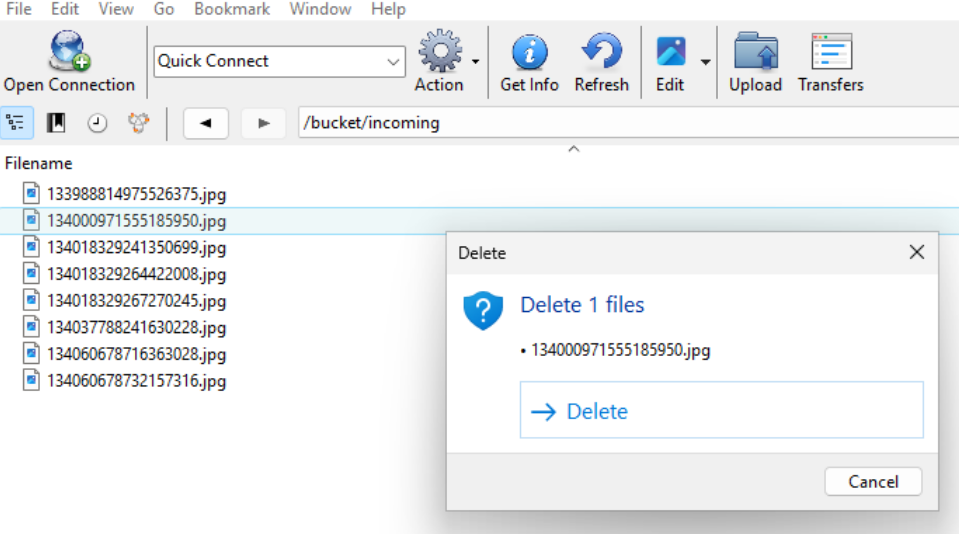
Deleting a file or folder.
Check the complete path before confirming the deletion. Deleting a folder removes all objects stored under that prefix.
On a version-enabled bucket, deleted objects may remain as previous versions or delete markers. Use the versioning procedure for recovery or permanent removal.
Working with the Info panel
Viewing object information
Select a bucket, folder, or object and click Info. You can also open Info from the context menu.
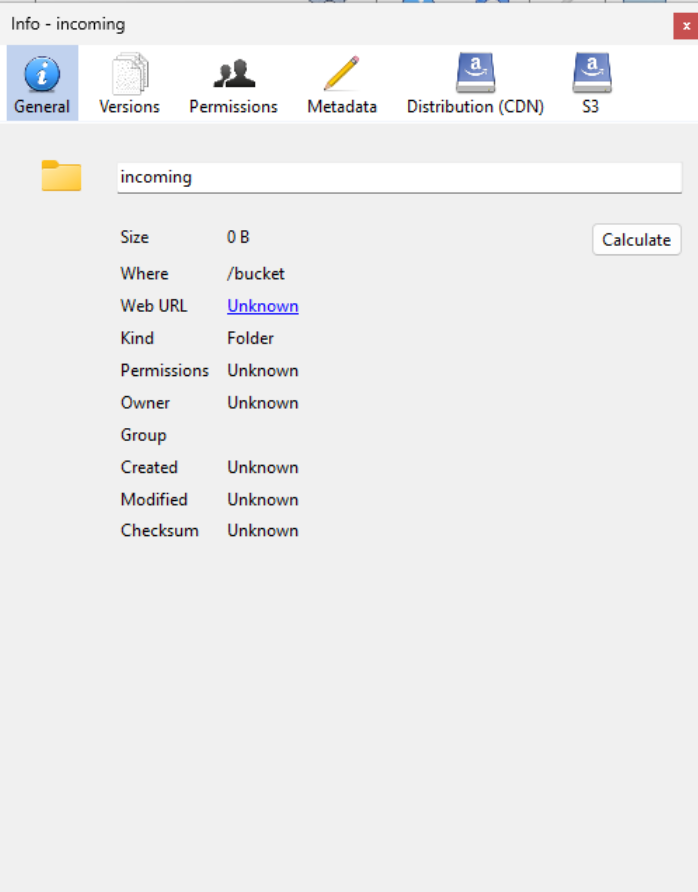
Opening the Info panel.
The panel can show the object name, size, modification time, content type, checksum, metadata, versions, and permission. The available information depends on the selected item and the S3 endpoint.
Viewing previous object versions
If versioning is enabled, open the Versions tab in the Info panel. Cyberduck may allow you to view, restore, or delete a selected version.
For complete OpenStack Object Storage versioning procedures, see S3 bucket object versioning.
Viewing permissions in Cyberduck
Select a bucket or object, open Info, and choose Permissions. Cyberduck shows the owner and the ACL entries returned by the S3 service.
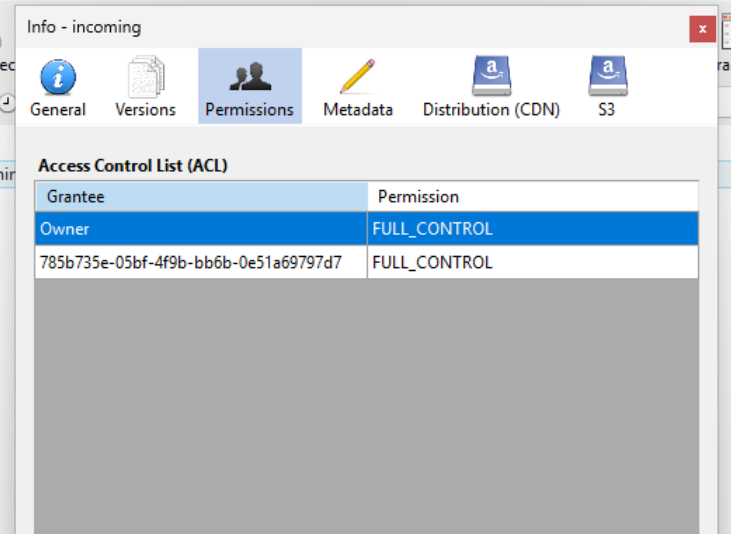
Viewing permissions for a bucket or object.
Cyberduck can display and edit basic ACL entries, but it is not suitable for managing access to large datasets or many users. Do not enter email addresses or arbitrary user identifiers unless the storage-service documentation specifically requires them.
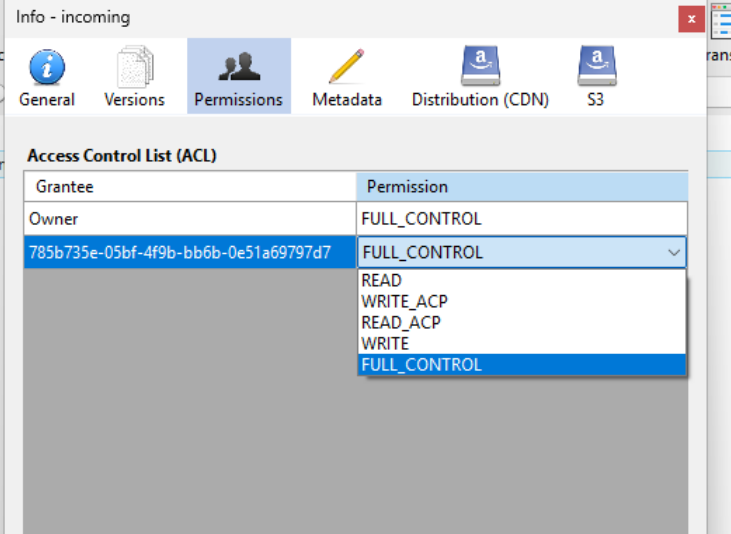
ACL controls in Cyberduck.
For controlled sharing between OpenStack projects, use a bucket policy. It can grant another project read-only, upload-only, read/write, or prefix-restricted access and can be applied or removed with s3cmd.
Creating a temporary signed download link
Use a signed URL when someone needs temporary access to one private object without receiving access to the complete bucket.
Select the object, open Copy URL, and choose Signed URL. Select the validity period, copy the link, and test it in a private browser window before sending it.
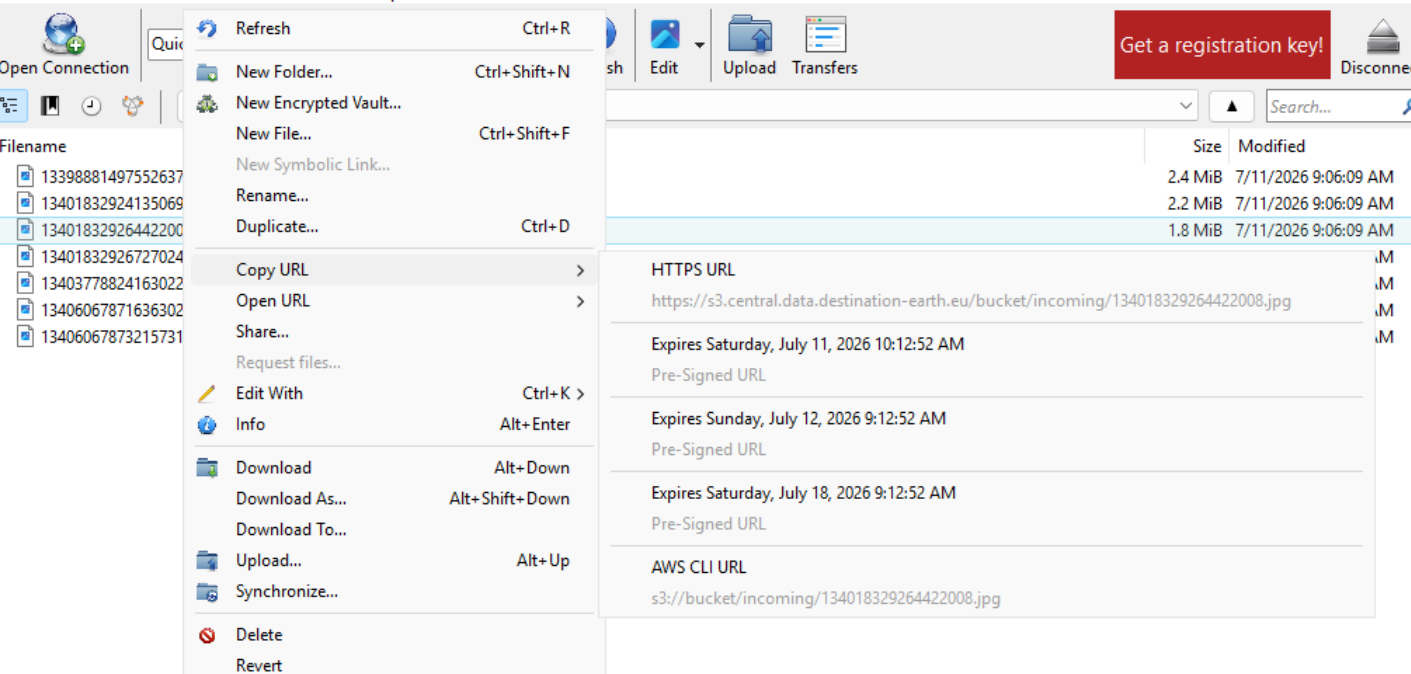
Creating a signed URL for a private object.
In this example, the link would be https://s3.central.data.destination-earth.eu/bucket/incoming/134018329264424008.jpg. Anyone who receives the complete link can use it until it expires. For OpenStack Object Storage, use a bucket policy when recipients need continuing access, several objects, or upload permissions.

Synchronizing a local folder with a bucket prefix
Open the target bucket or prefix, select File and Synchronize, then choose the local folder to compare with the S3 location.
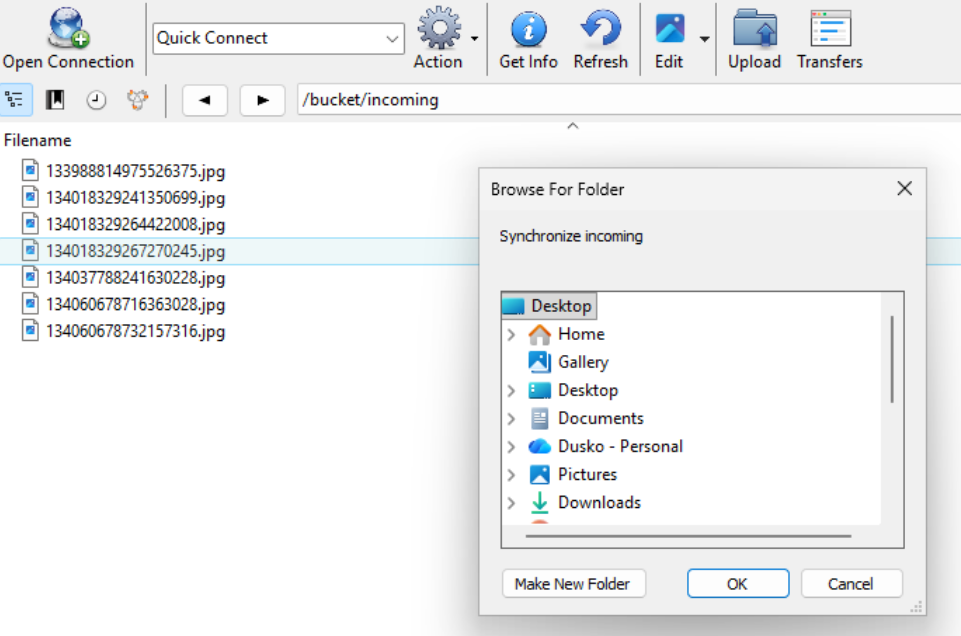
Selecting a local folder for synchronization.
Cyberduck shows which files will be uploaded, downloaded, or replaced. Review the list, choose the synchronization direction, and make sure that important files will not be overwritten.
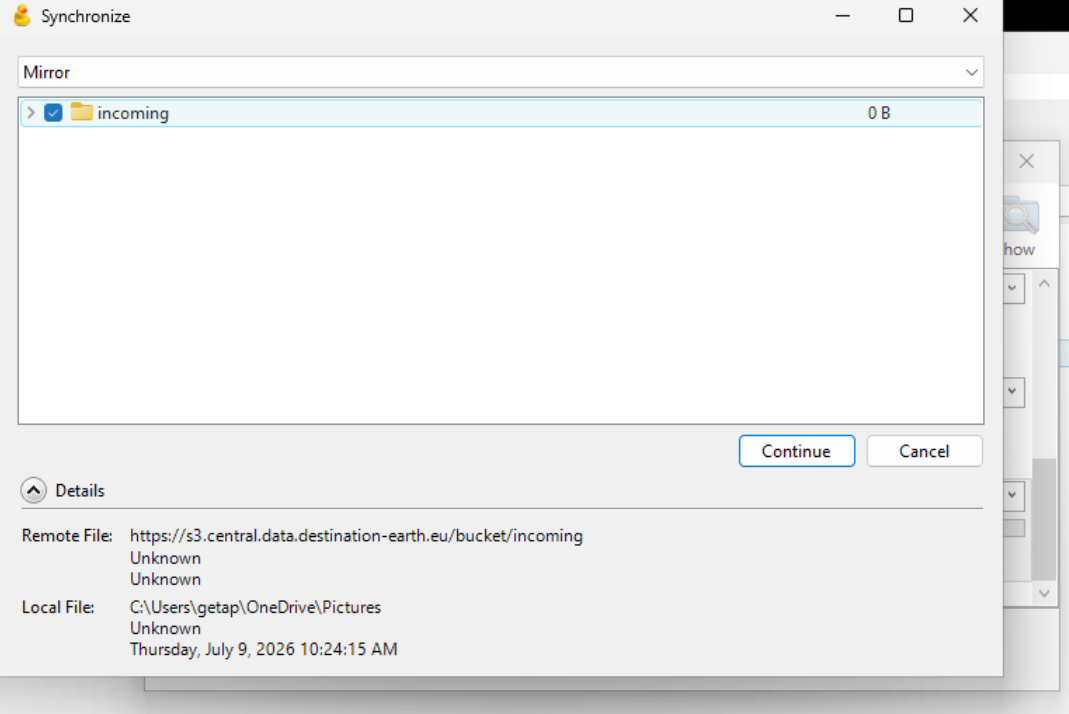
Reviewing the synchronization operations.
Synchronization runs only when you start it manually. Use a command-line workflow for scheduled or automated backups.
Troubleshooting the connection
Endpoint cannot be resolved – If Cyberduck reports Name or service not known, enter only the endpoint hostname, for example s3.central.data.destination-earth.eu, without https://, a path, or a trailing slash.
AccessDenied or HTTP 403 – The S3 service was reached but refused the request. Check that the access key and secret belong to the same credential pair and match the selected endpoint and storage account.
Expected bucket is missing – Refresh the list and confirm that you are using the correct endpoint and credentials. A bucket owned by another OpenStack project becomes accessible only after its owner grants access.
Secret key is rejected – Re-enter the secret without leading or trailing spaces. For OpenStack Object Storage, do not use an OpenStack application credential secret; Cyberduck requires the EC2 secret associated with S3 access.
Cyberduck on Linux
Cyberduck does not provide a desktop application for Linux. Linux users can install duck, its command-line client, from https://duck.sh/.
Add the Cyberduck repository and install duck:
echo -e "[duck-stable]\nname=duck-stable\nbaseurl=https://repo.cyberduck.io/stable/\$basearch/\nenabled=1\ngpgcheck=0" \
   | sudo tee /etc/yum.repos.d/duck-stable.repo

sudo dnf install duck
Add the Cyberduck repository and install duck:
echo "deb https://s3.amazonaws.com/repo.deb.cyberduck.io stable main" \
   | sudo tee /etc/apt/sources.list.d/cyberduck.list

sudo gpg --keyserver hkp://keyserver.ubuntu.com \
   --recv-keys FE7097963FEFBE72

sudo gpg --export FE7097963FEFBE72 \
   | sudo tee /etc/apt/trusted.gpg.d/repo.deb.cyberduck.io.gpg \
   > /dev/null

sudo apt update
sudo apt install duck
Verify the installation:
duck --version
Cyberduck – Use the graphical application on Windows or macOS.
s3cmd – Use it on Linux for S3 transfers, synchronization, automation, and OpenStack bucket policies.
duck – Use it when one command-line client must also support SFTP, WebDAV, OpenStack Swift, and other protocols.
For s3cmd, see How to install s3cmd on Linux and How to access object storage using s3cmd.
Further use of duck is outside the scope of this article.
What To Do Next
After using Cyberduck to connect to object storage and manage buckets and files, continue with the article that matches the next task.
Share an OpenStack bucket with another project
See Sharing S3 buckets between OpenStack projects using bucket policies on Destination Earth to grant another project read-only, upload-only, read/write, or prefix-restricted access.
Protect objects in OpenStack Object Storage
See S3 bucket object versioning to preserve previous versions and recover data after an accidental overwrite or deletion.
Build a sharing or backup workflow
See S3 data-sharing and backup scenarios for workflows combining Cyberduck, bucket policies, versioning, and command-line automation.