How to delete account on My DataLake Services
This article explains how to delete your My DataLake Services account.
Account deletion is a permanent action. It removes your personal data, projects, and access to Edge Services. After the deletion process is completed, you are logged out and the account is blocked.
Open your profile
In the left menu, go to Configuration and select My profile.
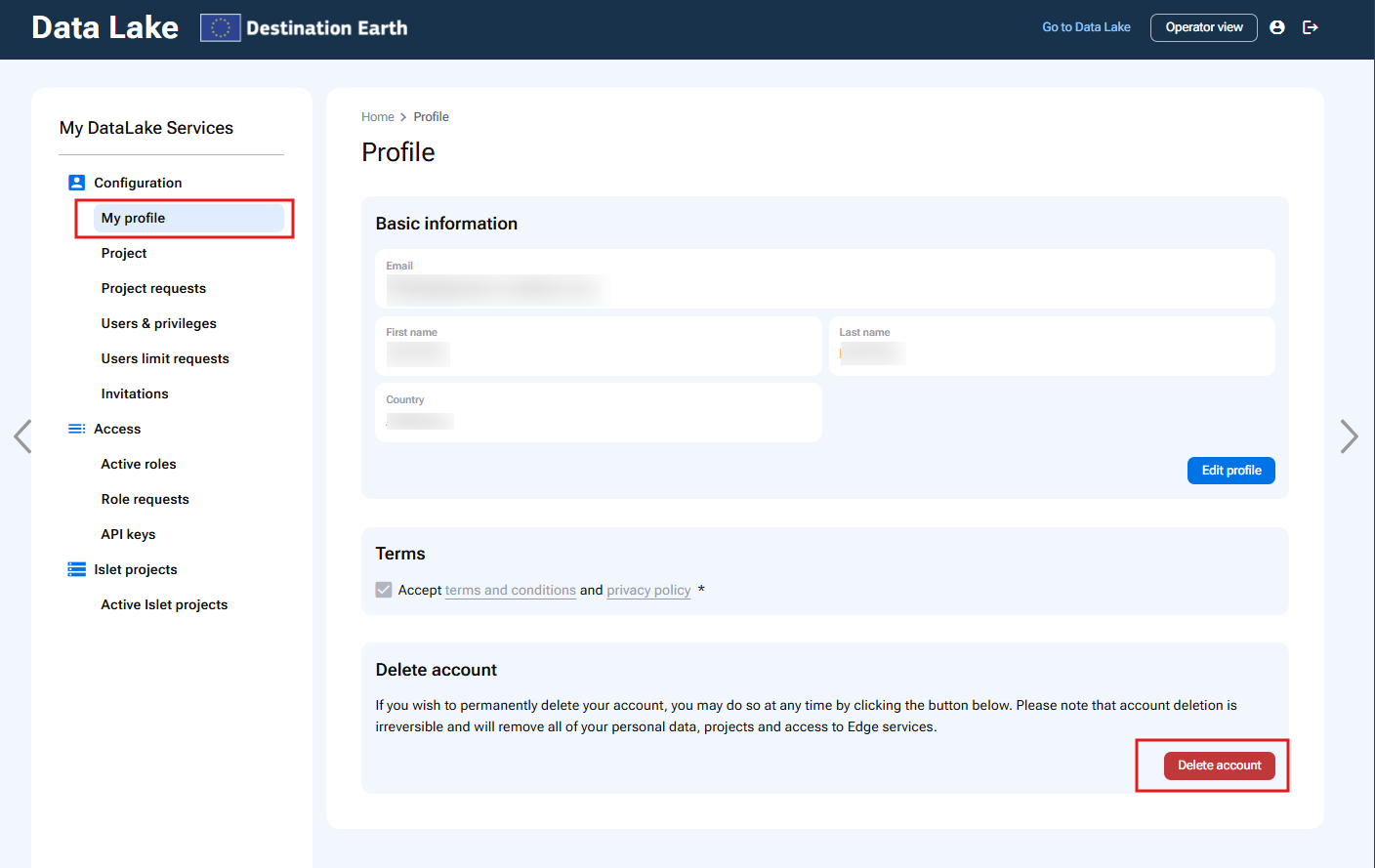
On the Profile page, the Delete account section explains the consequence of deleting your account:
If you wish to permanently delete your account, you may do so at any time by clicking the button below. Please note that account deletion is irreversible and will remove all of your personal data, projects and access to Edge services.
To start the deletion process, click Delete account.
Deletion process
After clicking Delete account, a three-step account deletion process is triggered.
Display of information about the consequences of account deletion
The first step displays information about what happens when you delete your account.
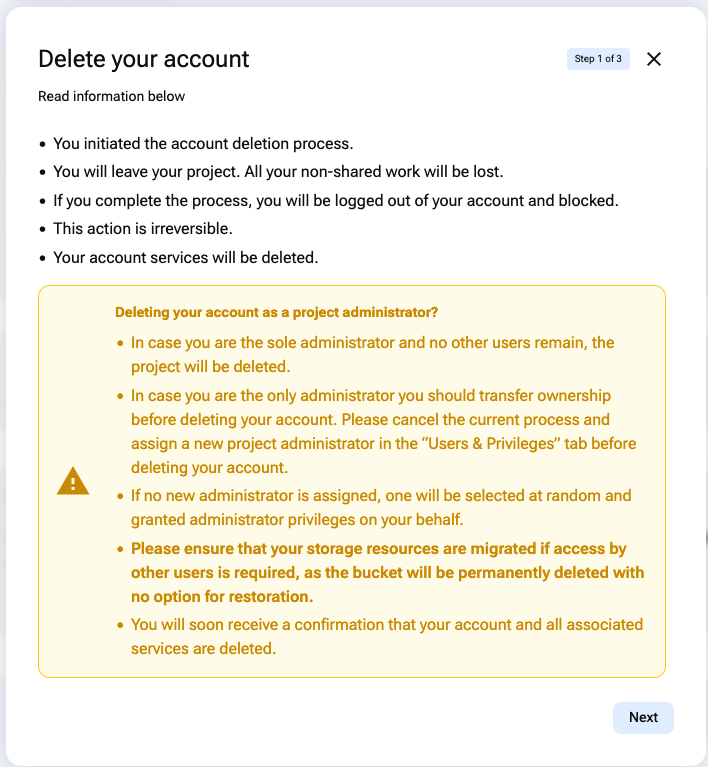
The window informs you that:
You initiated the account deletion process.
You will leave your project.
All your non-shared work will be lost.
If you complete the process, you will be logged out of your account and blocked.
This action is irreversible.
Your account services will be deleted.
For project administrators
The window also displays additional information for project administrators.
If you are the sole administrator of a project and no other users remain, the project will be deleted.
If you are the sole administrator, transfer ownership before deleting your account. To do that, cancel the current deletion process and assign a new project administrator in the Users & Privileges tab.
If a new administrator is assigned, the new administrator will receive the required activation and renewal authorization information.
Make sure that any storage resources are migrated if other users still need access to them. Otherwise, the bucket will be permanently deleted with no option for restoration.
After reviewing the information, click Next.
Providing a reason for deletion
In the second step, provide the reason for deleting your account.

The reason is required.
Use this field to explain why you are deleting the account. For example, you can mention that the project has been completed, that you are leaving the project, or that another circumstance requires the account to be removed.
You can also use this field to provide feedback about the service, including any inconvenience, problem, or suggestion that could help improve My DataLake Services.
After entering the reason, click Next.
Final confirmation of the decision
In the final step, confirm that you want to delete your account.
Account deletion is irreversible. Continue only if you are sure that your personal data, project access, and related services can be removed.

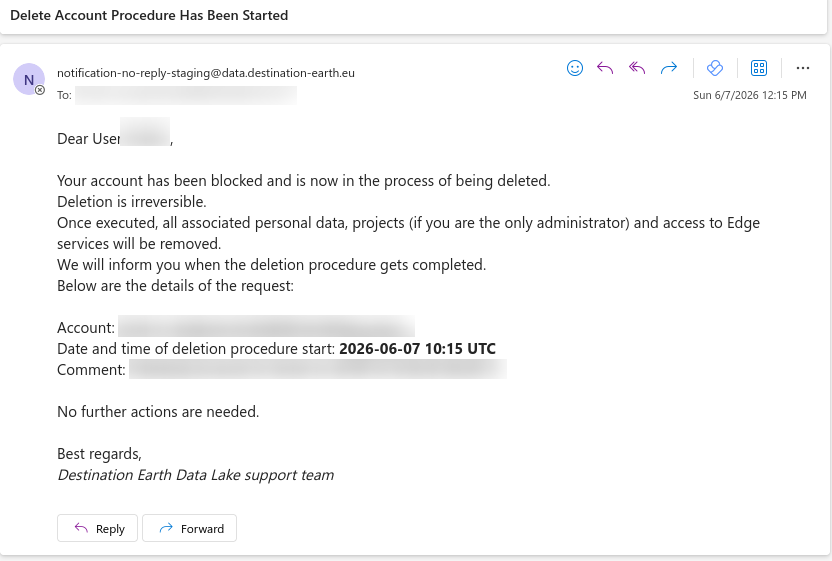
Email message that the account is being deleted
You will receive an automated response to your email address, like this:
Result
After the account deletion process is completed:
You are logged out.
The account is blocked.
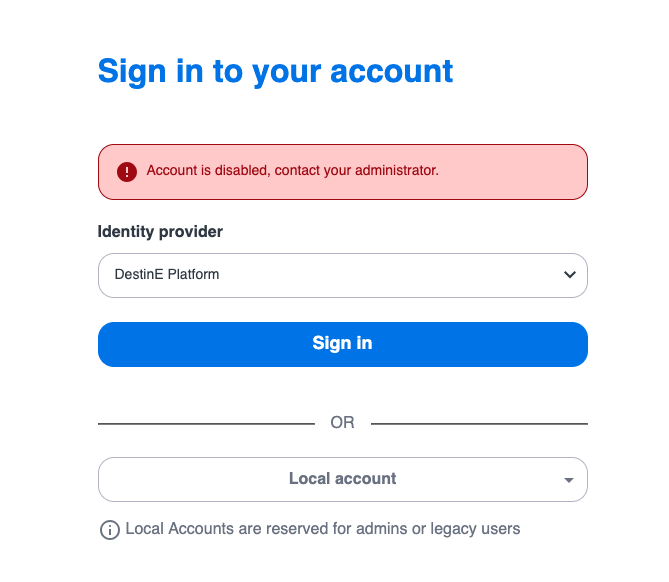
When you try to sign in again, the login page displays the following message:
Account is disabled, contact your administrator.
When the Support Operator has deleted the account, you will also receive an email message about it.