Request access to MLOps Studio in My DataLake Services
This guide explains how to request access to the mlops-studio-leonardo service in My DataLake Services, select a quota role, track the request status, change your quota later, and remove access when the service is no longer needed.
Introduction
MLOps Studio access in My DataLake Services is managed through service roles and quota roles. Before you can open and use the MLOps Studio workspace, your project must have the required access role and one approved quota role for the mlops-studio-leonardo service.
The access role enables the service for the project. The quota role defines how much CPU, memory, storage, and GPU capacity can be distributed across MLOps Studio namespaces.
Overview
There are two ways to request access to MLOps Studio:
enable the mlops-studio-leonardo service while creating a project,
request the service later from the Role requests menu.
In both cases, the request must be reviewed by the DEDL operator. Once approved, the role appears under Active roles and the MLOps Studio service becomes available from the My DataLake Services interface.
You can also change the selected quota role later. For example, if your project no longer needs the highest quota, you can request a lower quota role. The change is also reviewed by the operator.
Prerequisites
Before starting, make sure that the following requirements are met.
No. 1 My DataLake Services profile
You need to have a profile on My DataLake Services.
See How to create a profile on My DataLake Services.
No. 2 Approved project
You must be an admin member of a project that has been approved by the operator.
To create a project, follow this guide:
How to create a project on My DataLake Services
You can also join an existing project and have an administrator grant you the required privileges.
No. 3 Project administration privileges
You must have permission to request roles and manage access for the project.
No. 4 Planned MLOps Studio usage
Before submitting the request, prepare a short description of the planned activities. The operator uses this information to review the access and quota request.
Enable MLOps Studio while creating a project
You can request the mlops-studio-leonardo service while creating a new project.
Start creating the project as described in Prerequisite No. 2. In the service selection step, mark the mlops-studio-leonardo checkbox.
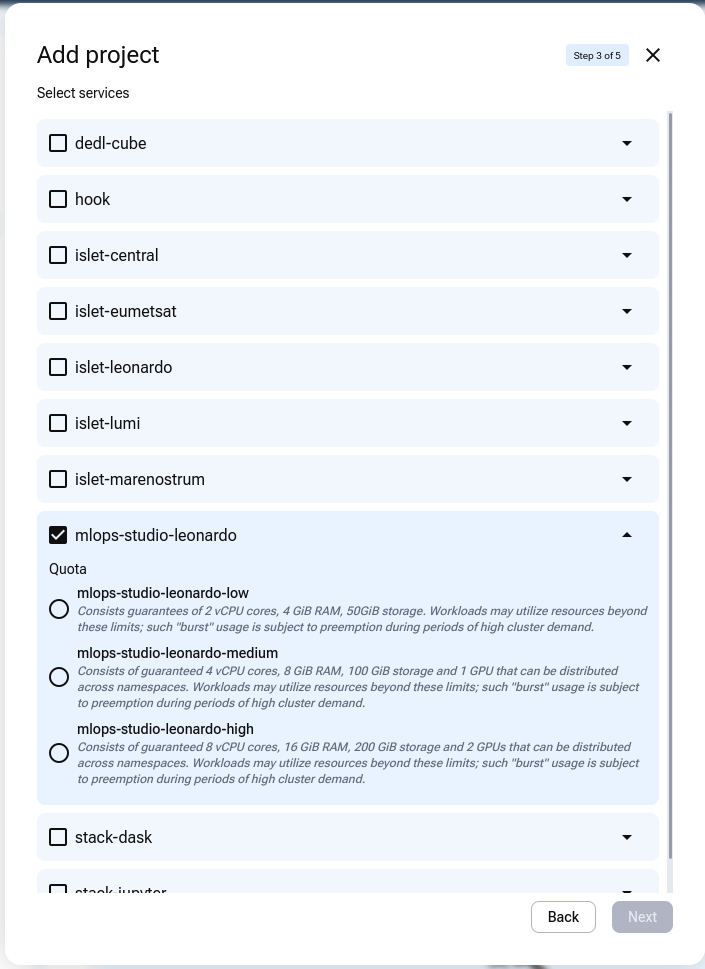
Finish creating the project and wait for operator approval.
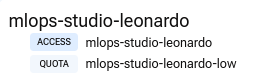
After the project is approved, open Active roles. You should see the default project role and the MLOps Studio service role.
The active roles usually include:
hda, the default role present in all projects,
mlops-studio-leonardo, the role created for MLOps Studio access.
In Role requests, the mlops-studio-leonardo service is now shown with the Edit access button.
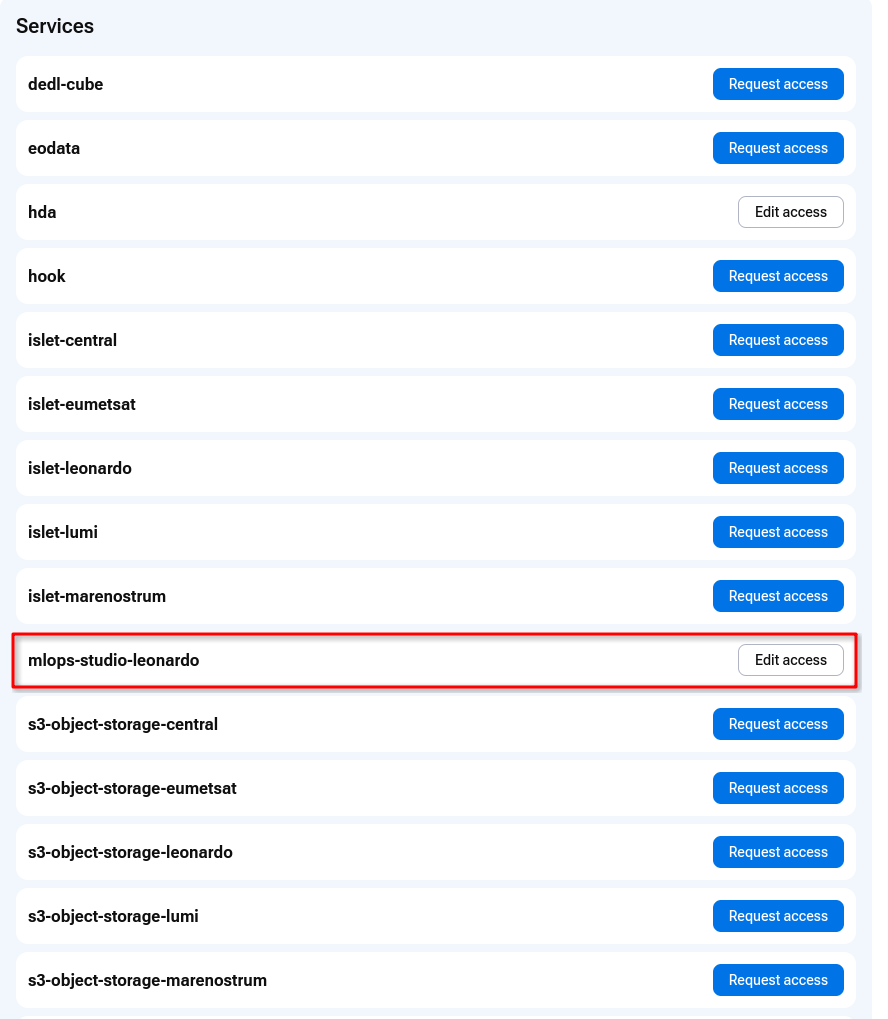
This means that MLOps Studio access has already been requested for the project and can be modified if needed.
Request MLOps Studio access for an existing project
You can also request MLOps Studio access after the project has already been created.
This is the usual workflow when the project was created with only the default hda role and MLOps Studio was not selected during project creation.
Open Role requests from the My DataLake Services menu.
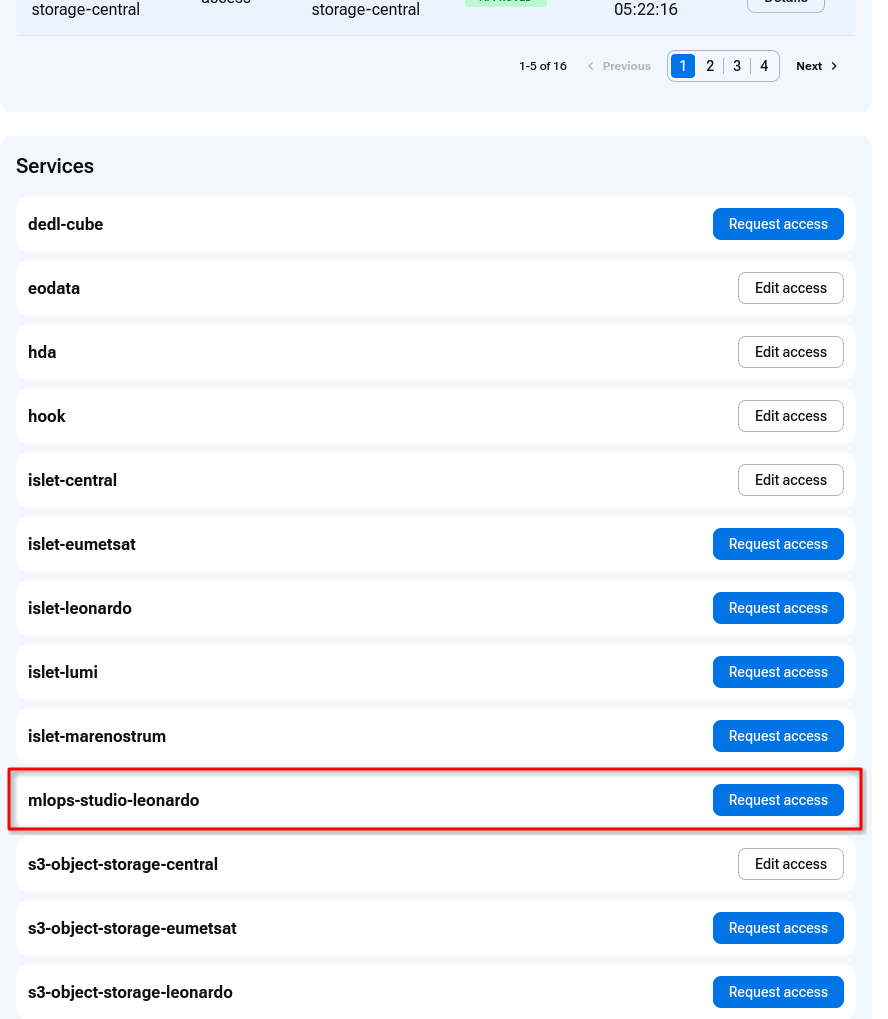
If you do not already have access to mlops-studio-leonardo, click Request access.
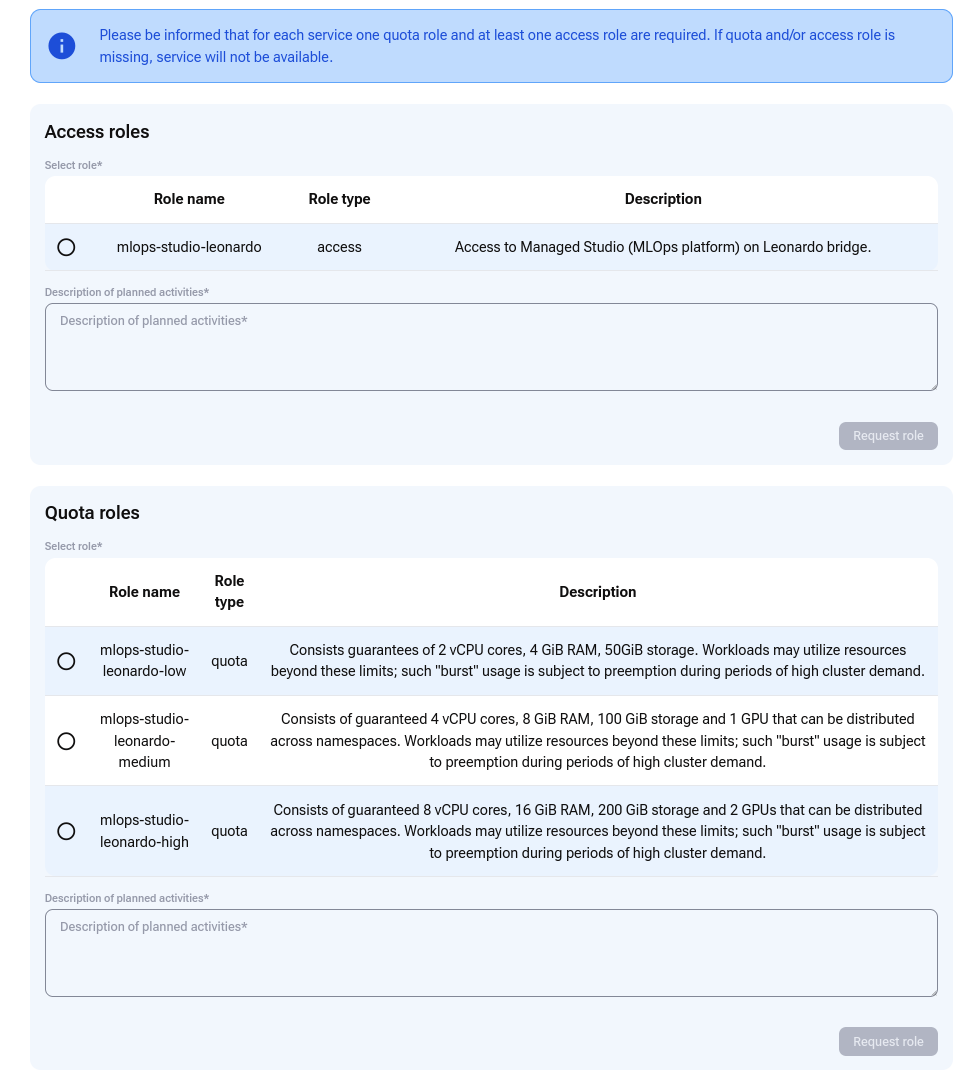
You are taken to a page with two sections:
Access roles,
Quota roles.
Both are required.
Select the access role
The mlops-studio-leonardo service has one access role.
- mlops-studio-leonardo
Access to MLOps Studio service.
Although there is exactly one option, you still have to select it and then enter the Description of the planned activities. Only then can you click on Request role to proceed to the quota role section.
Select the quota role
The quota role defines the amount of guaranteed resources available for MLOps Studio workloads.
Select one of the available quota roles.
- mlops-studio-leonardo-low
Consists guarantees of 2 vCPU cores, 4 GiB RAM, 50GiB storage. Workloads may utilize resources beyond these limits; such “burst” usage is subject to preemption during periods of high cluster demand.
- mlops-studio-leonardo-medium
Consists of guaranteed 4 vCPU cores, 8 GiB RAM, 100 GiB storage and 1 GPU that can be distributed across namespaces. Workloads may utilize resources beyond these limits; such “burst” usage is subject to preemption during periods of high cluster demand.
- mlops-studio-leonardo-high
Consists of guaranteed 8 vCPU cores, 16 GiB RAM, 200 GiB storage and 2 GPUs that can be distributed across namespaces. Workloads may utilize resources beyond these limits; such “burst” usage is subject to preemption during periods of high cluster demand.

After selecting the quota role, complete the Description of planned activities field. Use it to briefly explain what you plan to do with MLOps Studio. For example, describe whether you plan to run notebook environments, training jobs, GPU workloads, or experiments that require persistent storage.
Click Request role to finalize the request. Your request remains PENDING until it is reviewed by the operator.
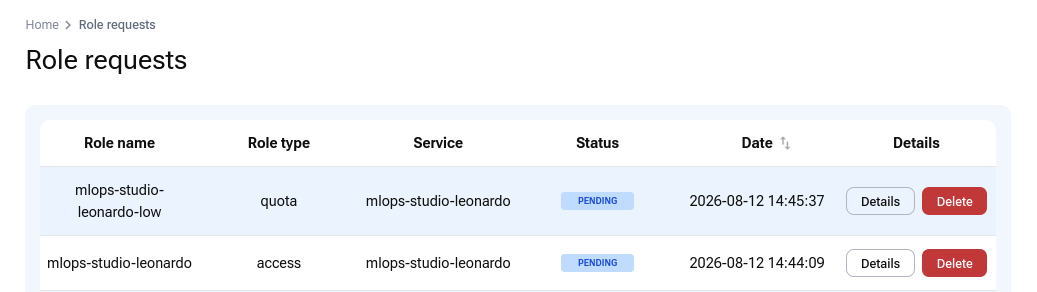
While the access role and quota role requests are PENDING, each request provides the following options:
Details – view the request and check its current status.
Delete – withdraw the request before the operator reviews it.
The Delete option is available only while a request is pending.
Operator review and decision
The operator can make one of the following decisions:
- Approved
The requested role is granted and becomes available under Active roles. The operator’s comment explains the approval or provides any additional information relevant to the granted access.
- Rejected
The requested role is not granted. The operator’s comment explains why the request was rejected, for example because the selected role is not suitable, the justification is insufficient, or the requested quota cannot be granted.
- Returned for improvement
The role is not granted immediately. The operator returns the request so that you can correct, clarify, or restructure it. The operator’s comment explains what must be changed before the request can be submitted again.
The operator must provide a comment for every decision. After the request is approved, rejected, or returned for improvement, My DataLake Services sends an email notification to the user. The email contains the request details, its resulting status, and the operator’s comment.
The following example shows an email sent after a role request was approved. The message contains the request details and the comment entered by the operator:
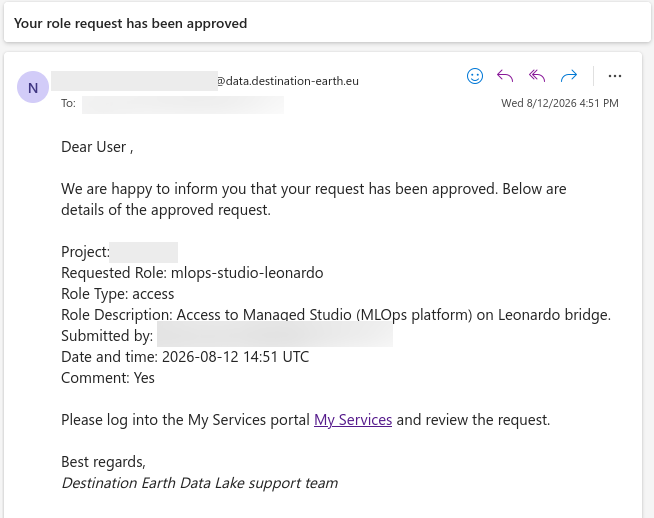
Email notification containing the operator’s decision and comment.
After the operator approves a role, open Role requests to review it. An approved request provides only the Details option; the Delete option is no longer available.

Click Details to review the decision and the operator’s comment in the portal.
Once approved, the role appears under Active roles.
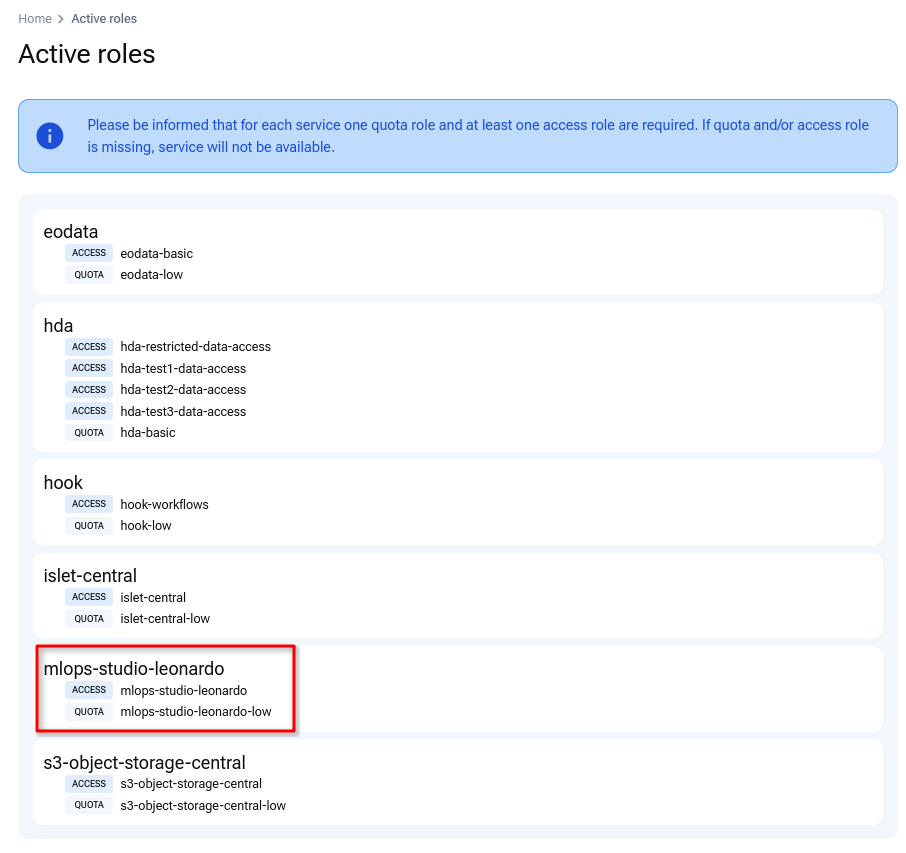
Open Access and then Active roles to see the approved access and quota roles for the MLOps Studio service.
Role request statuses
Status |
Meaning |
|---|---|
PENDING |
The request is waiting for operator review. |
APPROVED |
The request has been accepted and the role is active. |
REJECTED |
The request has been denied. Open Details to read the operator message. |
Change the MLOps Studio quota role
You cannot change the access role because there is only one access role for the mlops-studio-leonardo service. You can, however, change the quota role. For example, suppose that your current quota role is mlops-studio-leonardo-high, as shown under Active roles.
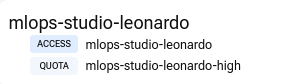
To request a different quota role, open Role requests and click Edit access in the row for mlops-studio-leonardo.
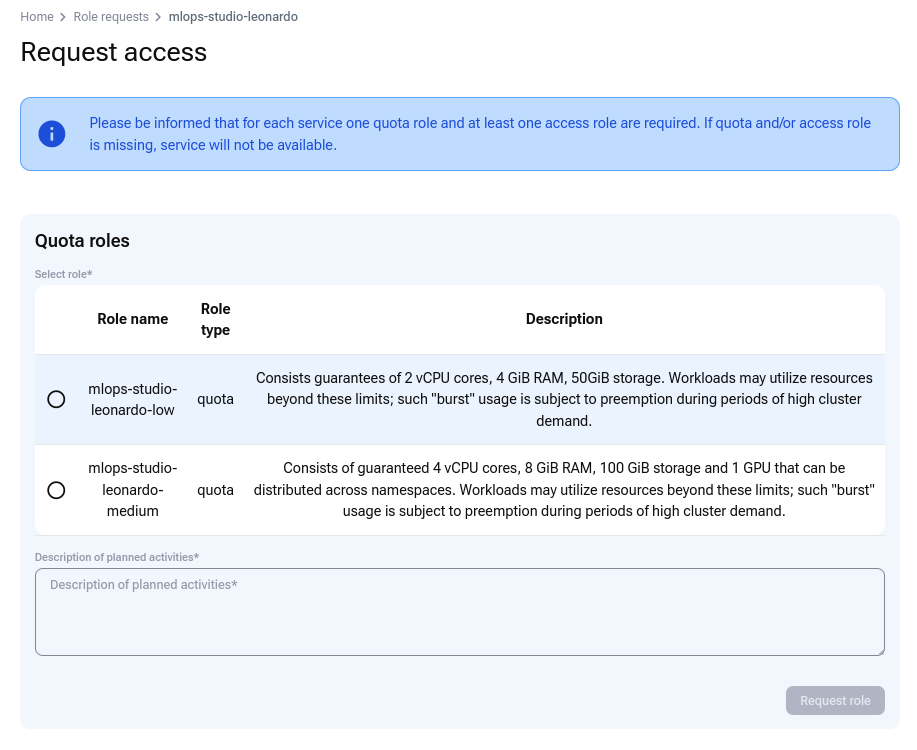
You can now choose from the quota roles available for the mlops-studio-leonardo service. If you already have mlops-studio-leonardo-high, you can request a change to mlops-studio-leonardo-medium or mlops-studio-leonardo-low.
After submitting the change, the new quota role request is marked PENDING.
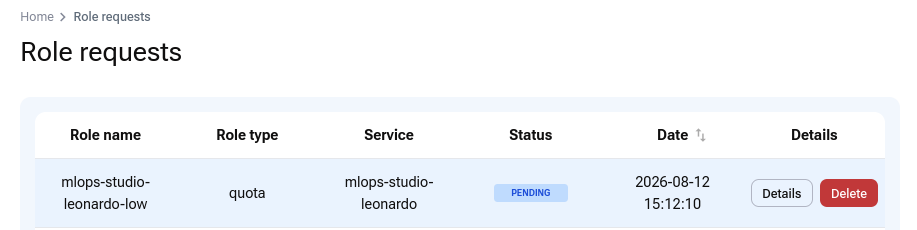
You can now:
delete the request before review,
wait for operator approval or rejection.
Click Details to read the operator’s response.
Delete a pending request
You may click on button Delete to delete a quota role request before it is reviewed. You are prompted to confirm or cancel the action.
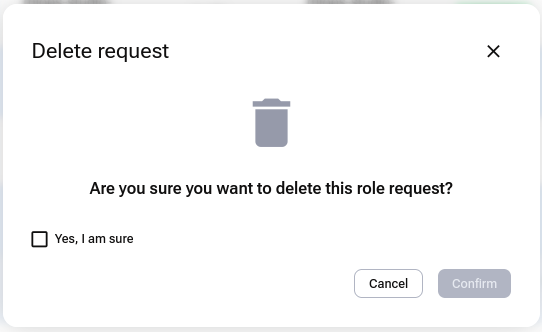
If you confirm, a message appears in the lower-right corner of your browser window.

The request is then marked REJECTED.
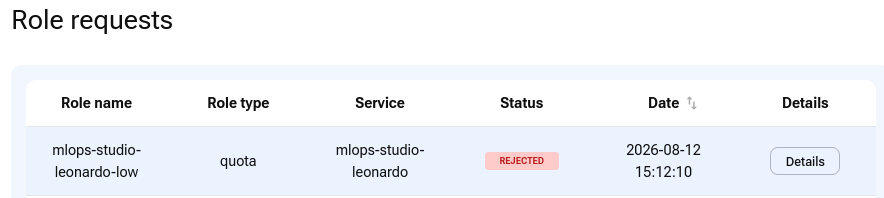
If you do not delete the request, the operator reviews it and in due time will let you know the decision. If approved, the request becomes APPROVED.
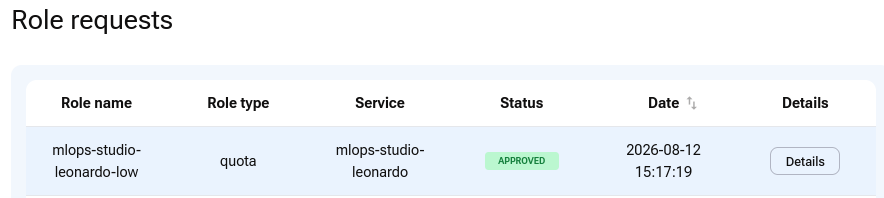
To verify the change, open Active roles and check that the selected quota role is now active.
Email notifications
Every role request update sends an email notification to the address used for your login.
Example of a notification email for a role status change.
You can use the search mechanism in your email client to track quota status changes for My DataLake Services.
Remove access to MLOps Studio
For each service, one quota role and at least one access role are required. If the quota role or access role is missing, the service is not available.
To remove access to the mlops-studio-leonardo service, open User & privileges and click the gear icon to see the active access roles.
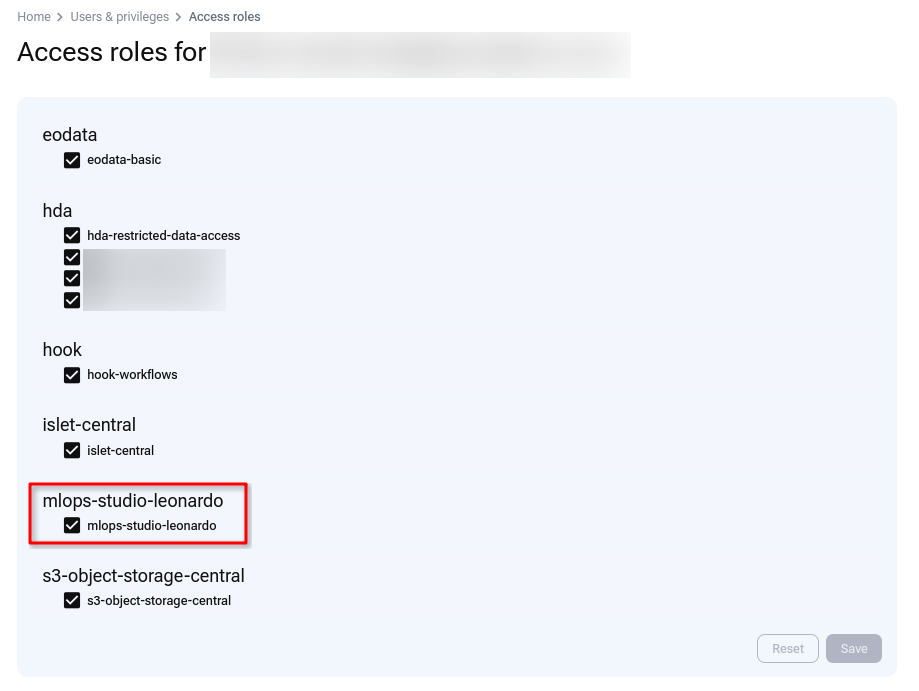
Clear the checkbox next to the mlops-studio-leonardo access role.
After you change the selection, the Save button becomes active.
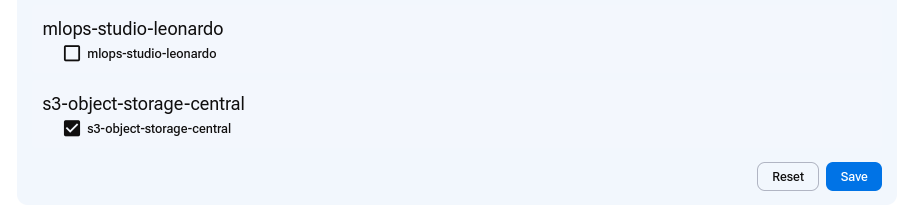
Click Save.
A confirmation message appears in the lower-right corner of the browser window.

There is now no active access role for the mlops-studio-leonardo service.
To verify this, open Active roles. The service may still show a quota role, but without the access role MLOps Studio is not available.

Open MLOps Studio after approval
Once the mlops-studio-leonardo service has both access and quota roles approved, a new icon becomes active in the left-side menu.
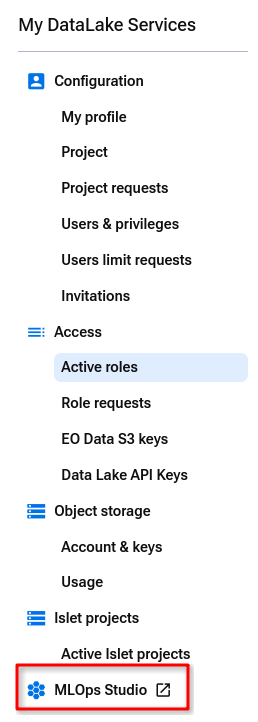
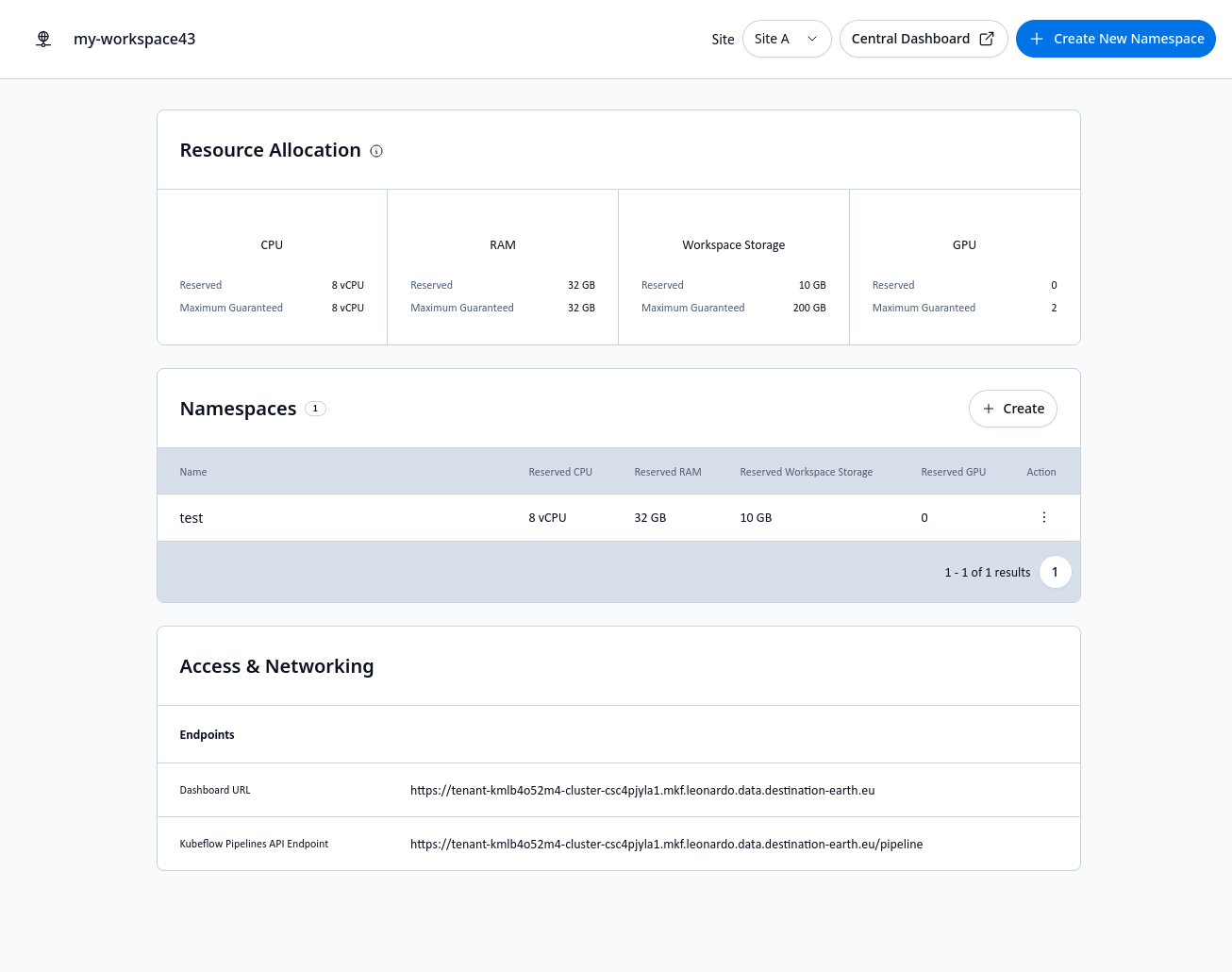
Click the icon to open MLOps Studio. You are then taken to the MLOps Studio workspace, where you can continue with namespace creation and workload setup.
Delete your My DataLake Services account
If you want to stop being an owner of a My DataLake Services account, use the Delete account button from the Profile page.
What to do next
After MLOps Studio access is approved, continue with the MLOps Studio workspace documentation.
Open the MLOps Studio workspace: Access the MLOps Studio workspace
Invite colleagues to your project: How to invite a user to a project on My DataLake Services
Manage project membership: How to manage users within a project on My DataLake Services