How to request roles for Stack Dask on My DataLake Services
Dask is a Python library for parallel and distributed computing, especially well-suited for handling large Earth Observation datasets like EODATA. It enables scalable, chunked, out-of-core computation on data that doesn’t fit in memory — perfect for satellite imagery, time series, and EO pipelines.
Within DEDL, you can run DASK on JupyterLab environment.
Roles determine which features of the Destination Earth Cloud platform you can access. This article explains how to request roles for the stack-dask service on My DataLake Services.
What we are going to cover
Prerequisites
No. 1 Account
You need a profile on My DataLake Services: How to create a profile on My DataLake Services.
No. 2 Administrative privileges within a project
You need to be a member of a project and have administrative privileges in it. That project must be accepted by an operator of My DataLake Services.
To learn how to create a project, check How to create a project on My DataLake Services.
Alternatively, you can join an existing project. In that case, the project administrator can grant you administrative privileges.
Enabling stack-dask service
There are two ways to set up any service, one is while creating a project and the other afterwards, from the Role requests menu.
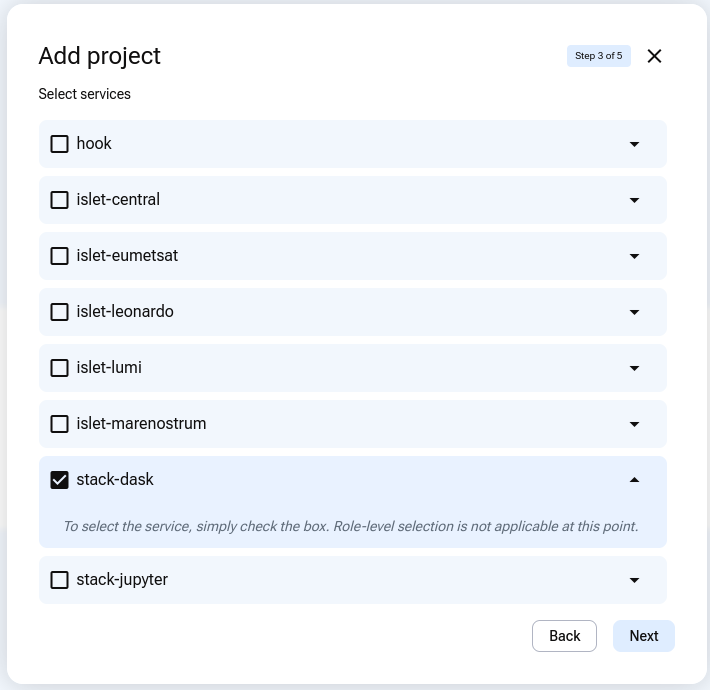
Start creating project as described in Prerequisite No. 2. Mark the stack dask checkbox:
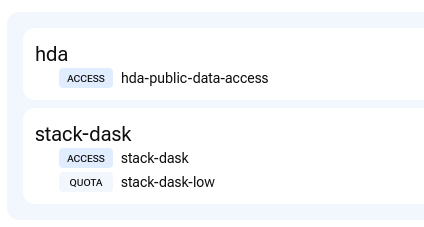
Finish creating the project, waiting for operator and all. In Active roles you will see two roles active:
hda, the one that is the default in all projects and
stack-dask, the one that was created with the project itself.
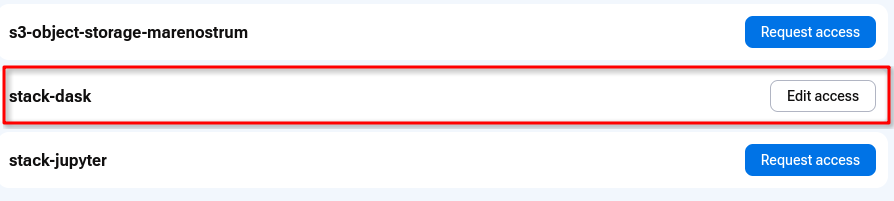
In option Role requests, the stack-dask service will already be marked with a button Edit access.
Choosing which role to request
The other way is creating a blank project, that is, with just the hda default role. It can also be any project in which you do not directly mark the stack dask role. Navigate to Role requests:
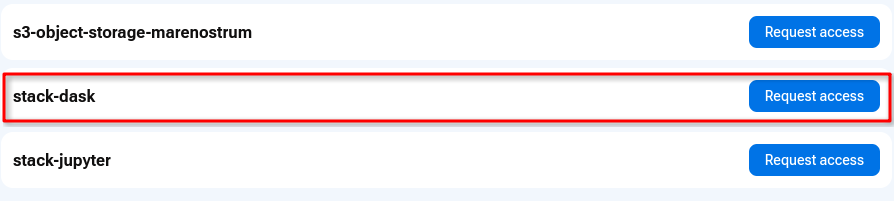
If you do not already have access to stack-dask, click the Request access button.
Tip
If the service does not appear, verify that your project has been approved by the operator.
You’ll be taken to a page titled Request access, divided into two sections: Access roles and Quota roles. You will need to fill both of these forms.
Access roles
For stack-dask service, there is only one access role:
- stack-dask
Access to Stack Dask Service (SaaS)
Even though only one access role exists, you must explicitly select it to proceed.
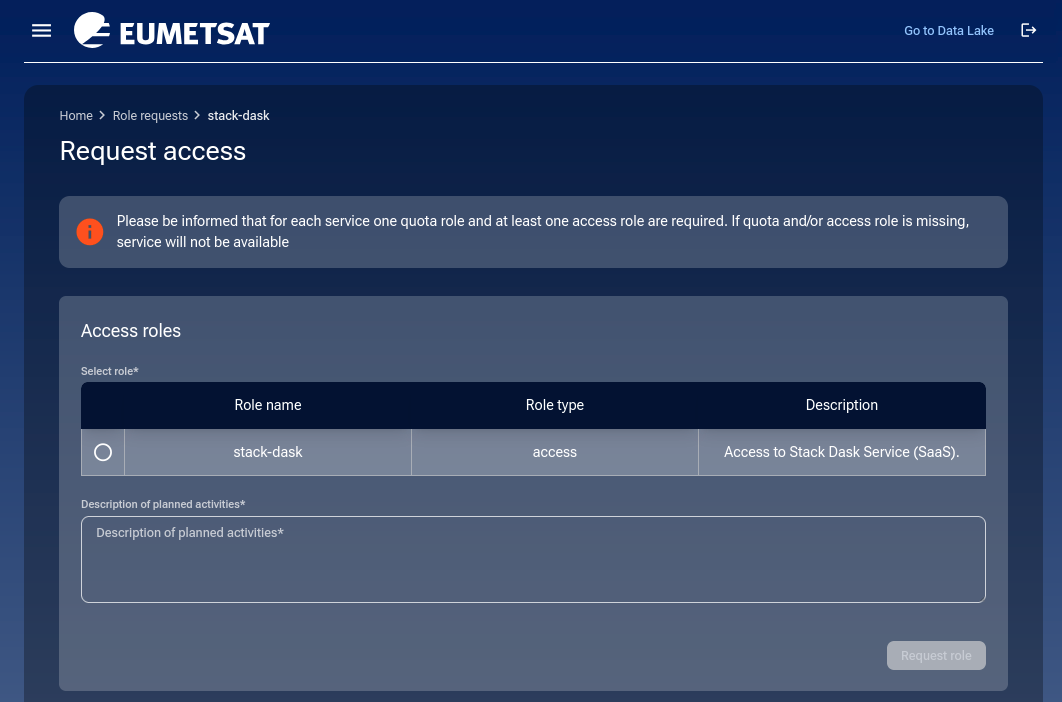
It is mandatory to enter text into field Description of planned activities.
Once you click on button Request role, another part of the screen scrolls up, this time to request quota role.
Quota roles
For stack-dask service, there are three quota roles:
- stack-dask-low
Low quota for Stack Dask Service. Consists of 1 core and 2 GB RAM.
- stack-dask-medium
Medium quota for Stack Dask Service. Consists of 4 cores and 8 GB RAM.
- stack-dask-high
High quota for Stack Dask Service. Consists of 12 cores and 24 GB RAM.
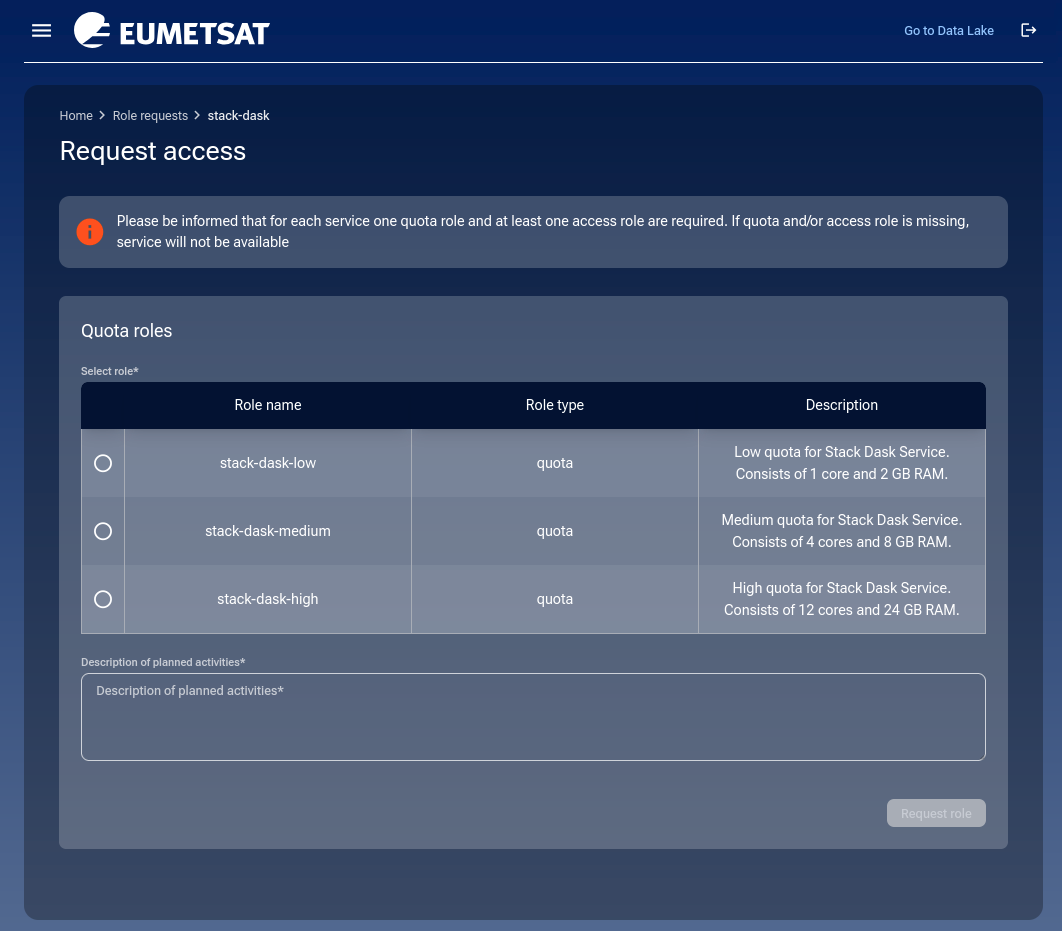
Click on Select role circle to choose.
It is mandatory to enter text into field Description of planned activities.
Finish with clicking on Request role and you will see a list of your requests.
List of role requests
Once submitted, your request appears in the Role requests section. Here are the latest two, for stack-dask service:
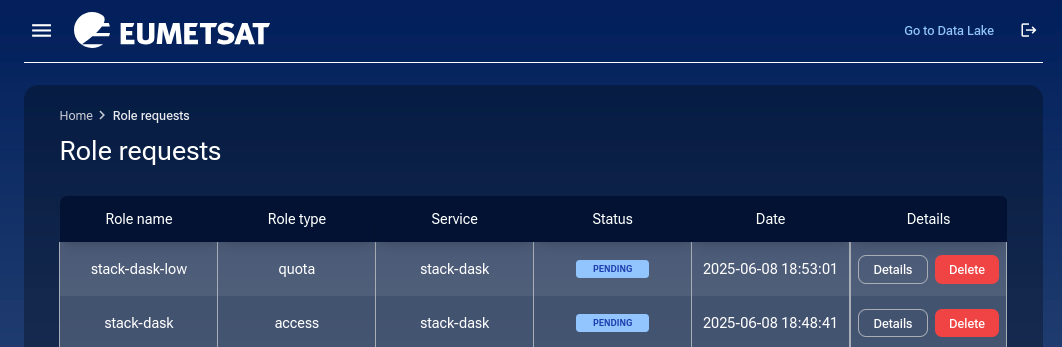
Buttons Details and Delete are described in detail in the later part of this article.
Operator approval
The next phase is waiting for the DEDL operator to approve (or disapprove) your requests. When approved, you will see it in the list of Active roles.
List active roles
With option Access -> Active roles from the left side menu, you can see the existing active roles:

List role requests
Another option, Role requests shows the history of requested roles:
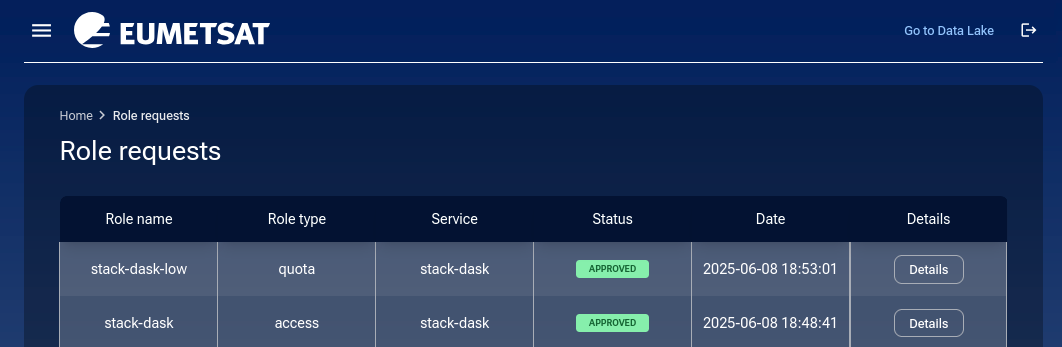
Click on Details button to see the exact details of, say, stack-dask role:
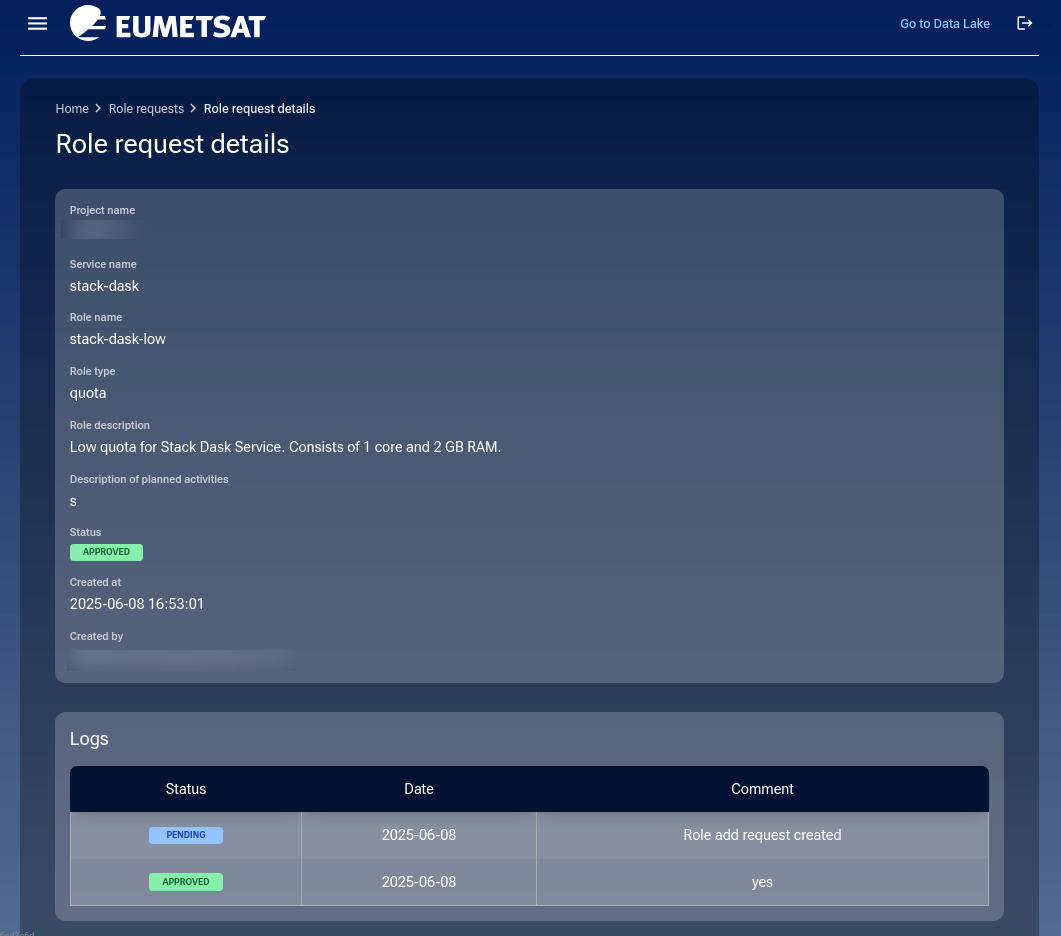
This shows the submitted form, quota selection, and any comments from the operator.
How to change roles for stack-dask service
It is possible to change the role you already have for another one that is available for the service. If there was only one role to start with, it is not possible to change it for something else. Concretely, there is only one access role for stack-dask service, so you cannot change it. However, there are three quota roles and there you can request for a change.
Users often downgrade their quota if their usage is light or for cost control. So, if you initially selected stack-dask-high and this is what you see in Active roles:
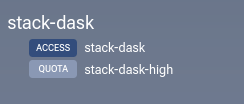
Now that you want to lower your quota to stack-dask-low, click on Role requests to see all active services and click on the Edit access button next to stack-dask:
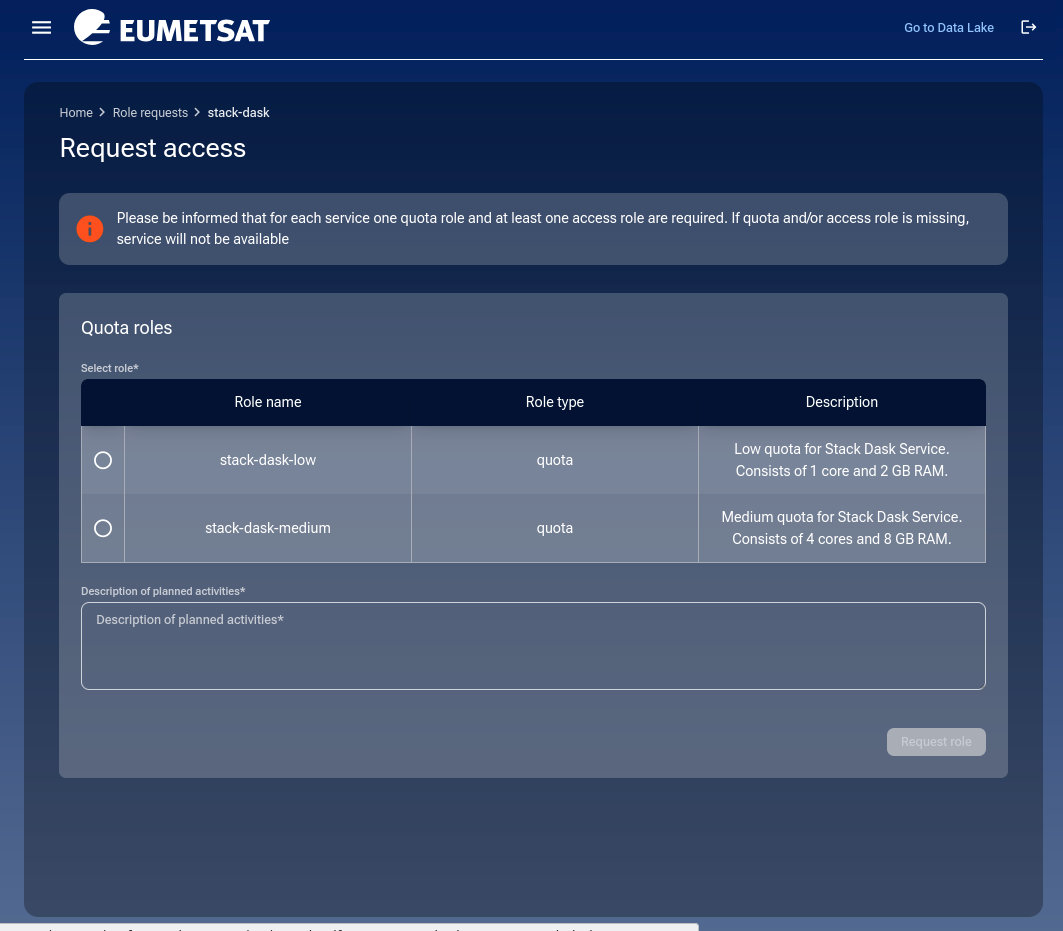
There is a total of three quota roles and you already have the high one, so you can now choose from the other two, for stack-dask-low and stack-dask-medium access.
Click on the Select role column and enter some text into field Description of planned activities. Once the form is filled, the Request role button becomes active. Click it to continue. In the list of role requests, a new request to the operator will appear as PENDING:
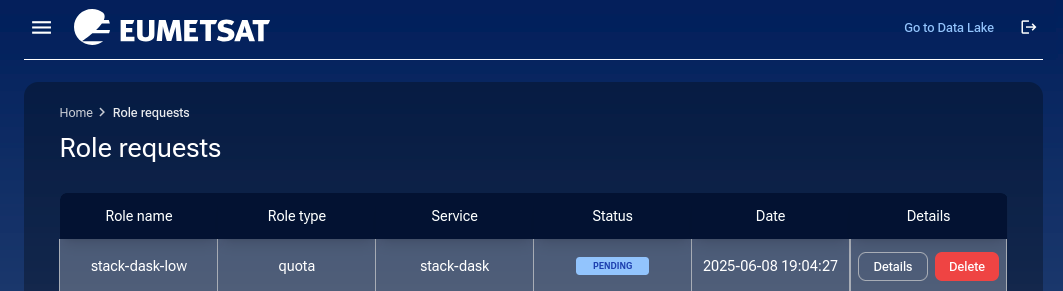
There are two options now available for that request:
- Details
This is the standard option for all requests.
- Delete
This is the new option, with which you can delete the request before the operator sees it.
You will have a chance to cancel or confirm:
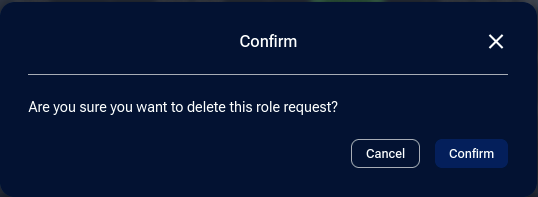
If you confirm, a message will appear in the bottom right corner of the browser window:

The request status will be marked as REJECTED, which in this case means that it was user-deleted — not rejected by the operator.
If not deleted by the user, the request will in due time appear before the operator, who will approve it or reject it.
In case of approval, the role request will become APPROVED:
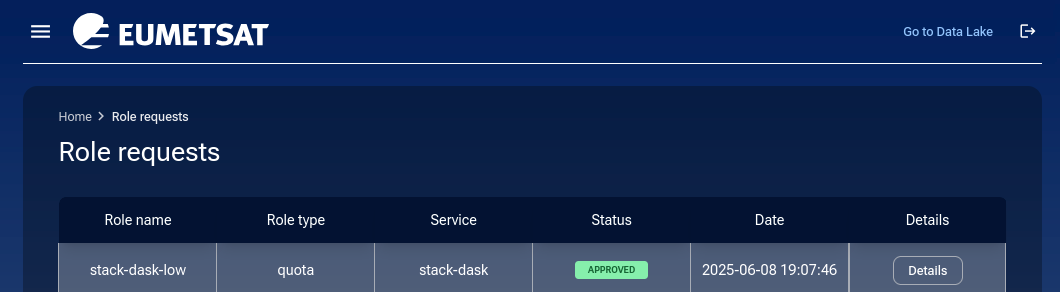
Click on Active roles to verify that the quota has changed to low:
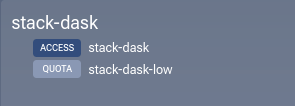
If rejected, you will, under Details, see the message that the operator sent you.
Email messages
For each change in status of a service, you will get an email message to the email address you are using to log in. It looks like this:
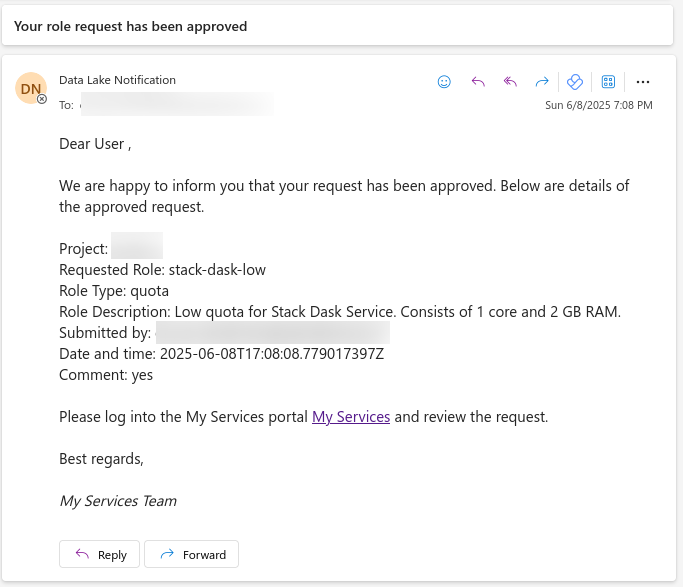
Using the search mechanism in your email client, you should be able to register every change in quota status for any service in My DataLake Services.
How to remove access to a service
For each service, one quota role and at least one access role are required. If quota and/or access role is missing, service will not be available. To eliminate access role for the stack-dask service, click on User & privileges to see access roles that are active:
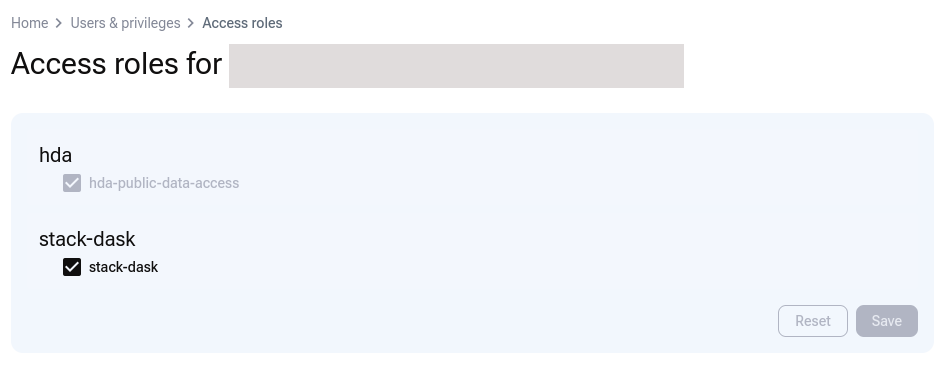
Now click on checkbox near stack-dask, which will make it inactive while the Save button is now active.
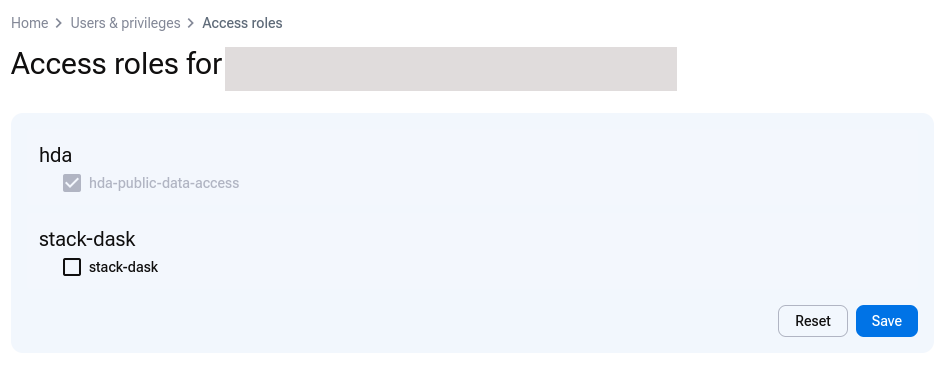
Click on Save produces a message in lower right corner:
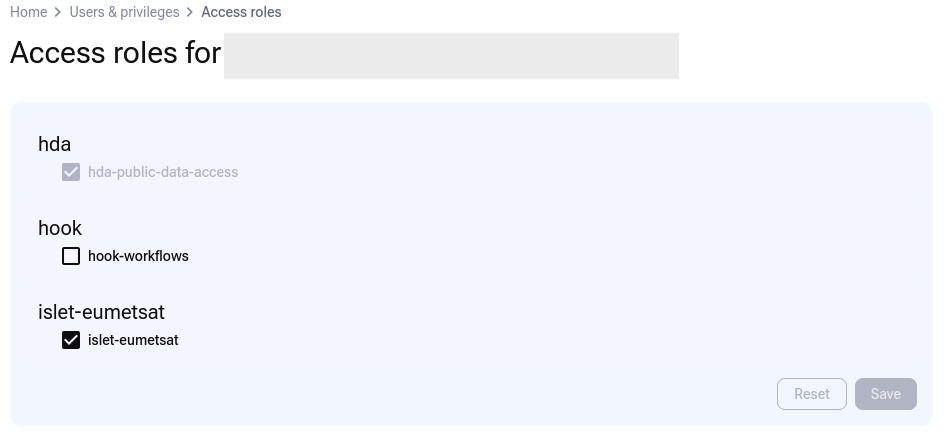
and the now there is no active access role for stack-dask service. To verify, click on Active roles and see that stack-dask only has a quota role but not the access role, meaning, it cannot access the data.

How to delete the account
If you want to stop being an owner of a My DataLake Services account, you use Delete account button from the Profile page. See How to create a profile on My DataLake Services.
What To Do Next
Your approved roles enable you to begin working with Stack Dask on DEDL. Start using the Stack Dask service by visiting the dedicated setup page with the allocated quotas.
Also of interest:
How to invite a user to a project on My DataLake Services
How to manage users within a project on My DataLake Services
See status page for Destination Earth Data Lake stack dask services.