Kubernetes Persistent Volume Claims
A PersistentVolume (PV) represents storage available to a Kubernetes cluster. A PersistentVolumeClaim (PVC) requests that storage for an application. A pod can mount the volume through its PVC and keep data beyond the lifetime of the pod.
On Destination Earth, Magnum Kubernetes clusters use the OpenStack Cinder CSI driver to provision block storage volumes. The example below creates a PVC, writes a file from a pod, and reads the same file after recreating the pod.
What we are going to cover
Prerequisites
No. 1 My DataLake Services access and an active Islet project
Start with My DataLake Services. Your My DataLake Services project needs approved access and quota roles for the selected Islet site; follow How to request roles for Islet service on My DataLake Services. Then use How to create Islet projects on My DataLake Services to create the OpenStack project. Wait until its status is ACTIVE and confirm that you can open it in Horizon.
No. 2 OpenStack application credentials and CLI access
Install and configure the OpenStack client and its Magnum plugin by following How To Install OpenStack and Magnum Clients for Command Line Interface to Destination Earth Horizon. Install python-openstackclient and python-magnumclient in the same Python virtual environment and activate that environment. Confirm that openstack coe cluster list --help displays command help. If it reports an unknown command, the selected OpenStack executable cannot load the Magnum plugin.
Use How to generate or use Application Credentials via CLI on Destination Earth to create and configure an application credential for the active Islet project. Store the credential ID and secret securely, and load the OpenStack authentication settings in your terminal.
No. 3 Running Kubernetes cluster
Create a cluster by following How To Use Command Line Interface for Kubernetes Clusters OpenStack Magnum. Confirm that openstack coe cluster list shows your cluster in the selected project. A running cluster may show CREATE_COMPLETE or UPDATE_COMPLETE; the latter is the status reported by the DEDL Central cluster used for the inspection examples below.
No. 4 kubectl and kubeconfig
Follow How To Access Kubernetes Cluster Post Deployment Using Kubectl OpenStack Magnum to install kubectl, download the cluster credentials, and set KUBECONFIG. If downloading credentials with openstack coe cluster config, supply the cluster name or UUID. An existing working kubeconfig can be reused.
Confirm that kubectl config current-context selects the intended cluster and kubectl get nodes -o wide lists its nodes as Ready. OpenStack credentials and kubeconfig configure access to different APIs; setting KUBECONFIG does not authenticate the OpenStack client.
No. 5 Namespace and storage quota
The examples use the default namespace. Allow for one additional Cinder volume of 1 GiB, any applicable namespace storage quota, and enough resources to run one pod. Use the example names my-pvc and mypod only if they are unused in default. If using another namespace or names, change them consistently in both YAML files and every command below. The pod and its PVC must be in the same namespace.
Cinder volume access
Cinder CSI provisions an OpenStack block storage volume for the PVC. This example requests ReadWriteOnce (RWO), which permits read and write access from one node. Multiple pods on that node can use the volume; RWO does not mean one pod only.
Step 1: Inspect the Cinder CSI driver
Check that the Cinder CSI driver is available in your cluster:
kubectl get csidriver cinder.csi.openstack.org
The output should list cinder.csi.openstack.org.
Step 2: Select the StorageClass
A StorageClass defines how Kubernetes provisions volumes for a PVC. List the available classes:
kubectl get sc
The command lists the block-hdd StorageClass:

The block-hdd StorageClass.
Use block-hdd, which provisions volumes through cinder.csi.openstack.org.
The Immediate binding mode starts volume provisioning when the PVC is created.
Step 3: Create the PersistentVolumeClaim
Save the following YAML as dynamic-storage.yaml. It requests 1 GiB of storage from block-hdd.
apiVersion: v1
kind: PersistentVolumeClaim
metadata:
  name: my-pvc
  namespace: default
spec:
  accessModes:
    - ReadWriteOnce
  resources:
    requests:
      storage: 1Gi
  storageClassName: block-hdd
Create the claim and inspect its status:
kubectl apply -f dynamic-storage.yaml
kubectl get pvc my-pvc -n default
The Bound status means that a volume has been assigned to the claim.

my-pvc bound to a 1 GiB volume.
Step 4: Mount the volume in a pod
Save the following YAML as check.yaml. The pod uses an Nginx Linux container and mounts my-pvc at /var/www/html inside the container.
apiVersion: v1
kind: Pod
metadata:
  name: mypod
  namespace: default
spec:
  containers:
    - name: check
      image: nginx
      volumeMounts:
        - mountPath: /var/www/html
          name: check
  volumes:
    - name: check
      persistentVolumeClaim:
        claimName: my-pvc
Create the pod, wait for the PVC to bind, then wait for the pod to become ready:
kubectl apply -f check.yaml
kubectl wait --for=jsonpath='{.status.phase}'=Bound pvc/my-pvc -n default --timeout=300s
kubectl wait --for=condition=Ready pod/mypod -n default --timeout=300s
kubectl get pvc my-pvc -n default
kubectl get pv
The PVC must show Bound, a capacity of 1Gi, access mode RWO, and block-hdd in the STORAGECLASS column. Its VOLUME field identifies the PV.

mypod ready with my-pvc bound to its persistent volume.
In Horizon, open Project > Volumes > Volumes to inspect the Cinder volume created for the claim. The following screenshot illustrates a provisioned volume.
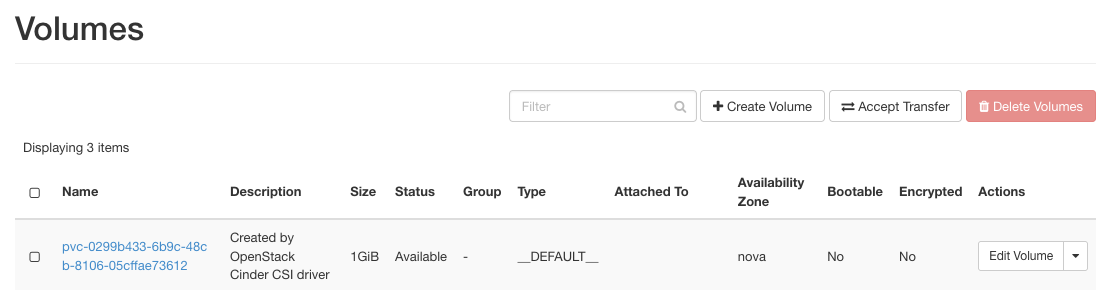
The Cinder volume attached to the worker node in Horizon.
If either wait command times out, inspect the claim and pod events before continuing:
kubectl describe pvc my-pvc -n default
kubectl describe pod mypod -n default
Check the events for an unknown StorageClass, insufficient quota, volume-provisioning or attachment errors, scheduling failures, or an image-pull failure. A timeout does not remove the resources. Correct the reported problem and repeat the readiness checks before writing data.
The output of these commands may span dozens and hundreds of line in the terminal.
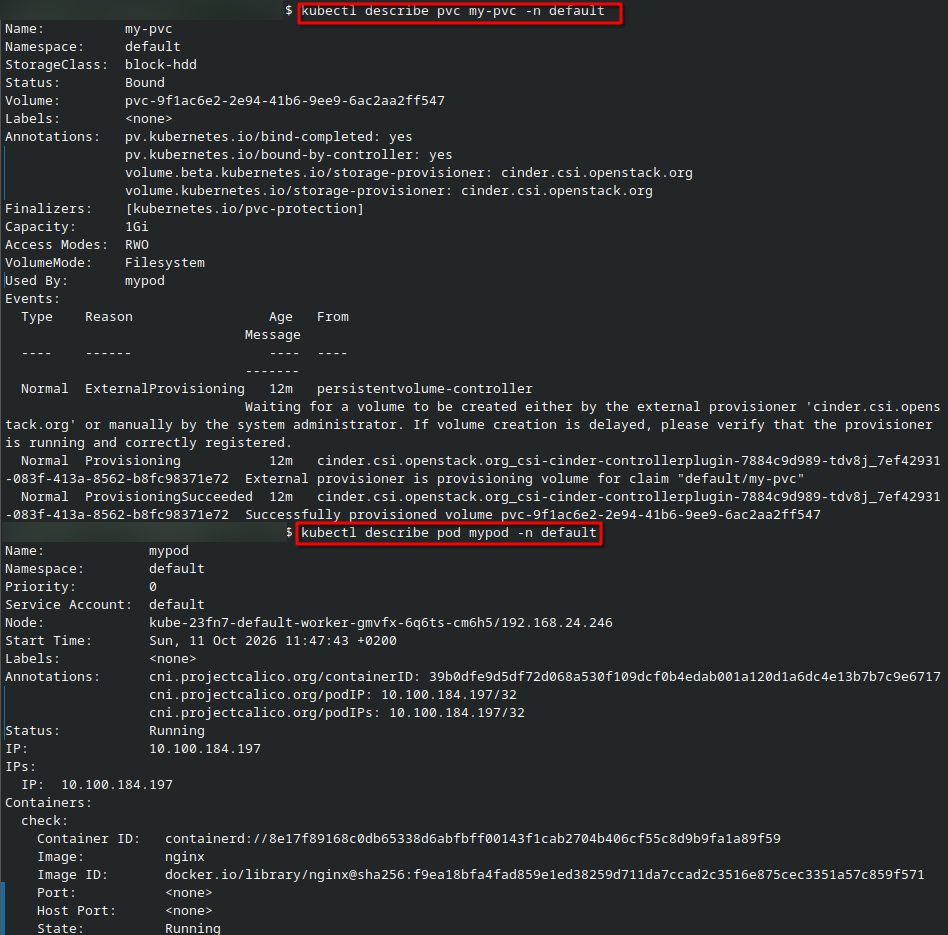
Details and events for my-pvc, followed by details for mypod.
Step 5: Write and read a file
Run both commands from your local terminal. kubectl exec executes each command inside the pod and then returns to the local shell:
kubectl exec -n default mypod -- sh -c 'printf "%s\n" "PVC persistence test" > /var/www/html/example-file.txt'
kubectl exec -n default mypod -- cat /var/www/html/example-file.txt
The second command must print:
PVC persistence test

Writing and reading example-file.txt on the mounted volume.
Step 6: Recreate the pod and verify the file
Delete only mypod and wait for deletion to finish. Keep my-pvc and its volume:
kubectl delete pod mypod -n default --wait=true --timeout=120s
After deletion succeeds, use check.yaml from Step 4 to create mypod again. Run the following commands from the directory containing check.yaml. The first command creates the new pod, which mounts the existing my-pvc volume:
kubectl apply -f check.yaml
kubectl wait --for=condition=Ready pod/mypod -n default --timeout=300s
kubectl get pvc my-pvc -n default
kubectl exec -n default mypod -- cat /var/www/html/example-file.txt

The file remains available after mypod is recreated.
If deletion or readiness times out, inspect the pod events before proceeding. The PVC should still be Bound to the same PV. Without repeating Step 5, the final command must print PVC persistence test. This verifies that the file survived replacement of the pod. It does not test recovery from node loss or provide a backup of the volume.
Optional: Remove the example resources
Run these commands after completing the pod-recreation test, when the example data is no longer needed. The block-hdd StorageClass uses the Delete reclaim policy. Deleting my-pvc also schedules deletion of its PV and underlying Cinder volume, including the stored data.
kubectl delete pod mypod -n default --wait=true --timeout=120s
After pod deletion succeeds, delete the example PVC:
kubectl delete pvc my-pvc -n default
Remove only the resources created for this example.
What to do next
For storage concepts and access modes, see Persistent Volumes in the Kubernetes documentation. For provisioning and binding behavior, see Storage Classes. The OpenStack Cinder CSI guide describes driver configuration and usage.
Applications that need access to data from several nodes can also use S3 object storage or database persistence, with the appropriate application clients. Choose storage that matches the application’s access requirements.