Download an MSG SEVIRI native product from EUMETSAT for DEFAIR
Download an MSG SEVIRI Level 1.5 native-format product from the EUMETSAT Data Store and save it locally for the DEFAIR first-product example. This route uses your EUMETSAT account and its data licences. You can download the data before installing DEFAIR.
Step 1: Register an EUMETSAT account
Open the EUMETSAT login page. Below Log in, find Don’t have an account? and select Register - Create new account. If you already have an account, sign in and continue to Step 2. My DataLake Services S3 credentials do not replace this account.

The EUMETSAT login page
Open the registration form and complete the account registration.

The EUMETSAT account registration form
EUMETSAT then sends you two emails: one to confirm your email address, and one with a link to the EUMETSAT User Portal, where you can update your contact details and manage your service subscriptions and data licences.
Step 2: Check the collection
Open High Rate SEVIRI Level 1.5 Image Data - MSG - 0 degree in the Data Store and check the collection title and identifier.

The Data Store collection for High Rate SEVIRI Level 1.5 Image Data at 0 degrees
The MSG SEVIRI data guide describes the different SEVIRI services.
Step 3: Obtain the data licence
Registering an account does not give you access to every collection. MSG SEVIRI Level 1.5 data needs the Meteosat > 1 hr latency & Metop licence. Most licences are free, but fees can apply to some uses, so check the terms offered for your request. EUMETSAT’s Data registration and licensing guide explains each licence and lists the data it covers, MSG SEVIRI Level 1.5 among them:

The data covered by the licence for Meteosat Level 1 data, in the licensing guide
Request the licence from your account. Open My Data Licences in the EUMETSAT User Portal and, under Licences you can request, request the Meteosat > 1 hr latency & Metop licence and accept its terms. Once it is active, it is listed under My licences with its status and validity:
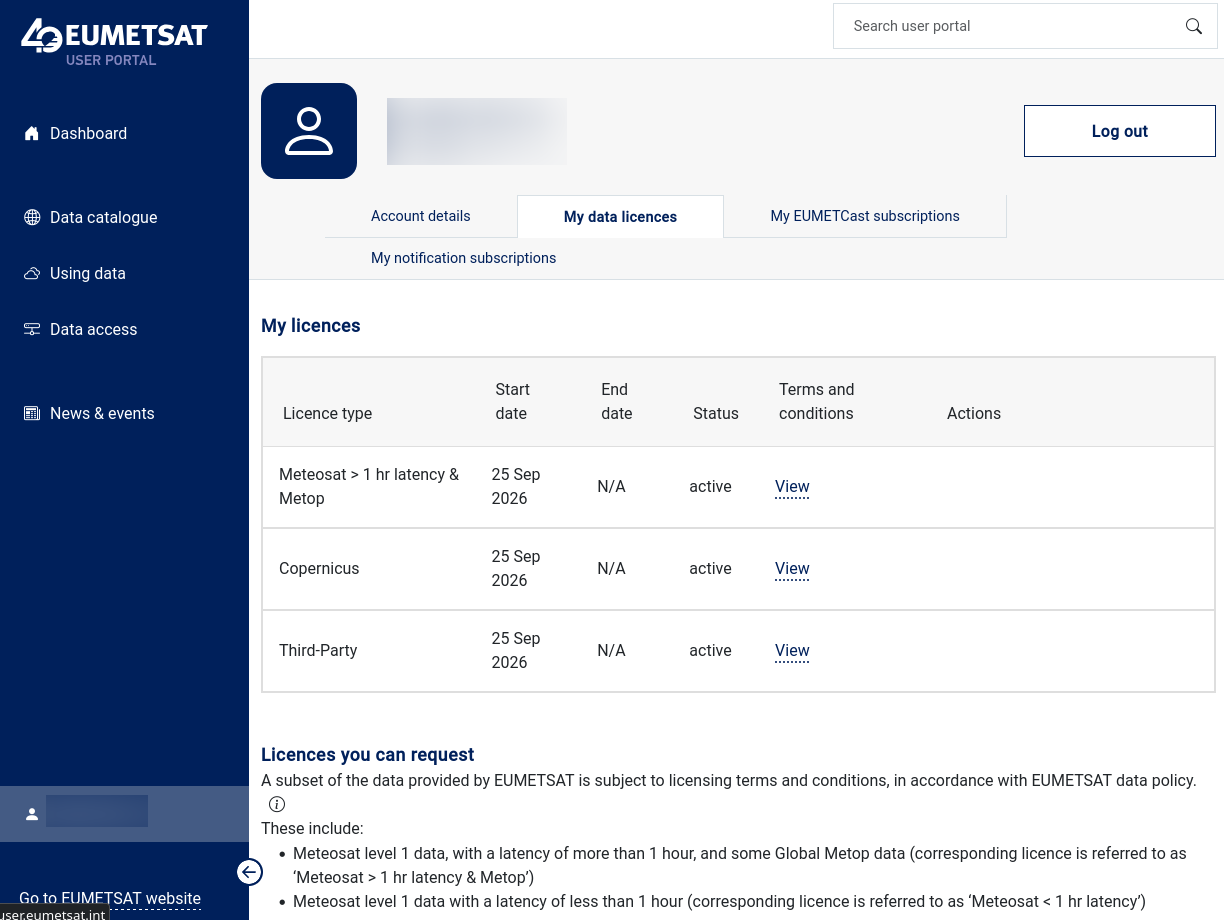
Your licences, with their status and validity
EUMETSAT also confirms the licence by email:

The email confirming the licence
After the licence is active, log out of the Data Store and log in again. EUMETSAT advises allowing up to one hour for the change to take effect. If a download is still unavailable, see the Data Store licensing troubleshooting guidance.
Step 4: Open the SEVIRI collection
Open the collection’s page in the EUMETSAT User Portal:
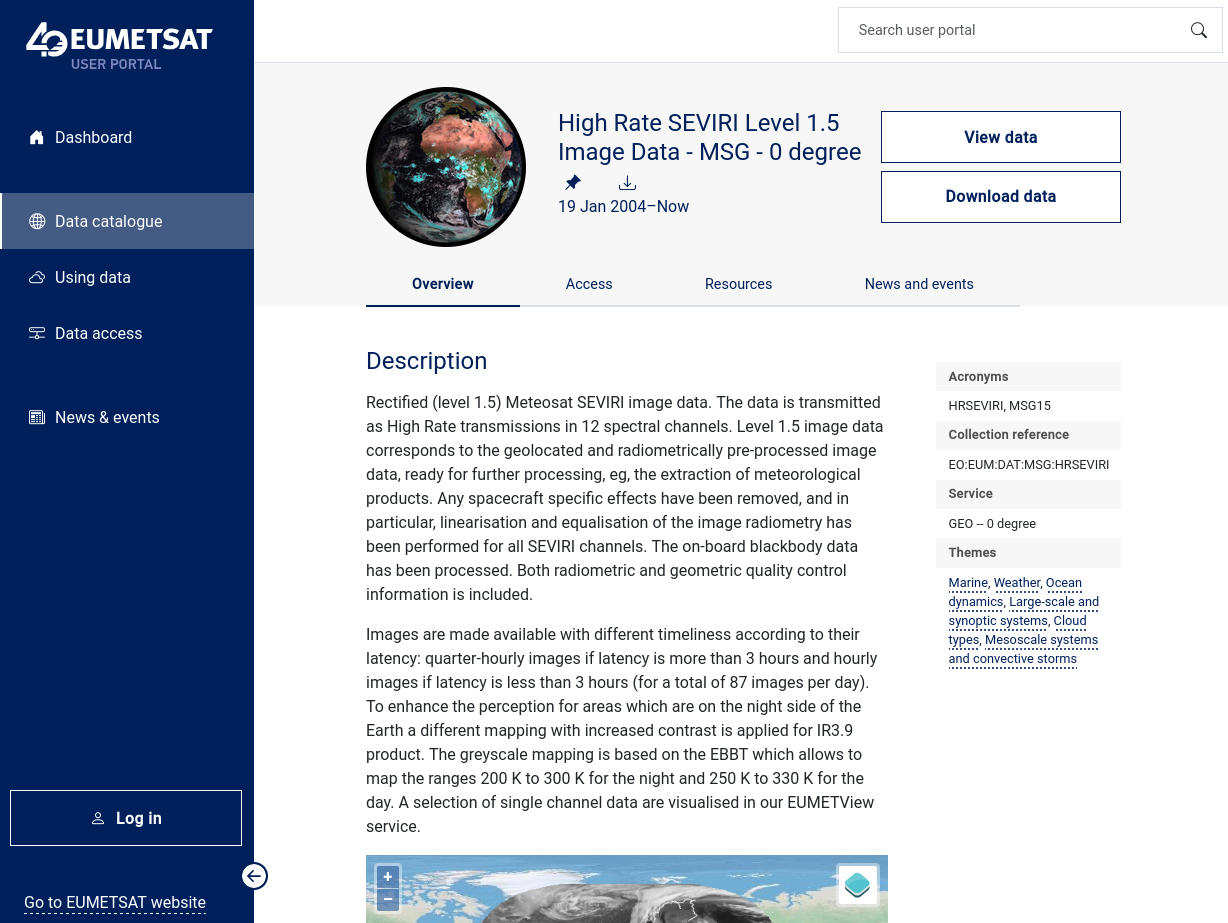
The collection page in the EUMETSAT User Portal
On the Access tab, select Download in the Data Store row:

The Download button in the Data Store row
Then choose the period of time in which to look for files:

Choosing the period of time
Warning
You can download files only when you are logged in and have accepted the licence for the collection.
Step 5: Find a native-format observation
Filter the sensing dates to 16 October 2025, in UTC.

Selecting a product in the time period
Filter that day from 15:27 to 19:27, then pick the product from 17:27. It is the sample that Read your first product uses:
MSG3-SEVI-MSG15-0100-NA-20251016172744.081000000Z-NA
If a licence message blocks the download, go back to Step 3. Being able to browse a product does not mean you are allowed to download it.
Step 6: Download the native data
Select the cart icon, then choose what to download:

Downloading the selected product in its native format
The file usually ends up in your Downloads folder, depending on your operating system. It is a zip file of about 160 MB.
Step 7: Put the image in your working folder
Make the working folder that Read your first product uses:
mkdir defair-first-steps
Unpack the zip file. Depending on your unzip tool, its contents land
directly in the folder you unpack into or in a sub-folder named after
the product. Find the image file,
MSG3-SEVI-MSG15-0100-NA-20251016172744.081000000Z-NA.nat, about 271
MB, and move it into defair-first-steps with its file name
unchanged. Renaming a file of another format to .nat does not turn
it into native data.
When you use JupyterLab on a remote server, upload the image into
defair-first-steps on that server. A file downloaded to your laptop
is not automatically available to the remote kernel.
What to do next
Continue with Read your first product at its
Read the file section: you already have the image, so skip the HDA
download in Get the sample. Run the code from defair-first-steps.
The code on that page, the first test script it offers and Run your
first workflow then work as written.
If you downloaded a different observation, use its file name in place of
the sample’s: in Dataset.from_source(), and in the workflow’s
inputs > source > path. Keep the reader name msg15nat.
Do not rename a different observation to the sample’s name just to avoid
editing these paths.